Open a Plan app that several teams share and Explorer lists every sheet you have access to. For the person who built the app, that’s fine. For a sales manager who opens it twice a month, it’s a long list with no obvious place to start. And someone who wears two hats, say sales and HR, gets both lists mixed together.
Home Layout gives each security role its own landing page with its own sheets, so sales lands on a sales page and HR on an HR page in the same app.

Here’s one built for a sales manager. The numbers match the callouts below.
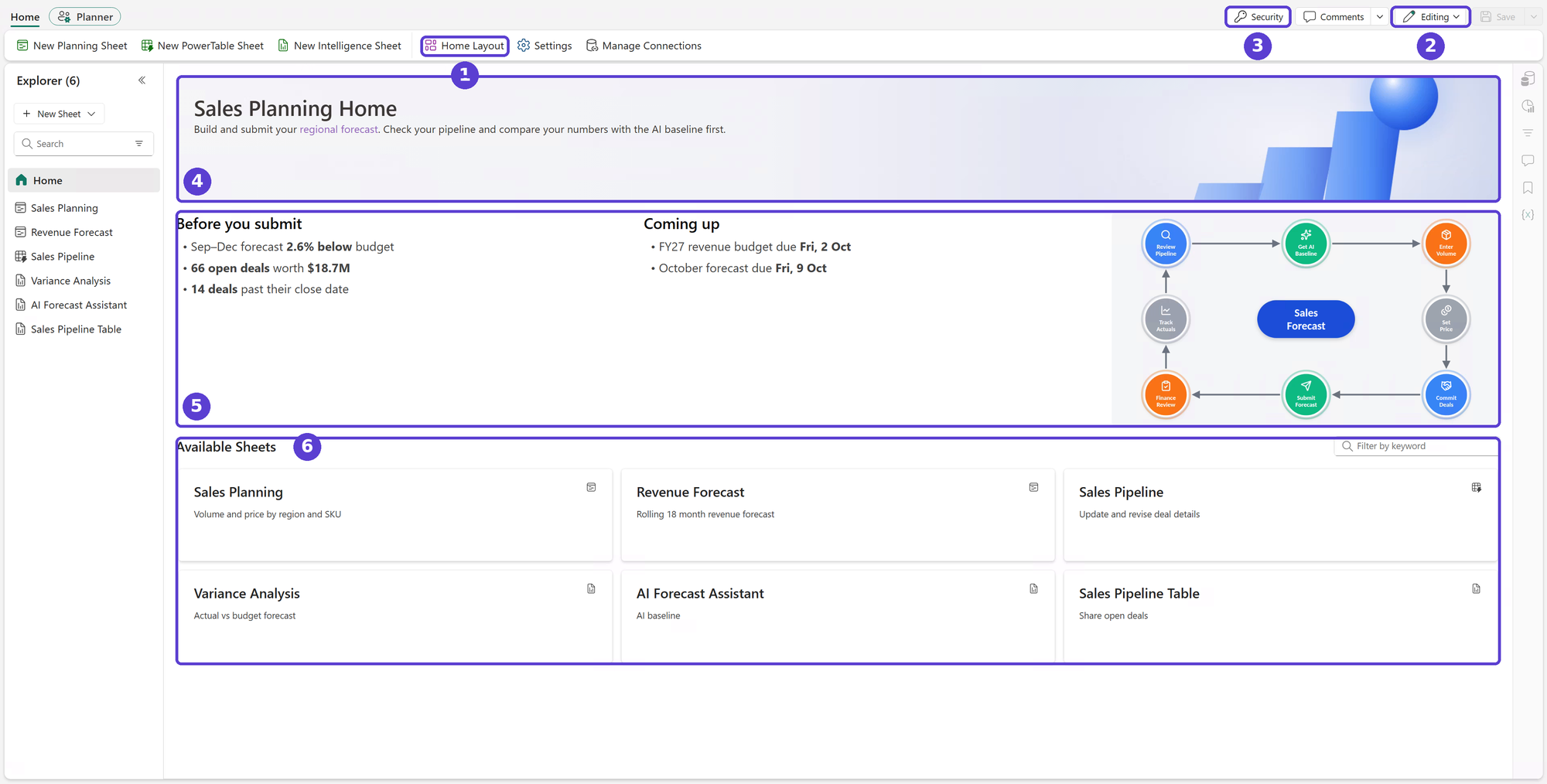
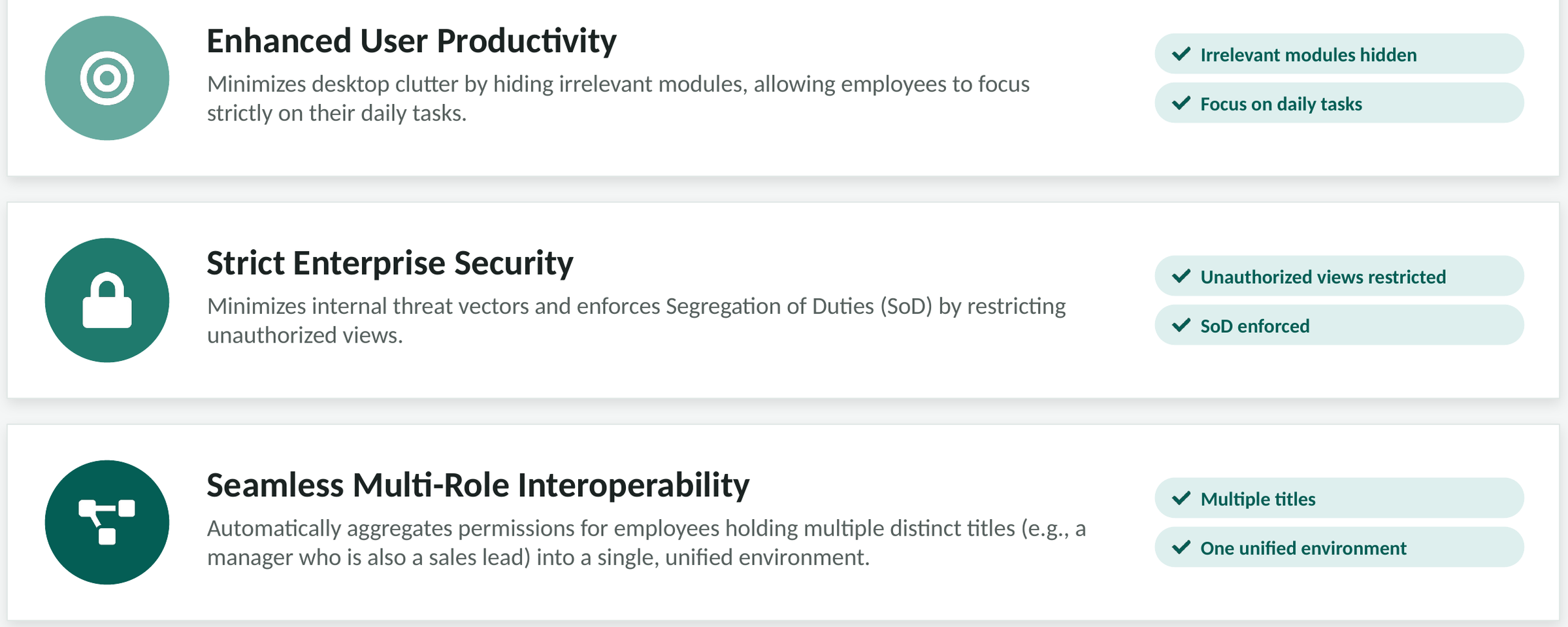
Each role sees the sheets meant for it. When finance, sales and HR share one Plan app, that helps keep unauthorized views out of reach and supports segregation of duties. People also spend less time wading through modules they don’t use.
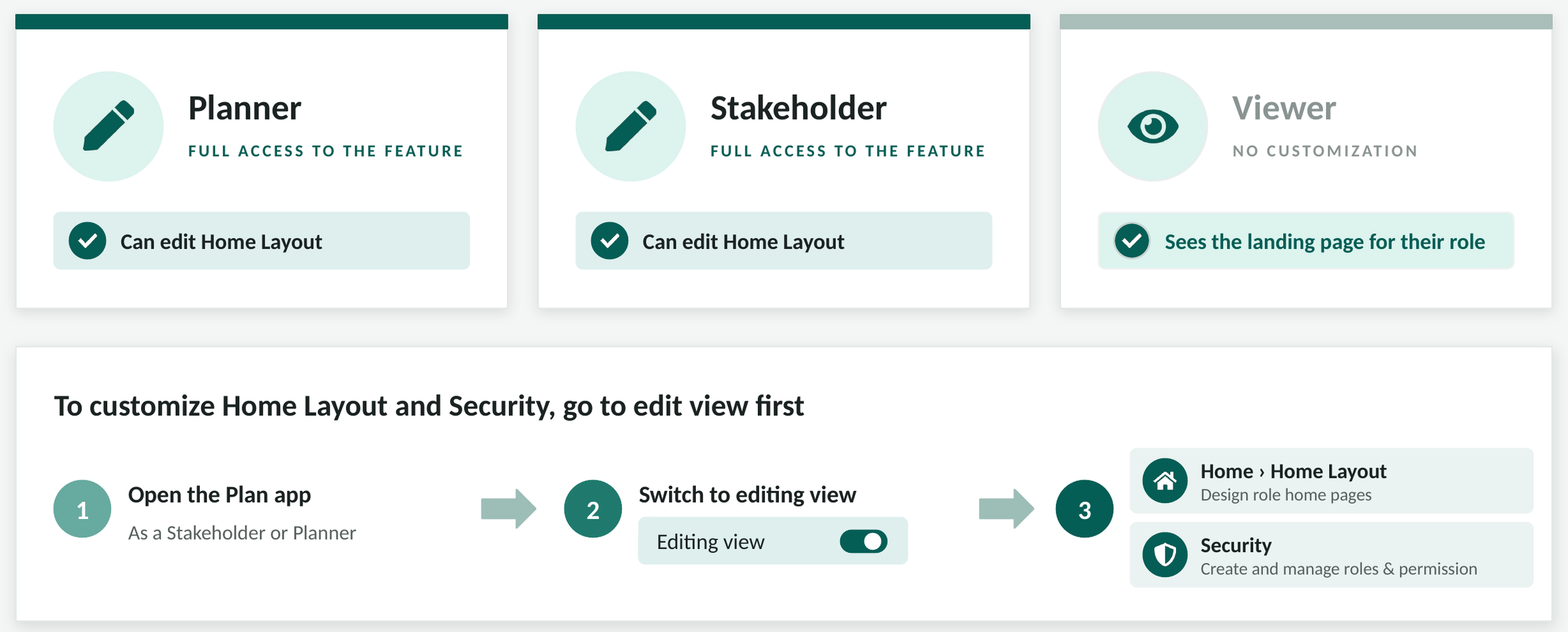
Anyone in a Stakeholder or Planner session can edit Home Layout. Viewers can’t change it; they see the page for their role. Admins decide who can open Stakeholder or Planner sessions in the first place, so page design stays with the people you’ve picked.
To change Home Layout or Security, switch to editing view first. Home Layout is on the Home tab and Security is at the top right.
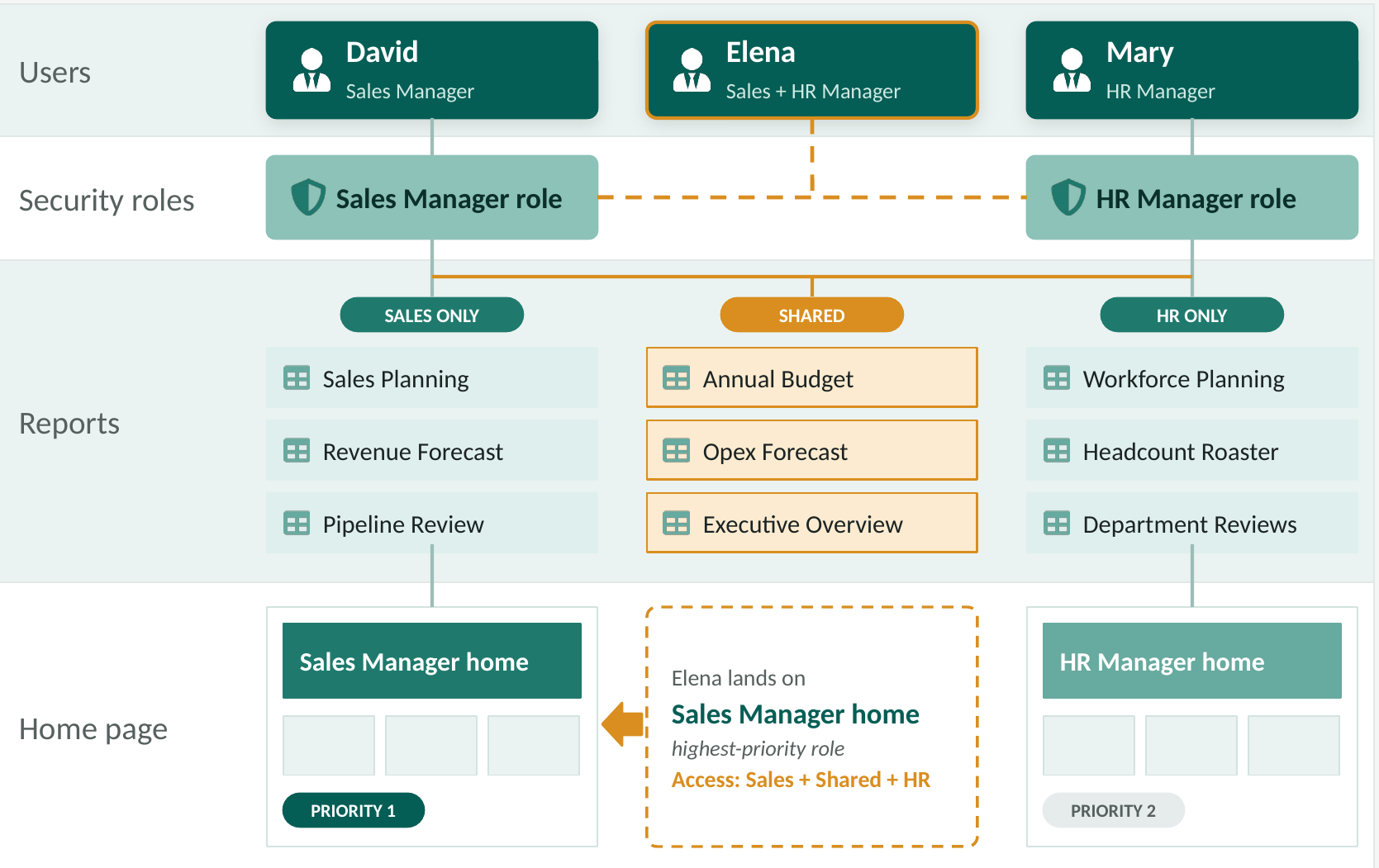
Real org charts aren’t tidy. David is a sales manager and Mary runs HR. Elena does both, so she holds both roles. Her access is the sum of the two: the sales sheets, the HR sheets and the ones they share. Her landing page comes from her highest-priority role, here the Sales Manager home. Give the higher priority to the role people work in every day.
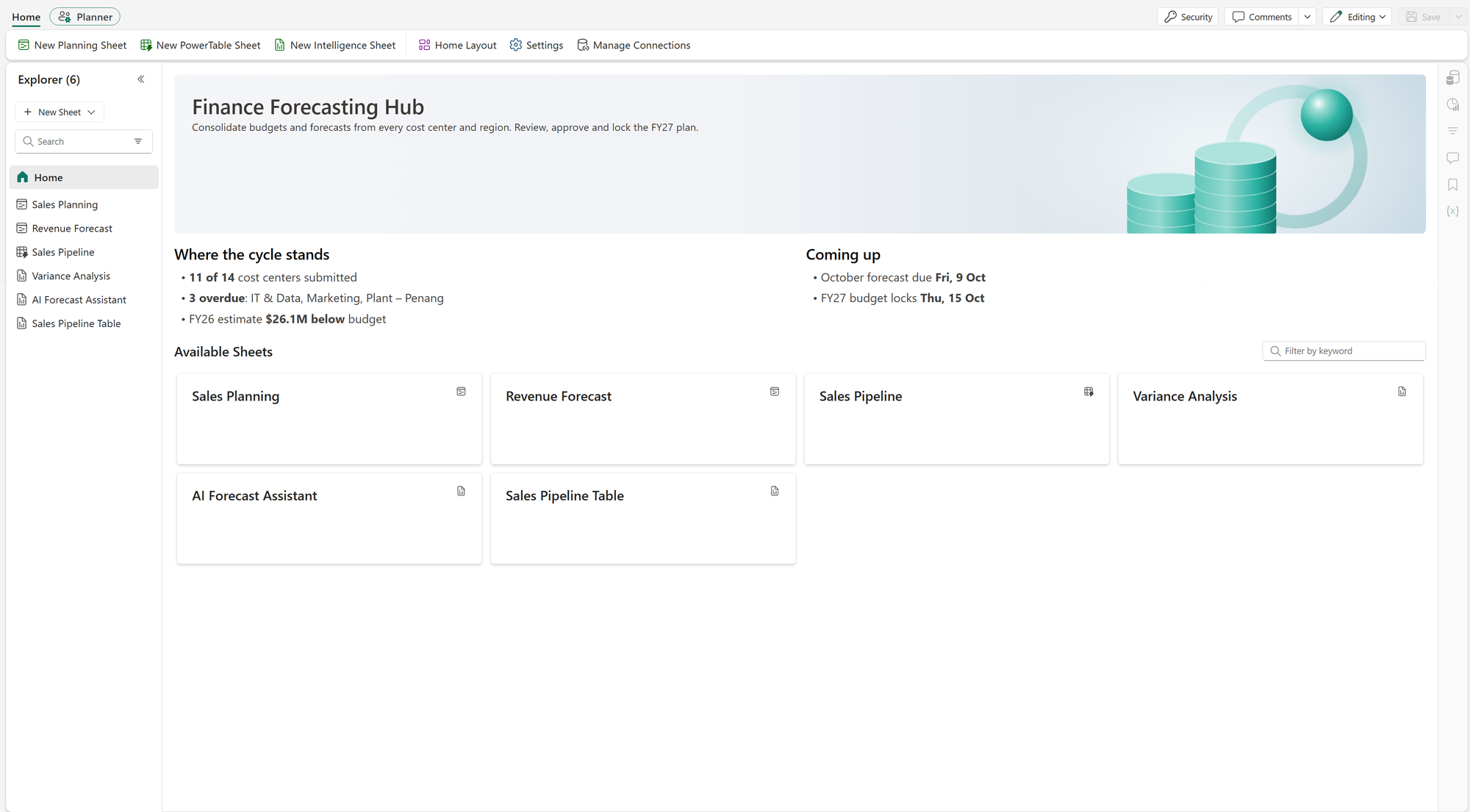
Finance uses its page to say where the cycle stands: how many cost centers have submitted, which are overdue and when the budget locks.
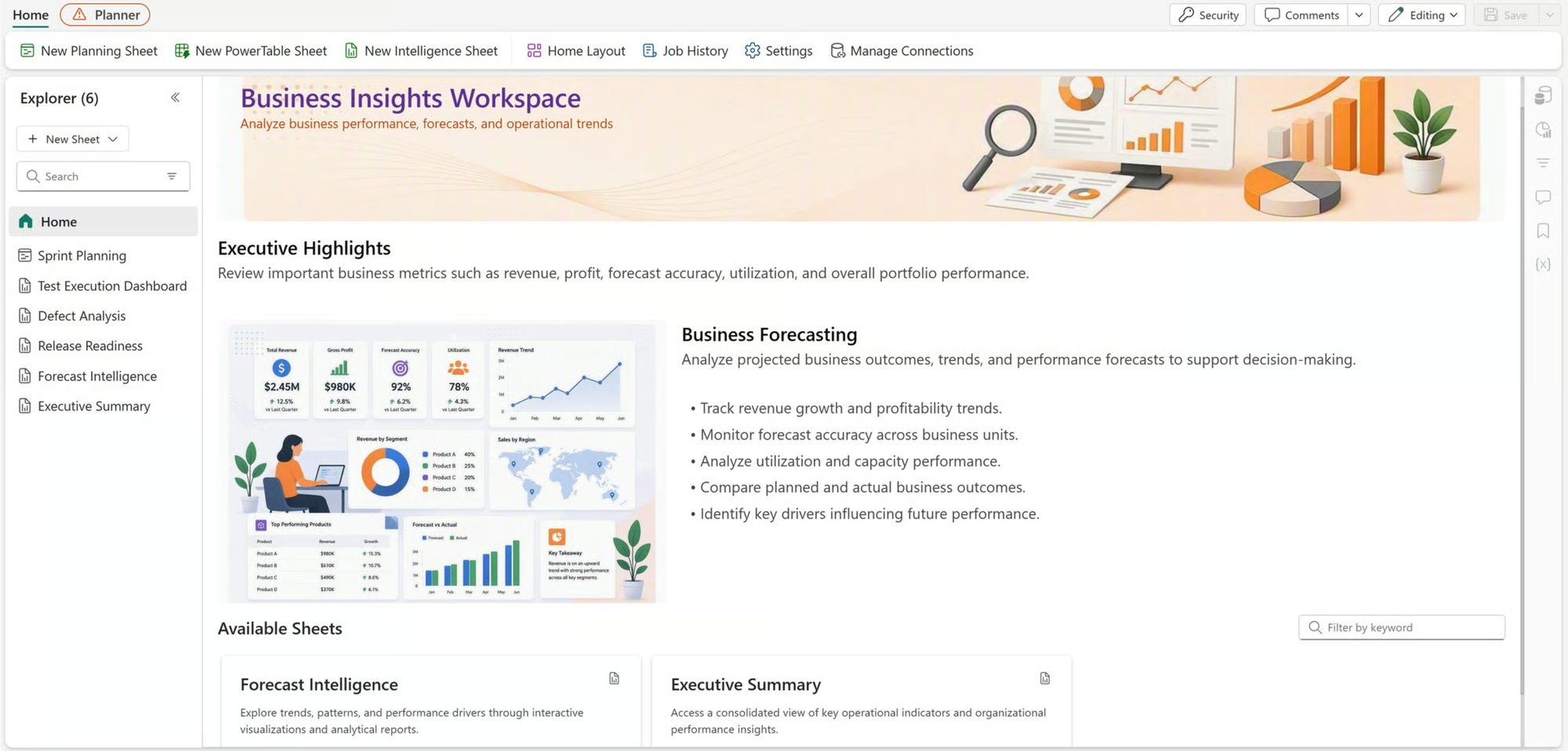
An executive page leads with highlights and a short read on the forecast before anyone opens a sheet.
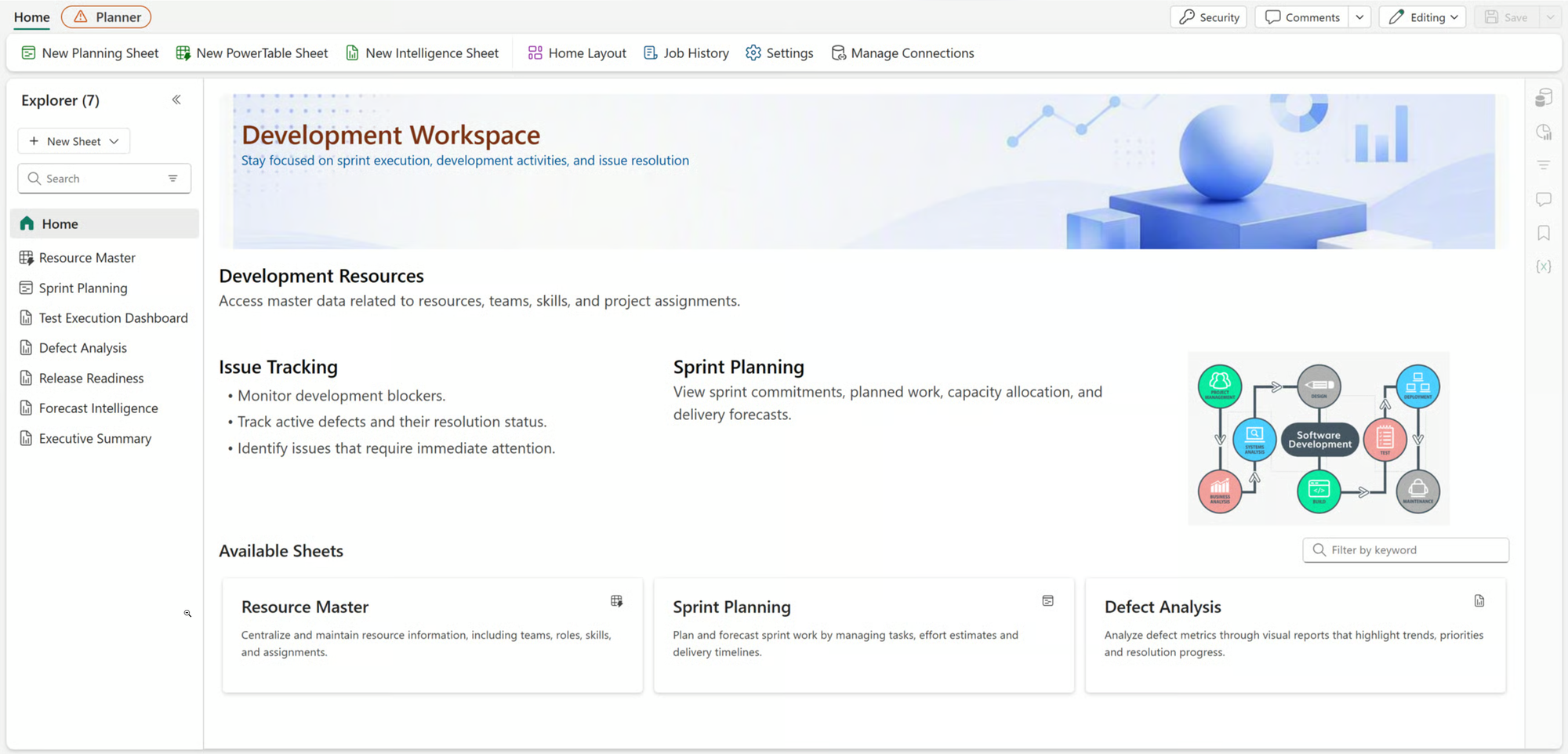
Home Layout isn’t only for finance. This development team’s page leads with issue tracking and sprint planning.
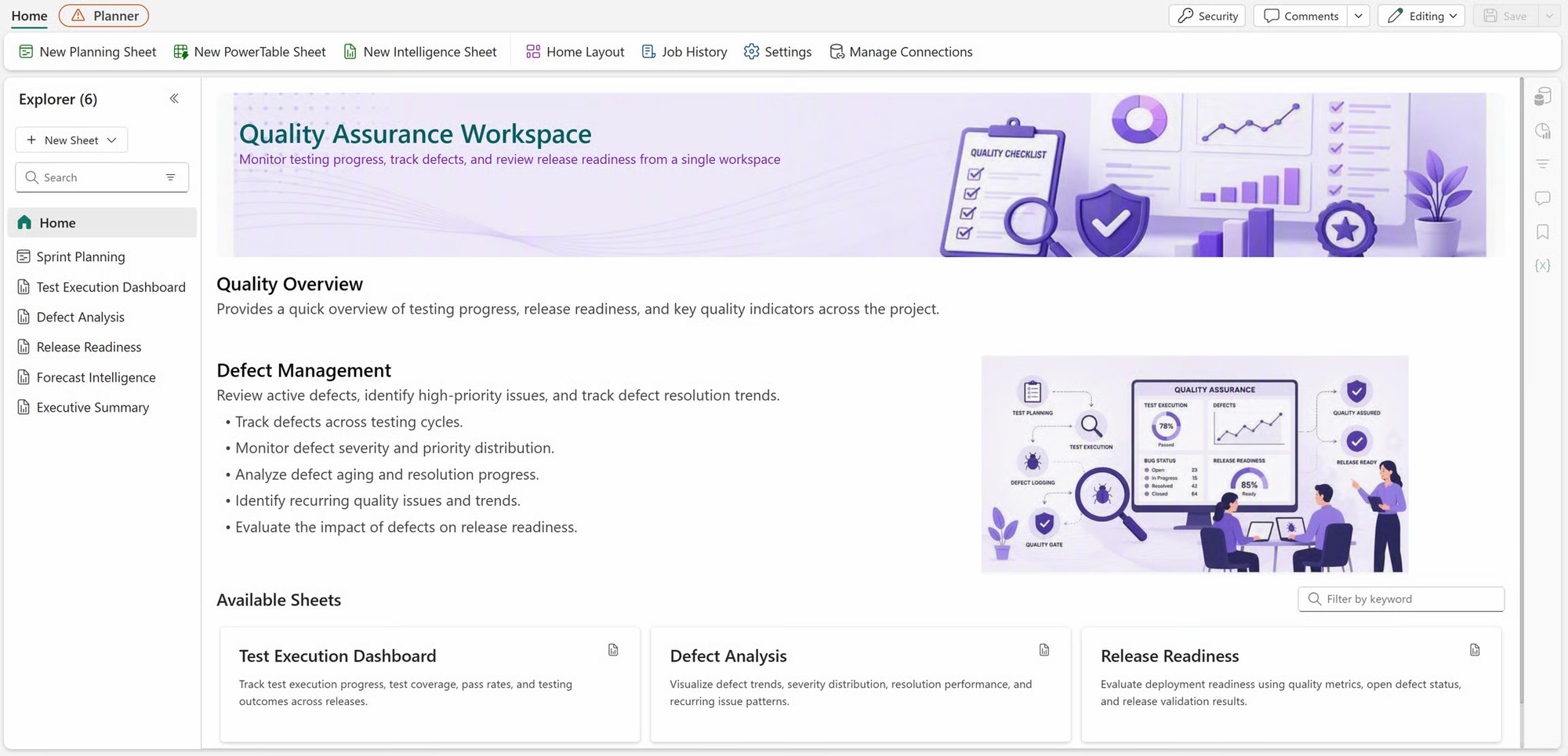
Quality assurance gets its own view of the same release work: testing progress, defects and release readiness.
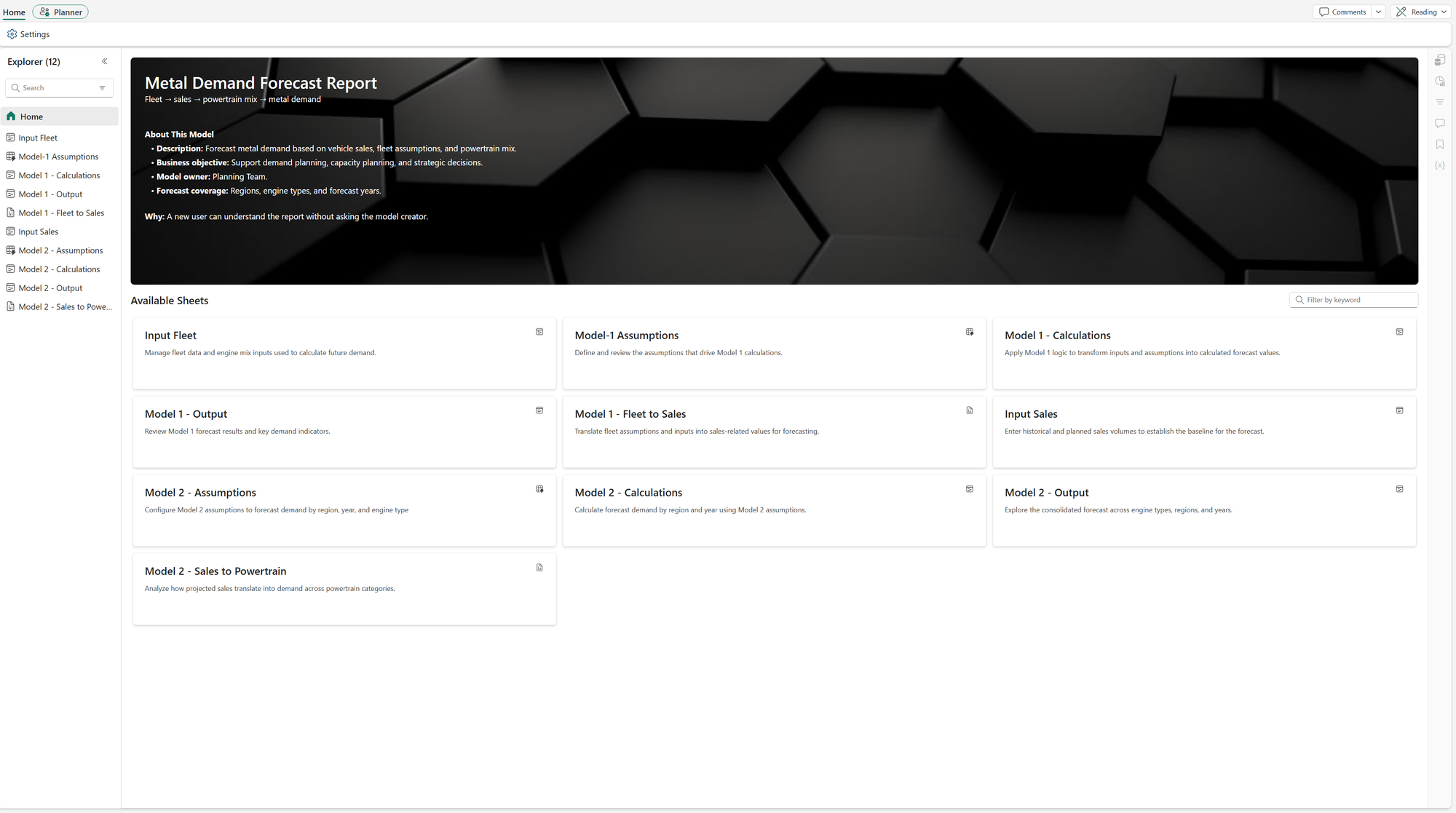
A home page also works as documentation. A new user reads what the model does and who owns it before opening a single sheet.
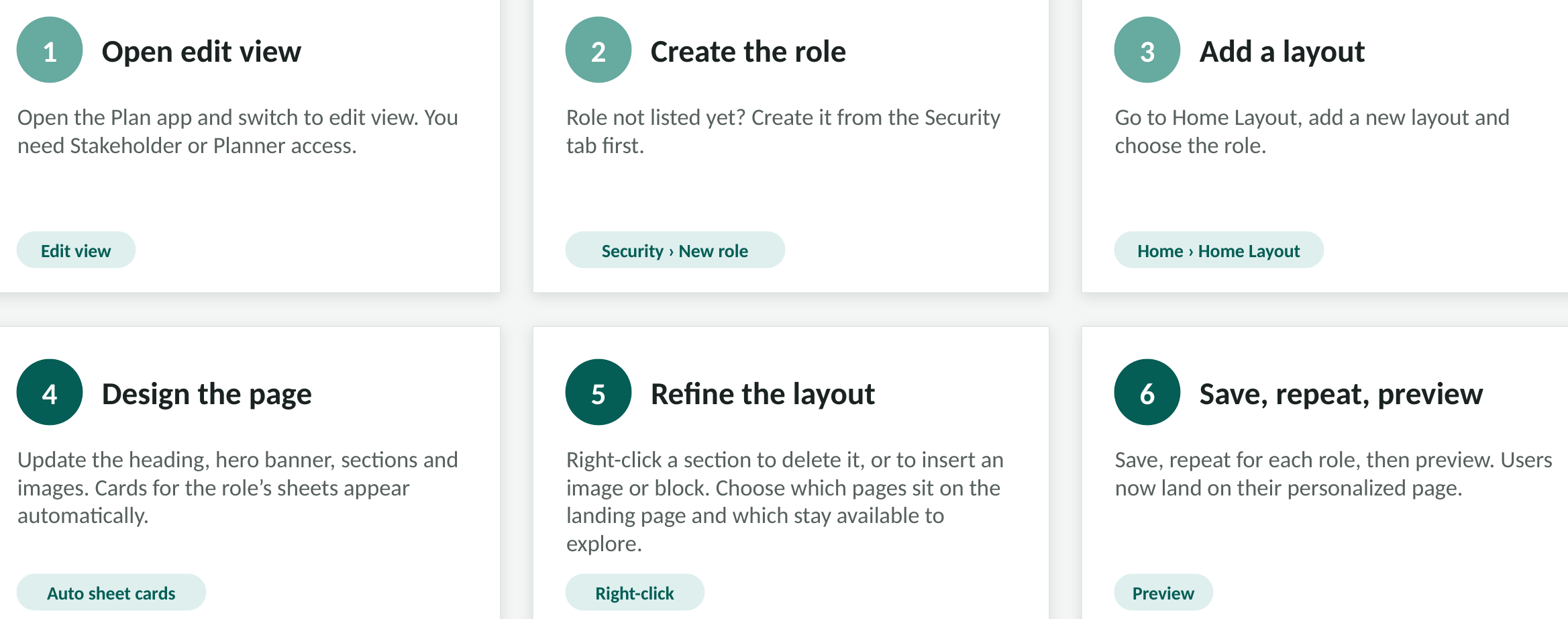
Home Layout follows your security roles, so set up the roles and their sheet access in Security before you design any pages. A tidy role setup makes the pages quick to build. Then preview every role before you tell people it’s live.



Comments
0Please log in to comment.