
A sales manager opens the plan to submit the regional forecast. A finance manager opens it to see which cost centers have submitted their budgets. An executive opens it to check plan attainment before the budget locks.
But when they all open the same plan item, they all start in the same place: the same first sheet and the same full list of sheets in the Explorer. The plan item treats them alike even though they came for different work.
Home Layout lets you design a landing page for each role in a plan item. Each page combines a Hero Banner, sections of context, images, and cards for the sheets that role needs. Users open it by selecting Home in the Explorer.
Planners and Stakeholders design the layouts; Viewers see the page for their role. Home Layout works with the roles you already manage in Role Security. Role Security decides what a role can access; Home Layout decides how that access is presented. One plan item can serve finance, sales, and leadership, without cloned copies to keep in sync.
This deep dive works through one company’s plan item end to end. For a shorter overview of the feature, see Home Layout in Fabric Plan: A Landing Page for Every Role.
Watch the Demo
A 2½-minute walkthrough: create a role, add a layout for it, style the banner and sections, choose the sheet cards, and preview the result across roles. Also on the Fabric Plan community video page.
The Problem with One Entry Point for Everyone
Imagine Meridian Consumer Goods, a fictional manufacturer with four sales regions, 2,400 employees, and 14 cost centers. It runs its FY27 annual budget, monthly rolling forecast, and quarterly workforce plan in one plan item, the Enterprise Planning Hub. One semantic model in Fabric feeds 17 Planning, PowerTable, and Intelligence sheets, used by eight roles.
Those roles come with different questions. A sales manager needs the regional forecast and its due date. A finance manager needs to know which of the 14 cost centers have submitted. Leadership reviews plan attainment and the risks behind it.
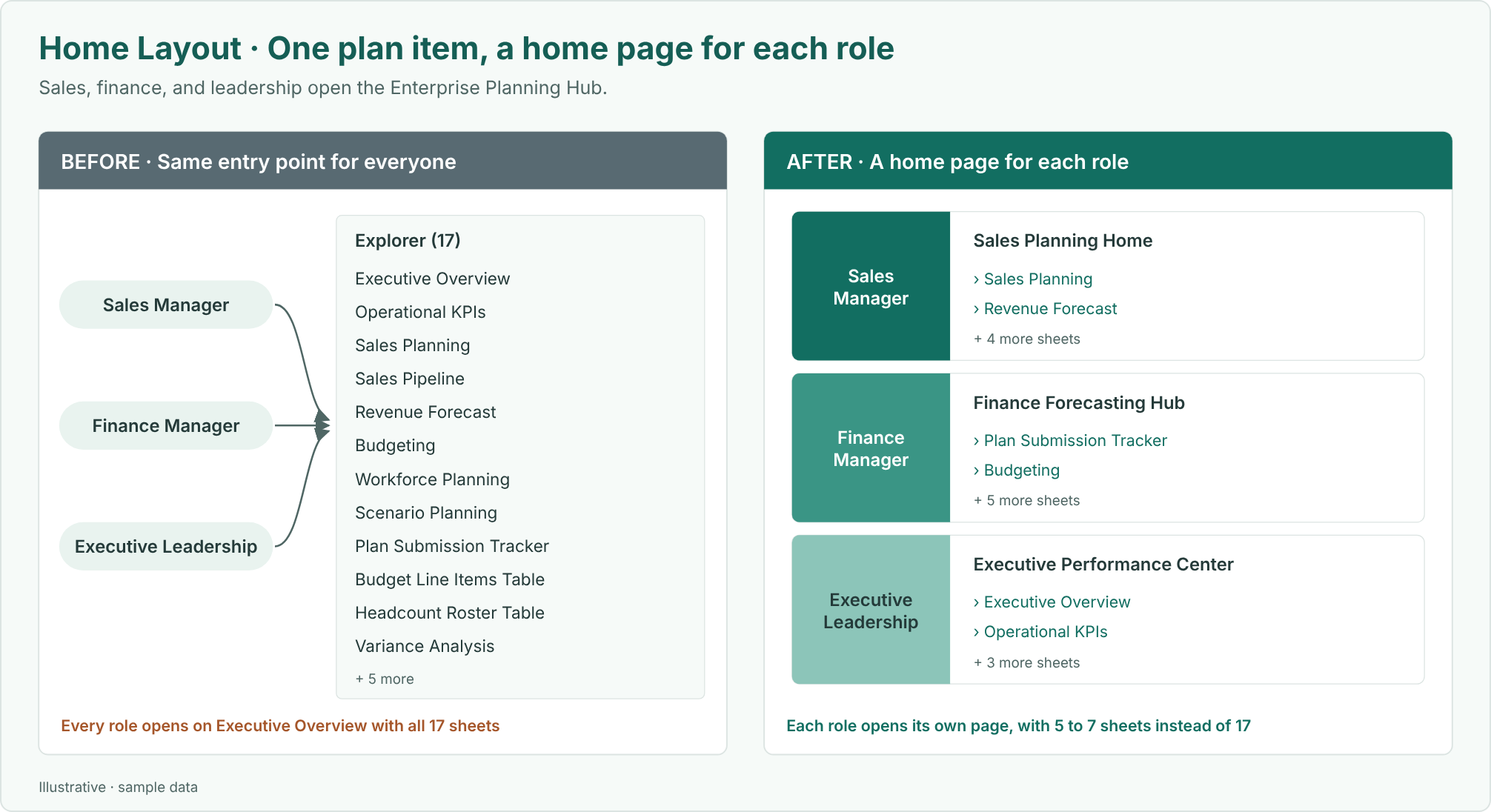
Without a starting point for each role, everyone opens the hub on Executive Overview and sees all 17 sheets. Sales managers can’t find the forecast input sheet. Cost center owners miss the budget deadline because nothing on screen says it’s due. To cope, the BI team maintains three cloned copies of the item, a Sales version, an HR version, and an Exec version, which have drifted apart.
Role Security can hide sheets a role shouldn’t open. It says nothing about which of the remaining sheets matter most, or what a user should do first.
Home Layout makes that intent part of the plan item. Here are three realistic ways it helps.
1. Show Each Role the Sheets It Uses
The Problem
Role Security gives the Sales Manager role access to six of the 17 sheets:
| Sheet | What sales managers use it for |
|---|---|
| Sales Planning | Enter the regional forecast |
| Revenue Forecast | Review the forecast against target |
| Sales Pipeline Table | Maintain open opportunities |
| Sales Pipeline | Analyze the pipeline by stage |
| AI Forecast Assistant | Check AI-flagged forecast risks |
| Variance Analysis | Explain differences from plan |
Even with access restricted, the Explorer lists those sheets with no order of importance and no description. A sales manager who opens the plan once a month still has to work out which sheet holds the forecast input. And for every other role, the same question repeats against a different set of sheets.
A Layout for Each Role
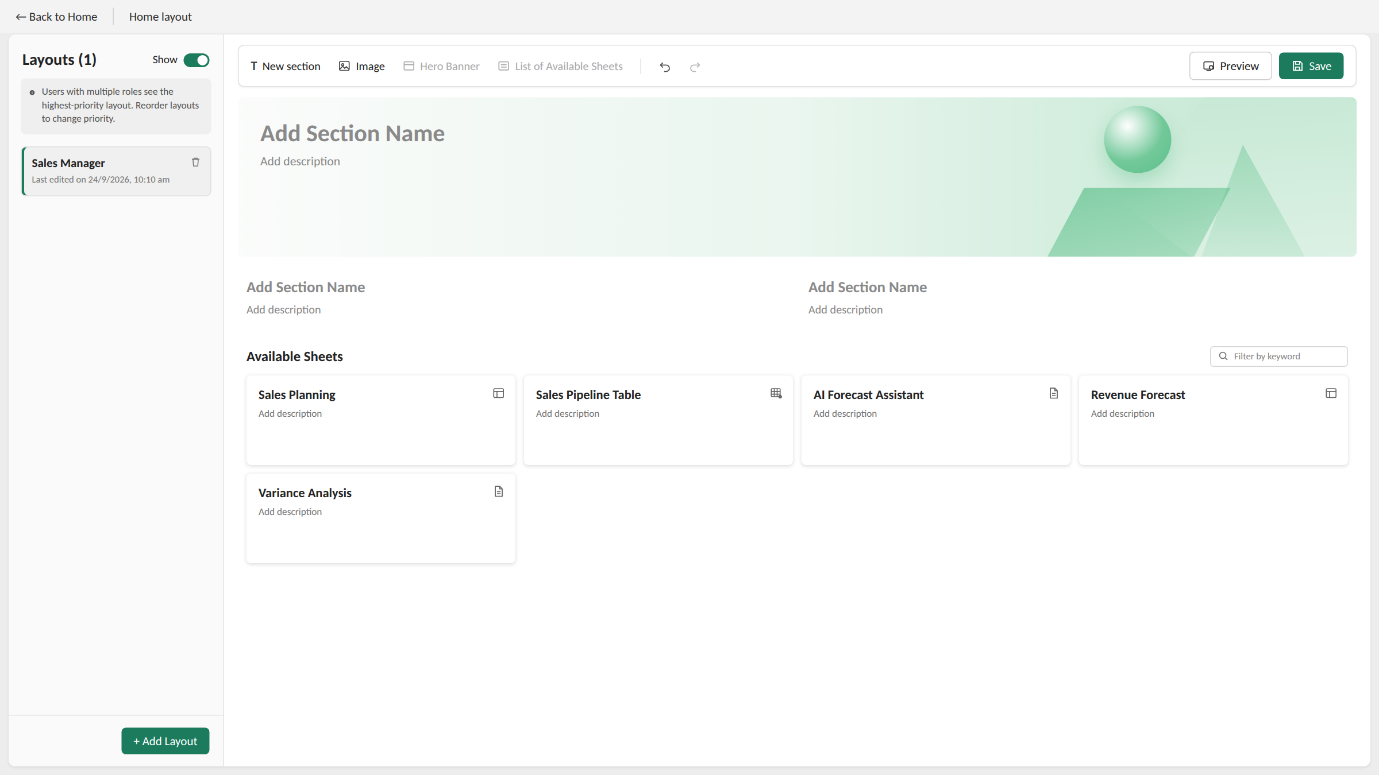
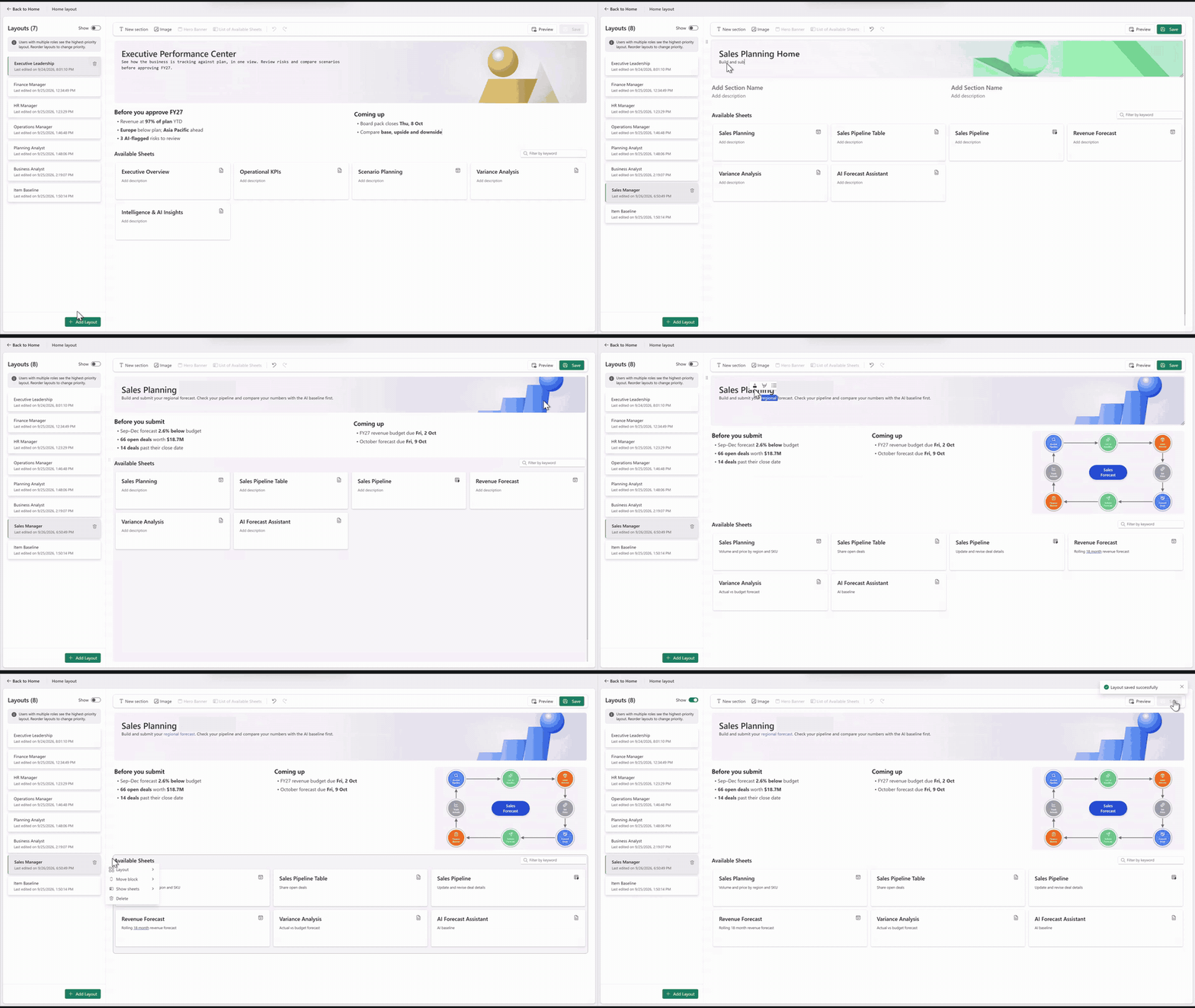
Create a layout for the Sales Manager role. Its Hero Banner, Sales Planning Home, states what the page is for. Its Available Sheets block shows a card for each sheet the role needs, with a short description of what to do there.
The Available Sheets block can show every sheet the role can open, or only some of them. Show sheets in the block’s menu chooses which cards appear, and Layout sets the cards in three or four columns.
Each role gets its own layout, so Finance Manager, Executive Leadership, and every other role open the same plan item on a page built for them.
Before and After
How to Configure It
- Open the plan item as a Planner or Stakeholder, switch to editing view, and on the Home tab select Home Layout.
- Select Add Layout. In Create Layout, choose the role whose users will see the layout.
- Check the role’s Role Security settings and user assignments. If the role doesn’t exist yet, create it in Security › Roles first.
- Add the List of Available Sheets block, write a short description on each sheet card, and use the block’s menu to choose the sheets and columns.
- Select Preview to see the page as a user in that role will, then select Save.
Each role can have one Home Layout. For every setting, see Create and manage Home Layouts in the Fabric Plan documentation.
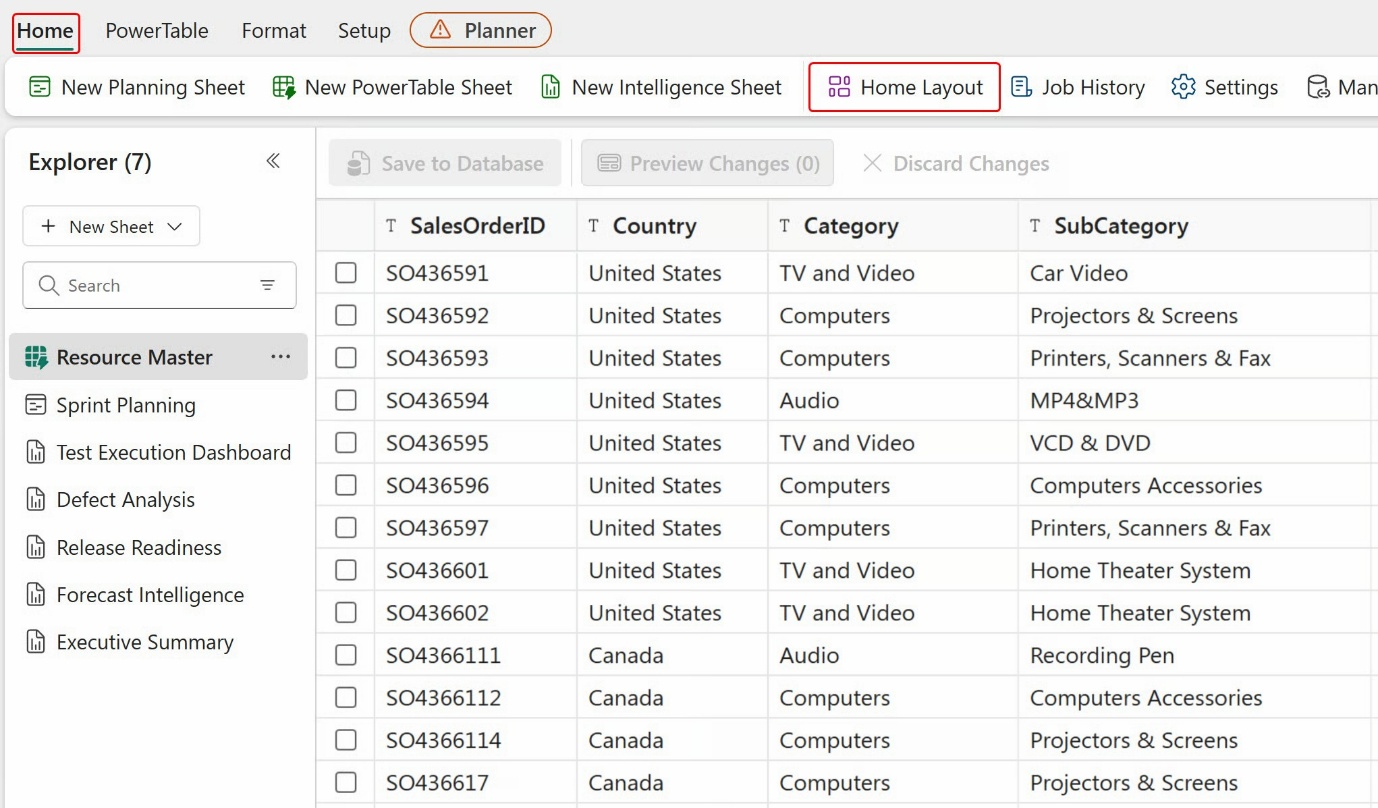
More Examples
| Shared plan item | Roles | Where each role starts |
|---|---|---|
| Project delivery | Developer, QA Engineer, Business Analyst | Resource Master and Sprint Planning; Test Execution Dashboard and Defect Analysis; Forecast Intelligence and Executive Summary |
| Sales and operations planning | Demand planner, supply planner, S&OP lead | Each planner’s own inputs; the consensus view for the lead |
| Regional and multi-entity finance | Regional controller, group finance | Submission sheets and deadlines; consolidation and variance |
| Workforce planning | HR partner, department head | Headcount and hiring plans; the department’s own reviews |
Home Layout is most useful when several teams share one plan item and the item has more sheets than any one role needs. For a small item used by one team, the Explorer is usually enough.
2. Move Deadlines and Status from Email to the Home Page
The Problem
The finance team at Meridian is closing the FY27 budget. Eleven of the 14 cost centers have submitted. Three are overdue: IT & Data, Marketing, and Plant – Penang. The October forecast is due Friday, October 9, and the FY27 budget locks Thursday, October 15.
None of that is visible when a finance manager opens the plan. Deadlines live in emails and meeting notes. Status lives in the Plan Submission Tracker, one sheet among 17. Cost center owners who open the plan a few times a year see the sheets, but not what is due or when.
A Hero Banner and Sections for the Cycle
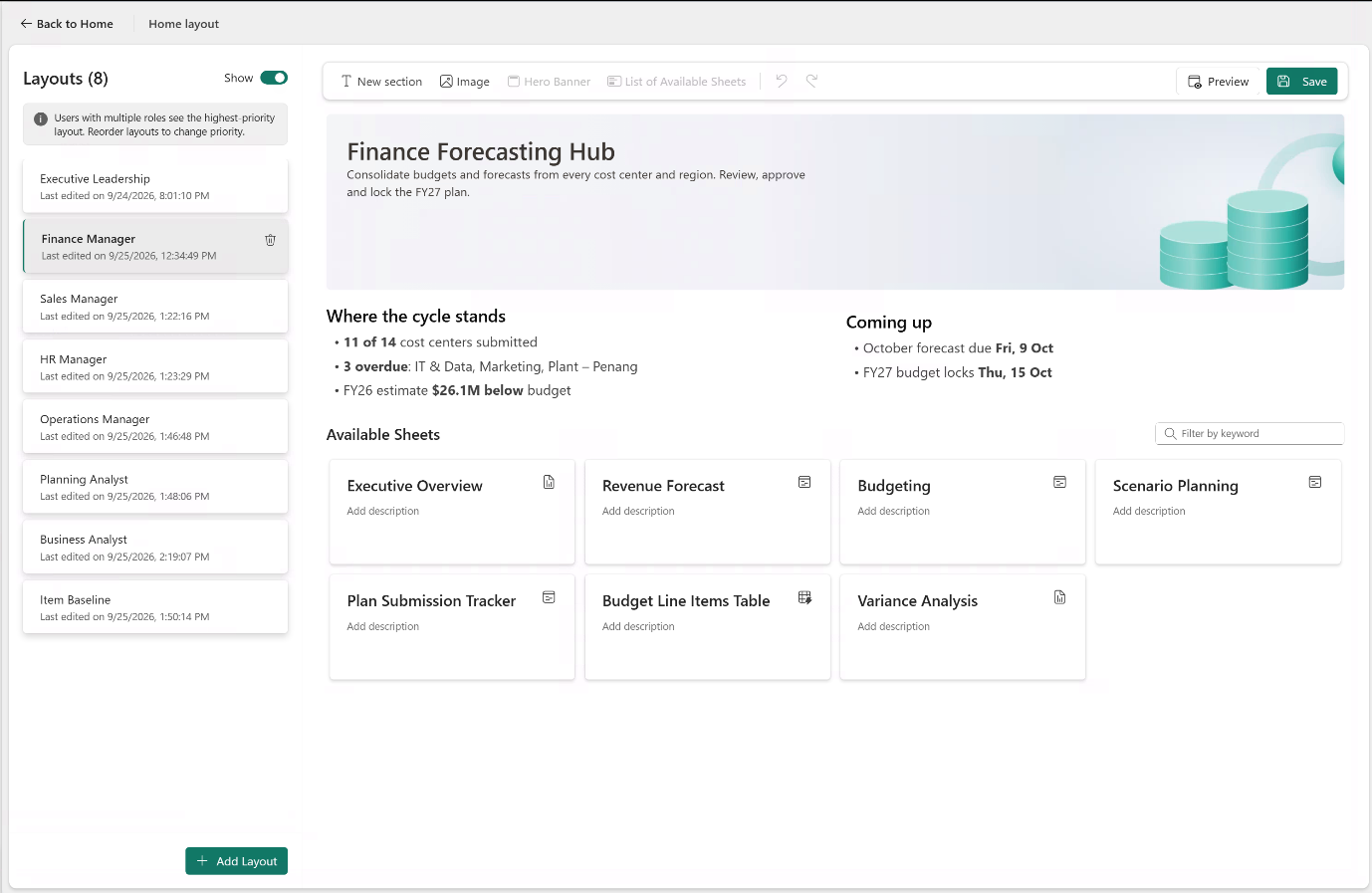
Give the Finance Manager layout a Hero Banner, Finance Forecasting Hub, with one line on the job at hand: consolidate budgets and forecasts from every cost center and region, then review, approve, and lock the FY27 plan.
Below it, add two sections. Where the cycle stands lists the submission count, the overdue cost centers, and the FY26 estimate, $26.1 million below budget. Coming up lists the forecast due date and the budget lock date. The seven sheet cards follow, starting with the ones finance managers use this cycle.
The page now tells a finance manager what matters before they open a sheet. Sections are text written by the layout author; update them as the cycle moves, the way you would update a status email. The sheets themselves, and the data in them, are unchanged.
Before and After
How to Configure It
Open the layout in Home › Home Layout and use the toolbar to build the page:
- Hero Banner adds a title and short description across the top of the page. A layout has one Hero Banner.
- New section adds a titled block of text, such as status, deadlines, or instructions.
- Image adds a picture, such as a process diagram or a team visual.
- List of Available Sheets adds the sheet cards. A layout has one Available Sheets block.
Use undo and redo while you edit, select Preview to check the page, and select Save.
3. Give Users with Several Roles One Predictable Page
The Problem
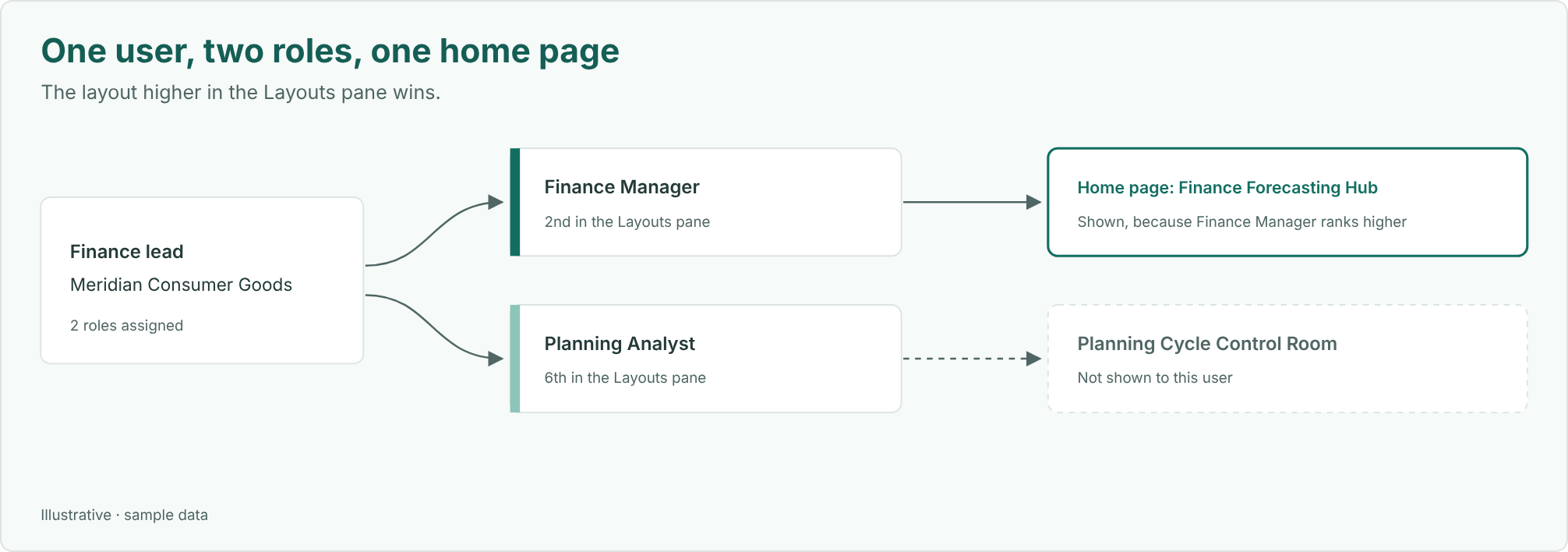
Roles overlap. A finance lead at Meridian belongs to both the Finance Manager and Planning Analyst roles. Each role has its own layout: Finance Forecasting Hub, and Planning Cycle Control Room, which leads with overdue submissions to chase.
Some users have no specific role at all, such as a new joiner whose role assignment hasn’t been set up yet. Each of them still needs a page when they select Home.
Priority Decides the Page
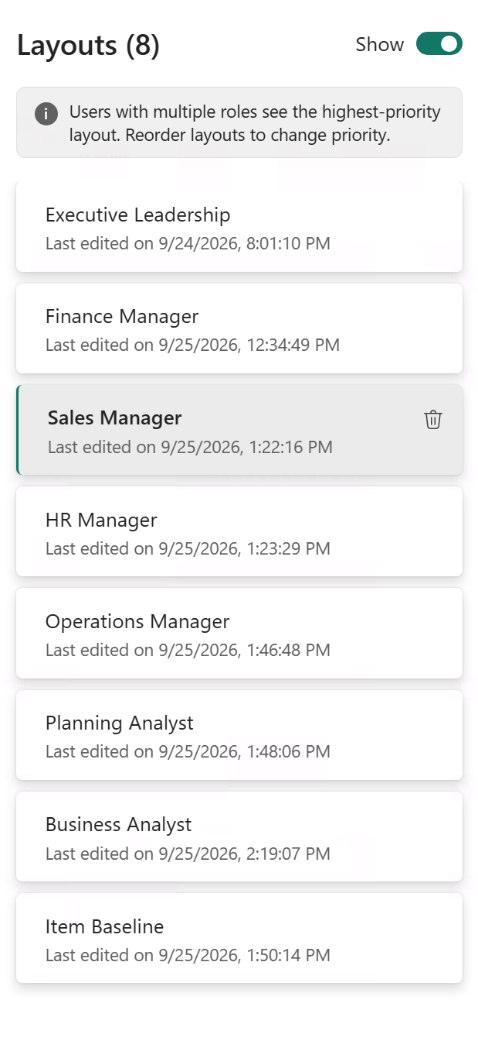
A user with more than one role sees the layout of their highest-priority role. Priority is the order of layouts in the Layouts pane. Finance Manager sits above Planning Analyst, so the finance lead sees the Finance Forecasting Hub.
Users without a specific role see the Item Baseline layout, which belongs to the system default role. At Meridian, it’s titled Enterprise Planning Hub and shows two sheets as a starting point.
How to Configure It
In the Layouts pane, drag layouts into priority order, with the broadest responsibility at the top. A common order puts leadership first, then managers, then analysts, with Item Baseline last.
The Show toggle at the top of the Layouts pane controls whether layouts are shown to users. Turning it off keeps their configuration, so you can prepare layouts before users see them.
Tailor the Page Without a Second Set of Permissions
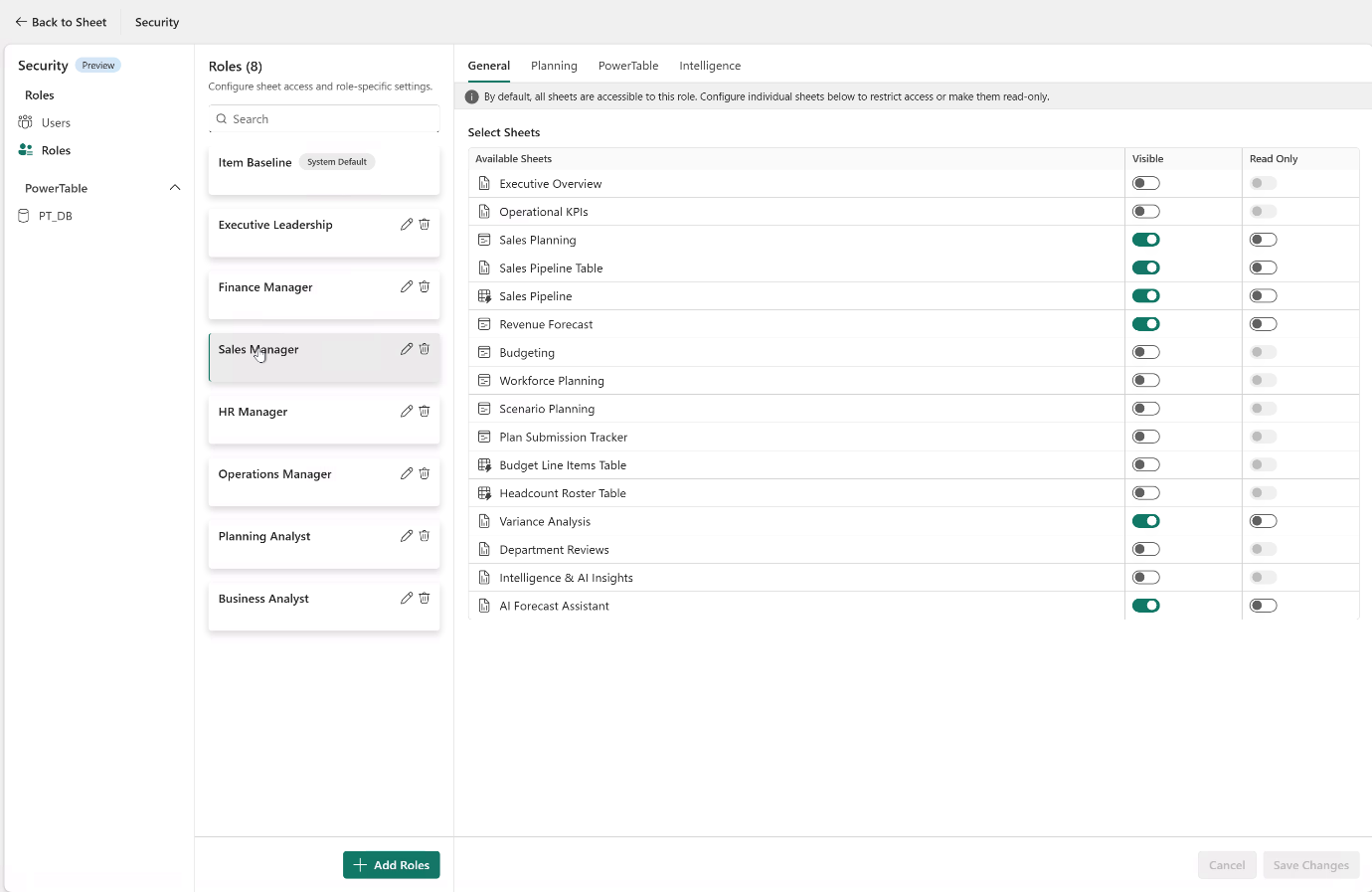
Home Layout respects each role’s Role Security settings, and Role Security always takes precedence. A sheet hidden from a role can’t be added to that role’s layout, and users can’t reach it through Home.
Leaving a sheet card off a layout with Show Sheets only tidies the home page. It doesn’t remove the sheet from the Explorer or change anyone’s access. To restrict access, use Role Security.
This keeps one place for permissions. Security administrators manage roles and sheet visibility in Security › Roles; layout authors decide what each role sees first, within those limits.
Home Layout Role Landing Pages, Matched to Each Audience
| Role | Hero Banner | What the page leads with | Sheets |
|---|---|---|---|
| Sales Manager | Sales Planning Home | The regional forecast and its due date | 6 |
| Finance Manager | Finance Forecasting Hub | Which of the 14 cost centers have submitted | 7 |
| Executive Leadership | Executive Performance Center | Plan attainment and AI-flagged risks | 5 |
| HR Manager | Workforce Planning Studio | Headcount and hiring plans by department | 4 |
| Operations Manager | Operations Command Center | Weekly plant KPIs | 4 |
| Planning Analyst | Planning Cycle Control Room | Overdue submissions to chase | 8 |
| Item Baseline | Enterprise Planning Hub | A starting point for users without a role | 2 |
With a page for each role, Meridian’s BI team retired the three cloned copies. Every role works in the same governed plan item.
Start with the role that has the hardest time finding its work today, often the people who open the plan least. Build their layout, preview it, and ask someone in that role where they would click first. Then add the next role.
Forecasts for sales. Submissions for finance. Attainment for leadership. Home Layout gives every role its own starting point in one plan item.
More on Home Layout
- Create and manage Home Layouts: the documentation, with every block, priority rule and setting.
- Customize the Fabric Plan Home Page for Each Role (video): the 2½-minute demo above.
- Home Layout in Fabric Plan: A Landing Page for Every Role: more example layouts, including project delivery and demand forecasting.
- What’s New in Fabric Planning: FabCon Europe 2026 Updates: where Home Layout was first shown.
Resources
- Get started with Microsoft Fabric
- Create your first plan item
- Fabric Plan documentation
- What is Planning in Fabric? (Microsoft Learn)
- Fabric Plan community
- Introducing Planning in Microsoft Fabric IQ
- Planning in Microsoft Fabric IQ is generally available
Feature details reflect Fabric Plan at the time of writing.


Comments
0Please log in to comment.