
Lumel
Introducing Consolidation Templates for Row Models in Microsoft Fabric Plan
Fabric PlanningFP&A
Audit Cell History in Fabric Plan shows who changed a planning cell, what changed, and when, and lets you undo any user’s change by restoring an earlier value. It is available now with the Native Planning Engine, in Public Preview.
Return any selected cell to a value recorded by any user at any point in its available history.
Choose an entry from the cell’s timeline and restore that exact value. The restoration is captured as a new auditable change, so recovery does not break the history.
Important compatibility note: Cell History is available only with the Native Planning Engine. It relies on the engine’s file-based architecture in OneLake and is not supported by the previous planning engine.
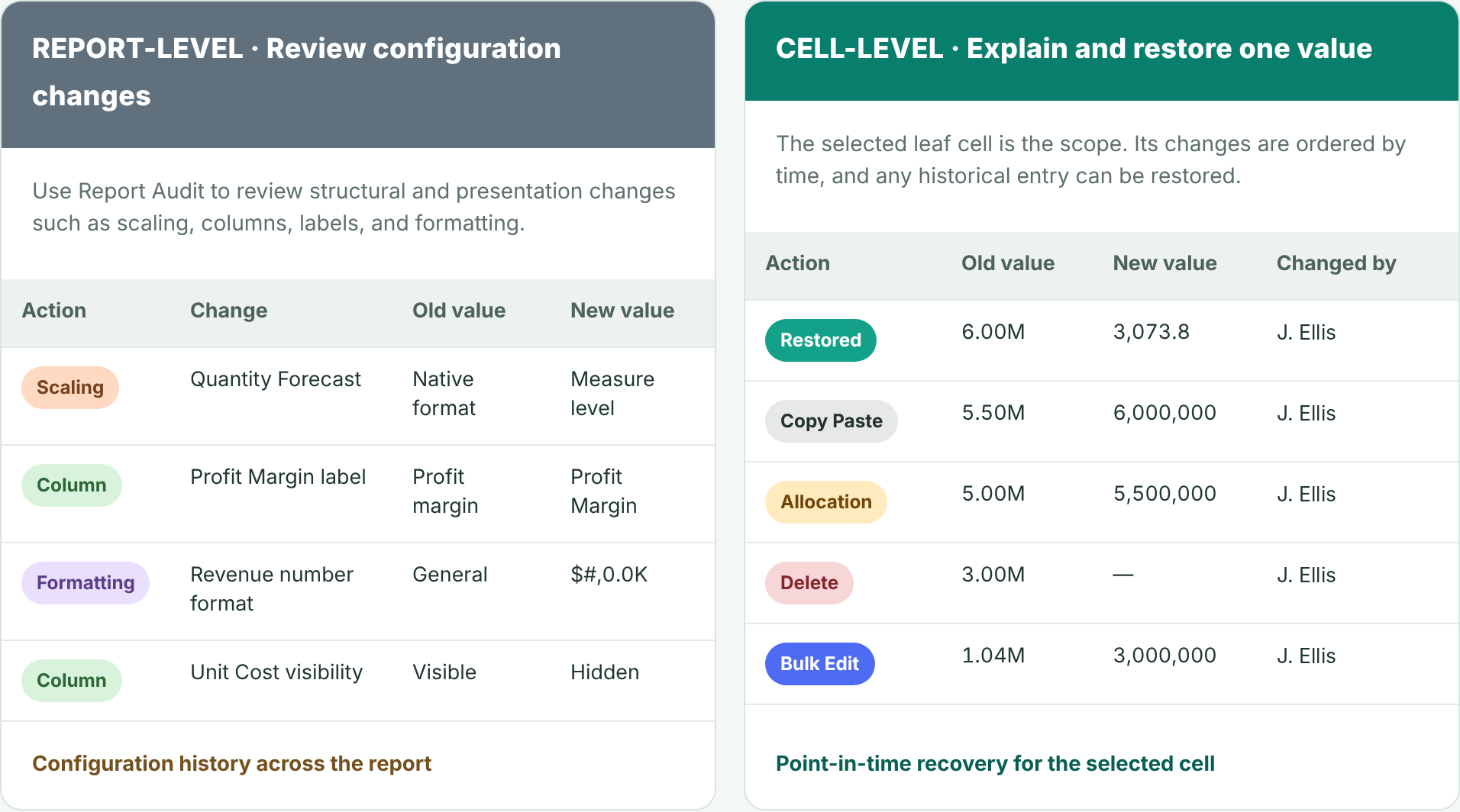
Fabric Plan already provides a detailed audit experience. The Data Input tab captures sheet-wide data activity: tag, action, row, column, old value, new value, user, and timestamp. The Reports tab captures report changes such as scaling, columns, and formatting.
Cell History complements those broad views with a focused, actionable timeline for the value a planner has selected. The row, measure, period, user, action, and value transitions are presented together, directly beside the planning grid. A planner can then select any recorded entry and restore that exact value to the cell.
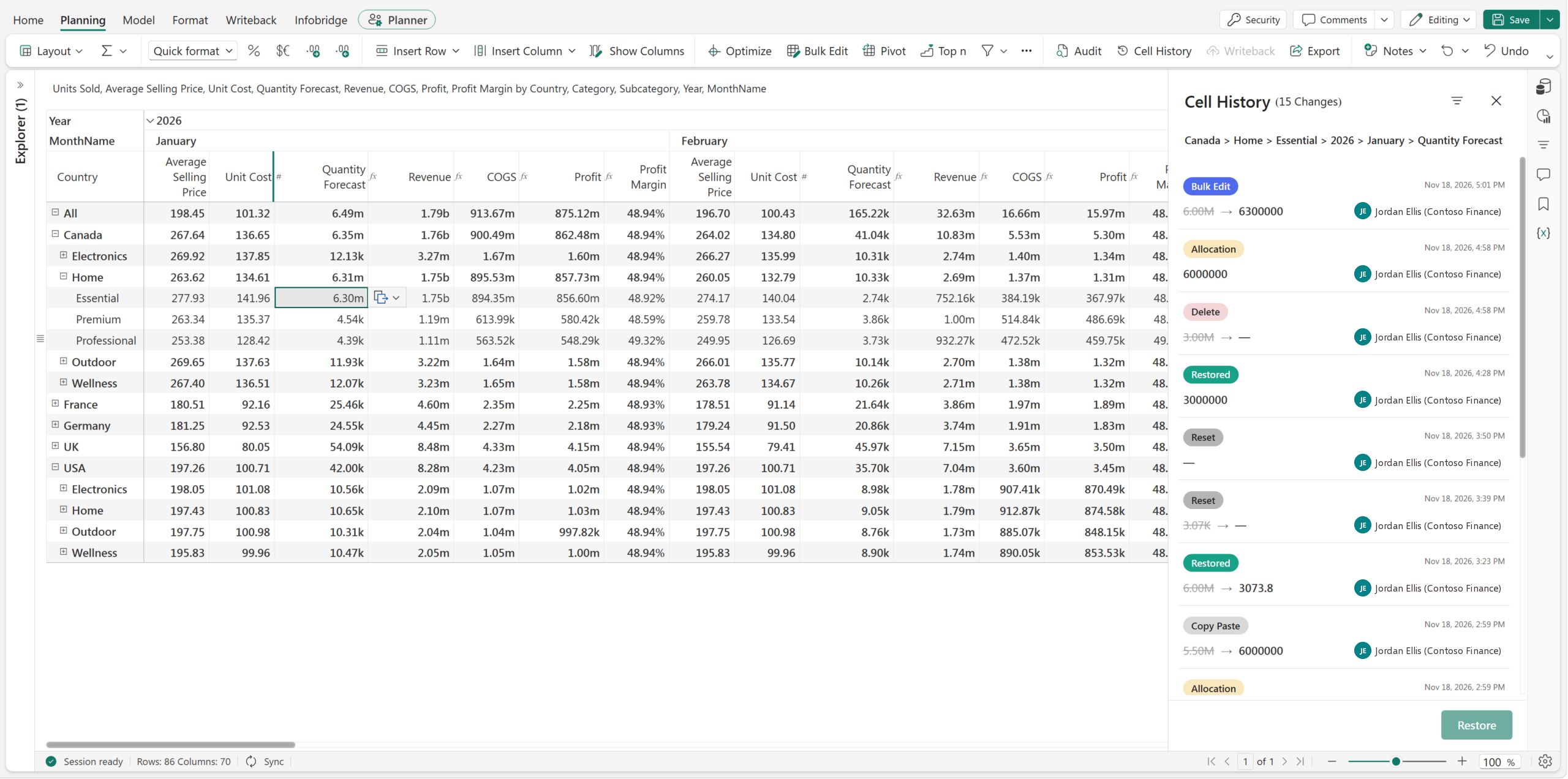
Select the January Quantity Forecast for Canada › Home › Essential (6.30M) and open its complete change story in context.
Report Audit explains how the report changed. Cell History explains, and can restore, one planning value.
Cell History is available for a leaf-level data-input cell. Select a specific intersection of business context and time, such as Canada, Home, Essential, January 2026, Quantity Forecast, and open Cell History. The side panel keeps that complete coordinate visible while it lists the recorded changes from newest to oldest.
Canada › Home › Essential › 2026 › January › Quantity Forecast
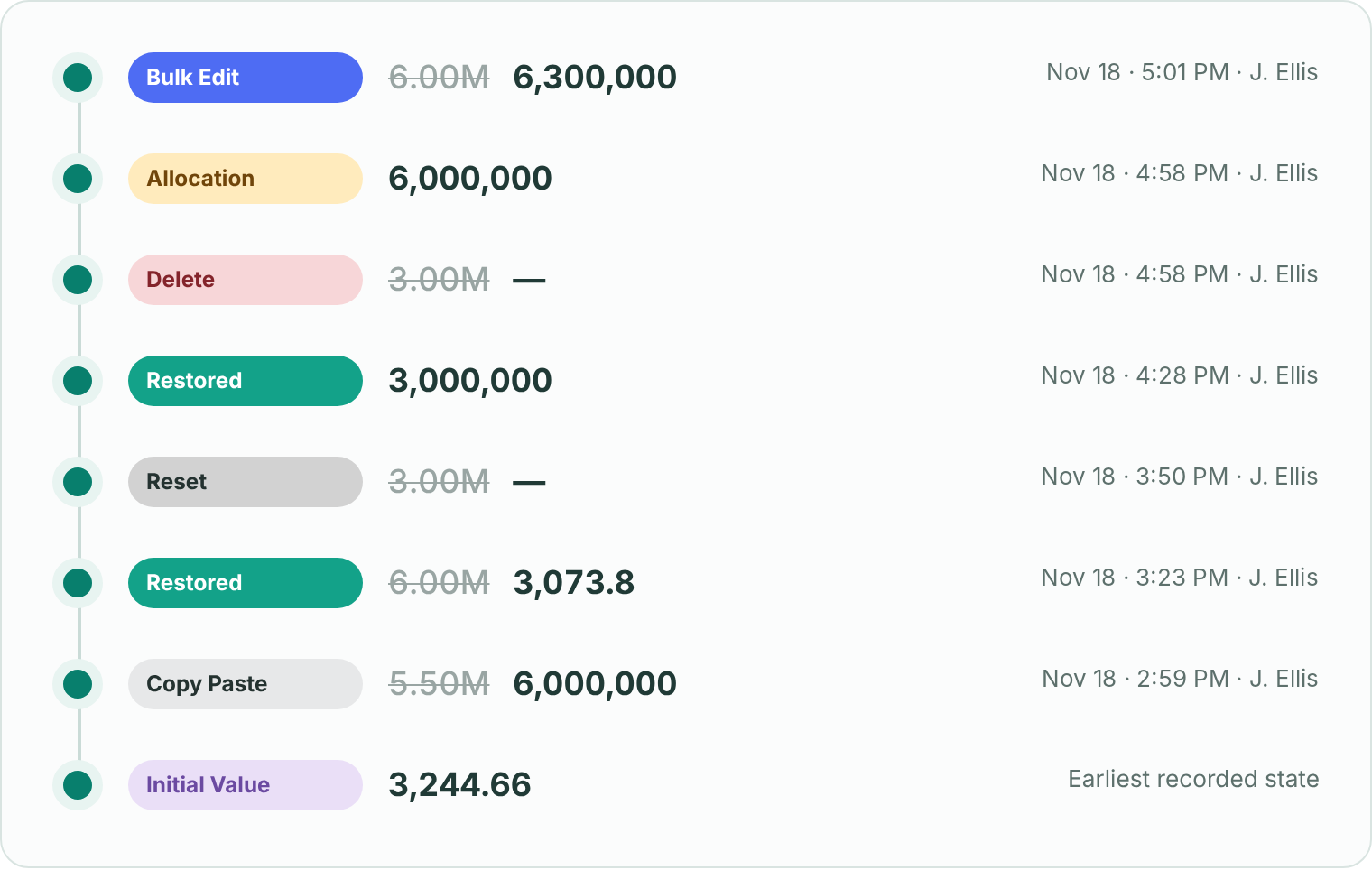
Each entry identifies the mechanism that produced the change. A leaf value may have changed through direct input, an allocation from a parent, a bulk update, or pasted values. Cell History keeps those actions distinct.
| Change type | What it means |
|---|---|
| Initial Value | The earliest recorded state of the cell, before any tracked change. |
| Allocation | A value entered at a parent or subtotal was distributed down to this leaf cell. |
| Manual Input | A planner directly edited this leaf-level value in the grid. |
| Bulk Edit | The cell changed as part of a multi-cell update configured through Bulk Edit. |
| Copy Paste | The value was pasted from another grid range or from outside the planning experience. |
| Delete | The planned value was removed, leaving the leaf cell blank until another action supplied a value. |
| Restored | A user intentionally returned the cell to one of its recorded historical values. |
| Reset | The cell returned to its configured default, or to blank when no default exists. |
A cell can accumulate many changes. The filter panel narrows the list while the selected cell remains fixed.
Show only allocations made by a specific user, isolate deleted values or manual inputs, or limit the list to a selected date range.
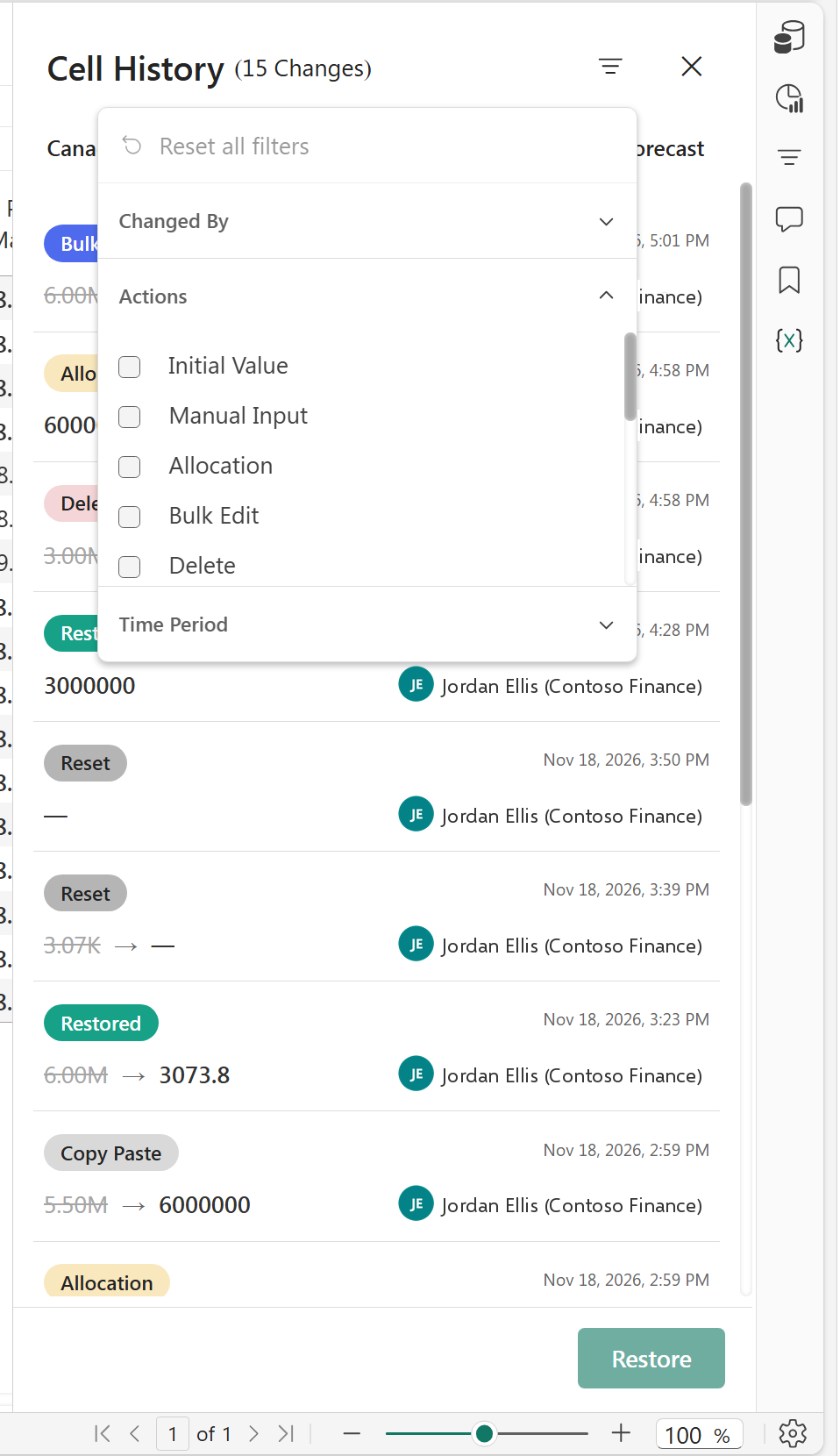
Use Changed By, Actions, or Time Period to locate the exact entry. Select it and choose Restore to return the leaf cell to that recorded value, regardless of which user originally made the change. The restoration is recorded as another change in the cell history.
| Action | What it does |
|---|---|
| Restore | Return the selected cell to a specific value from any point in its available history. |
| Delete | Remove the current planned value. Cell History records the old value changing to blank as a Delete action. |
| Reset | Remove the current planned input and return the cell to its configured default. If the default is blank, the cell returns to blank. |
The two experiences are complementary. Audit is designed for broad review and export, while Cell History is designed for focused investigation and recovery at the selected leaf-level cell.
| Capability | Audit | Cell History |
|---|---|---|
| Scope | Entire report history across data-input and report-configuration activity | One selected leaf-level cell |
| Change context | Report-wide records for review and governance | Who changed it, What changed, and When |
| Undo and Restore | Not supported | Undo a specific change by restoring its selected historical value |
| Export | Export the entire report history to Excel | Cell-level history export is not supported |
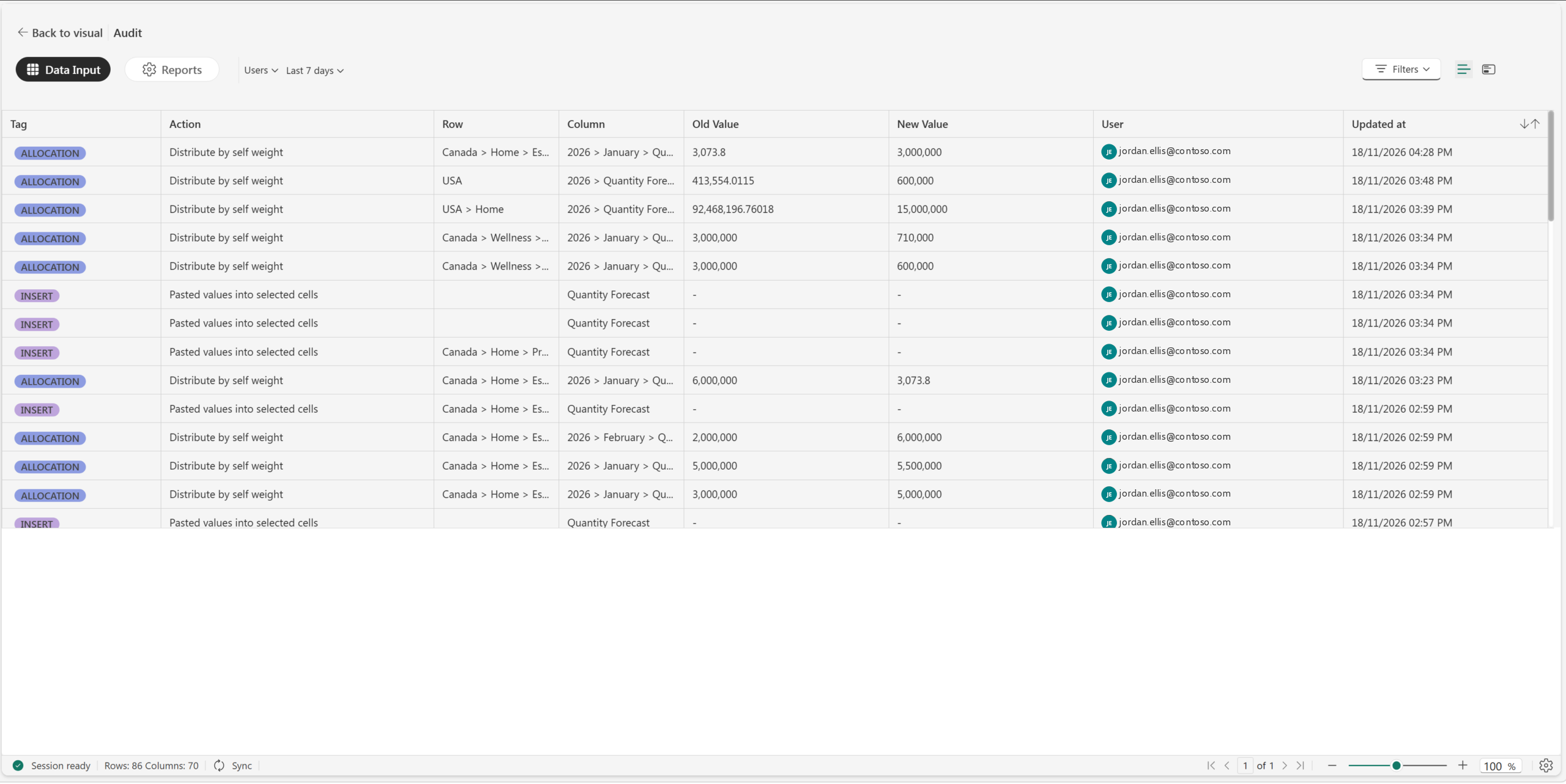
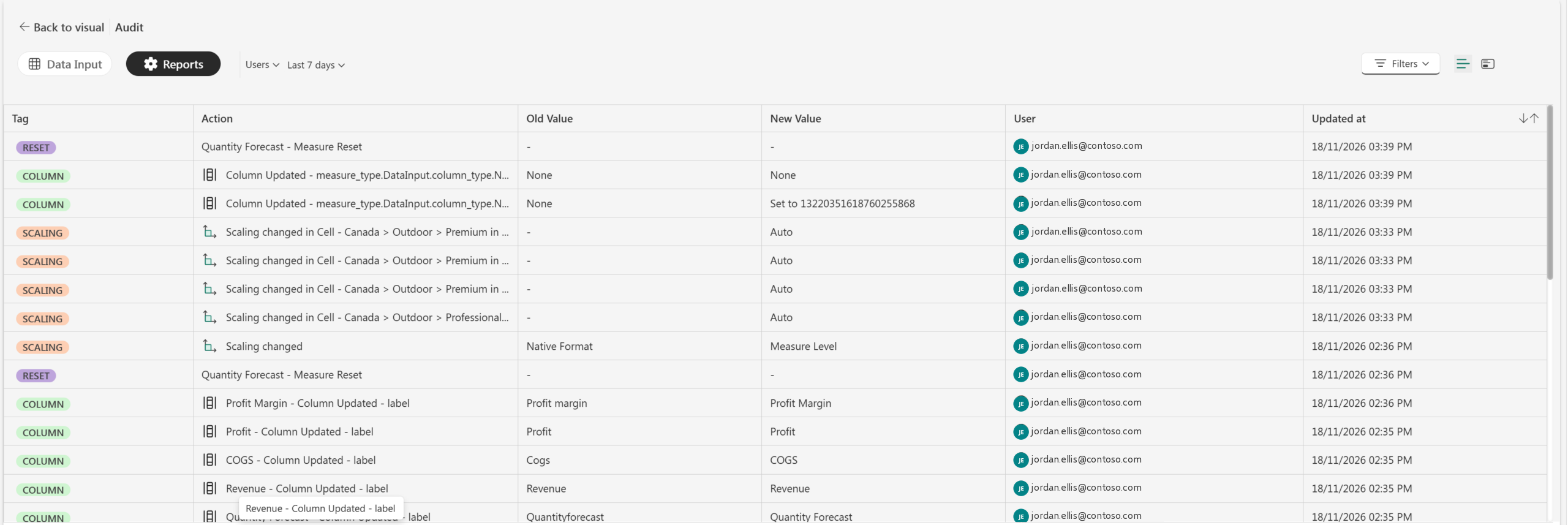
Cell History turns audit information into a recovery workflow. A planner can see whether a value came from a direct edit, allocation, bulk update, paste, or deletion; identify the user and time; and restore the exact recorded value from any selected point in the cell’s available history.
The feature is intentionally narrow: it applies to a selected leaf-level input cell. Sheet-wide data changes remain in Data Input audit, and report configuration changes remain in Reports audit.
Feature details reflect Fabric Plan at the time of writing.




Comments
0Please log in to comment.