
When approvals run over email, it can go like this. The planner emails the numbers, the manager replies “approved”, and two days later someone changes a cell in the file anyway. Now nobody is sure which version was signed off.
Fabric Plan puts the approval inside the planning grid. You submit right in the sheet. Your manager gets a Teams message and approves it. Add one formula and the approved row locks. You can start with the built-in preset and add your own rules later. I’ll go through both.
Five building blocks do the work. You can stop at the first one or combine all five.
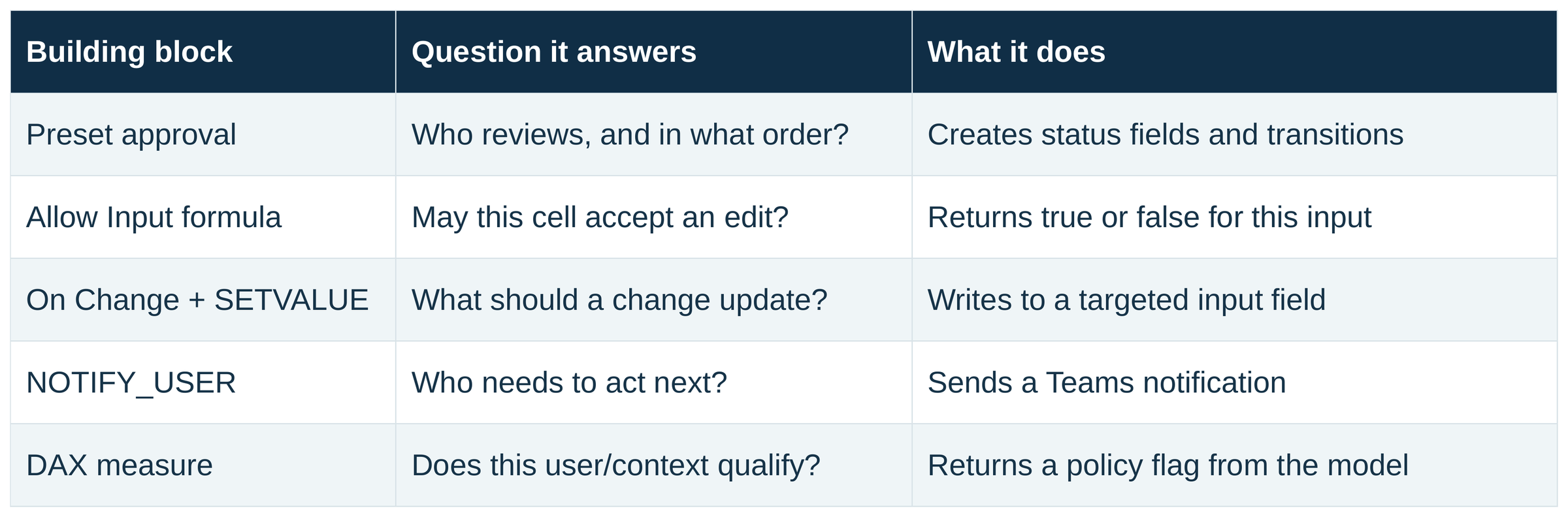
How many you need depends on the process:
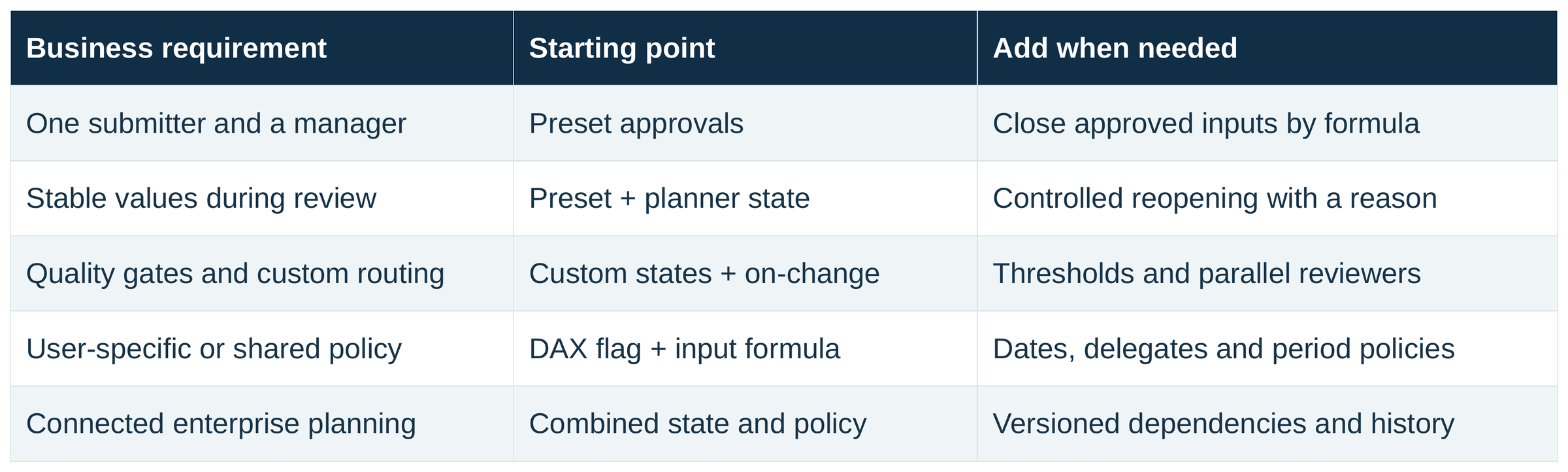
Start with the preset
The Approval wizard has two pages. The full steps are in the Fabric Plan docs. Here’s what each setting does.
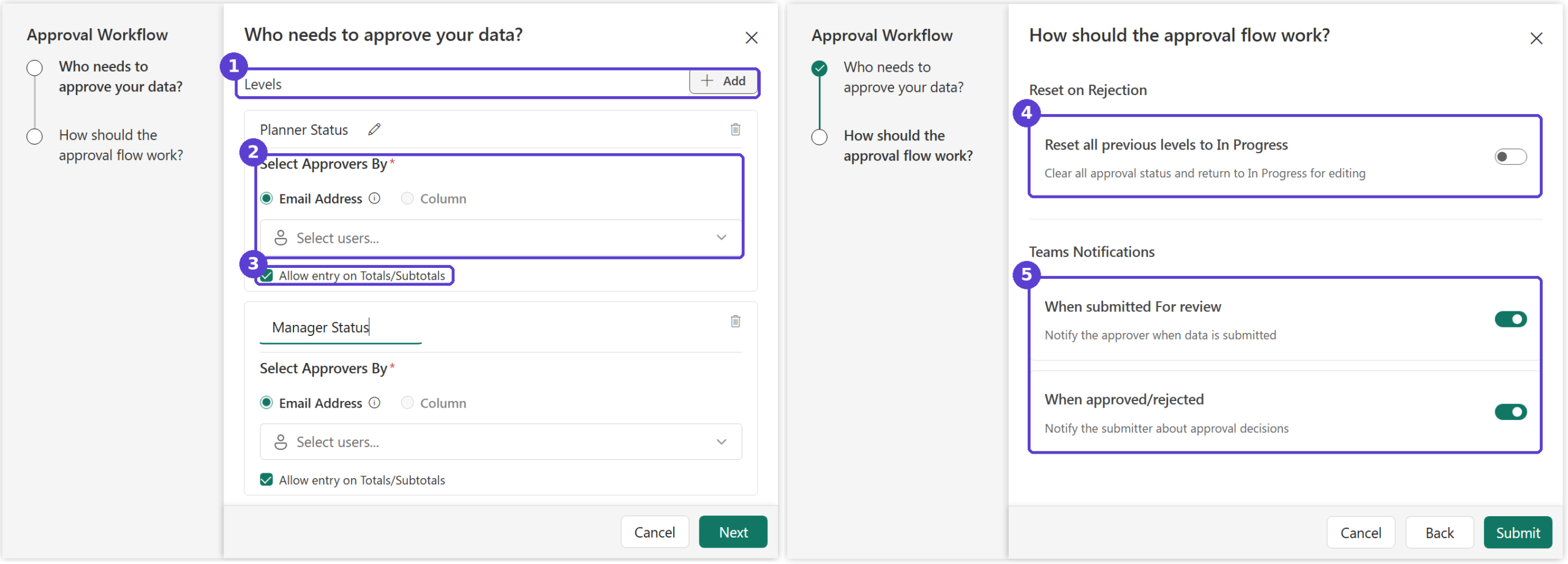
- Levels. Each level becomes a status column. Here it’s Planner Status for the person submitting and Manager Status for the decision. Add more levels if your process has them.
- Approvers. Pick users by email address, or point to a column so each row goes to its own approver. Entra groups work too, where they’re set up.
- Totals and subtotals. Decide whether each level can be set on total and subtotal rows.
- Reset on rejection. Turn it on and a rejection sends every earlier level back to In Progress. It resets the statuses, and the plan numbers stay as entered.
- Teams notifications. One tells the approver when something is submitted. The other tells the submitter when it’s approved or rejected.
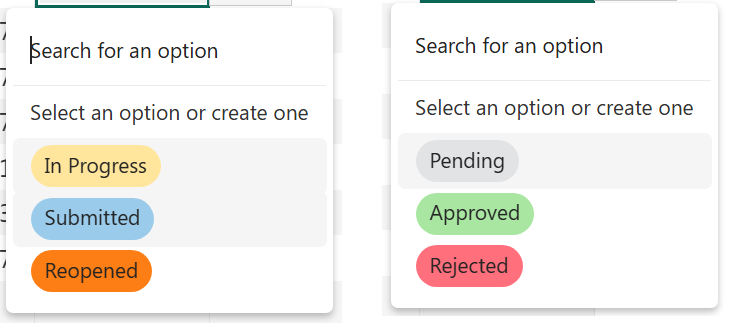
Each side then gets its own status list. Planners move between In Progress, Submitted and Reopened. Managers pick Pending, Approved or Rejected.
Decide what one approval covers
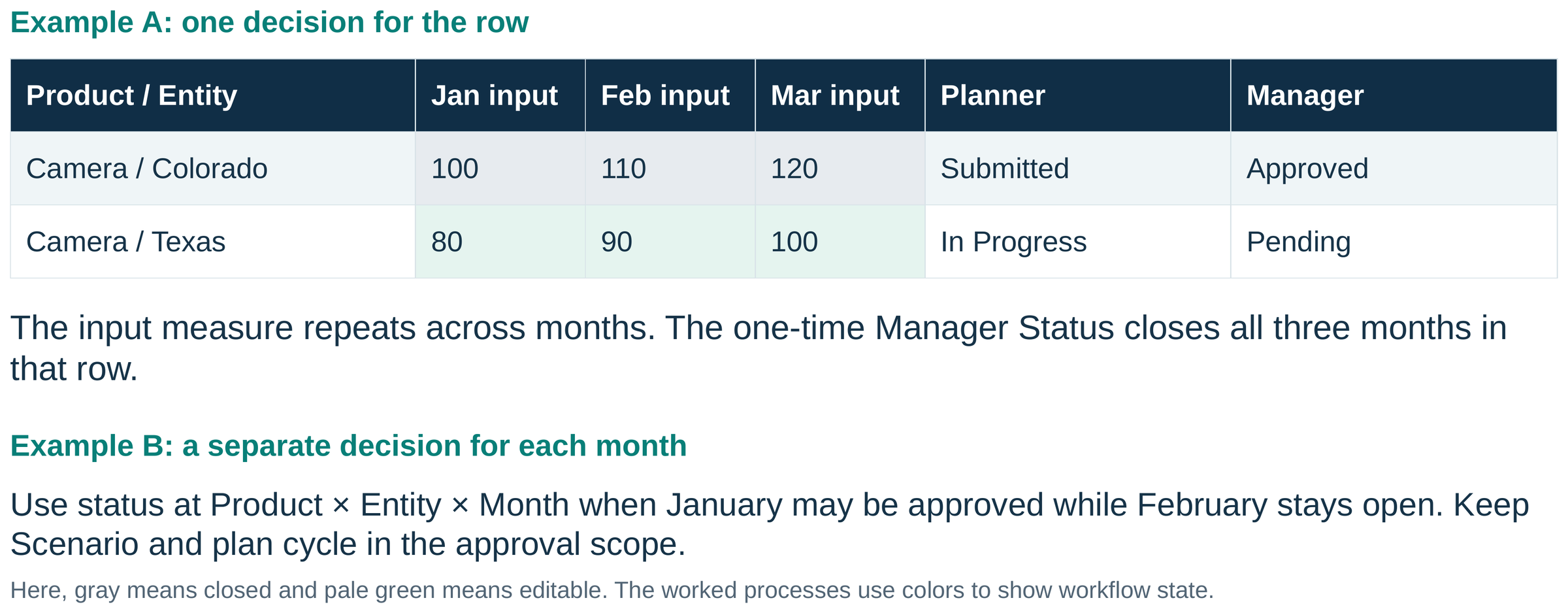
Before you build, settle the scope. A status column added once per row gives one decision for the whole row, so approving Colorado closes January to March together. If January can be signed off while February is still open, put the status at month level instead. Either way, keep scenario and plan cycle inside the scope.
Lock what’s approved
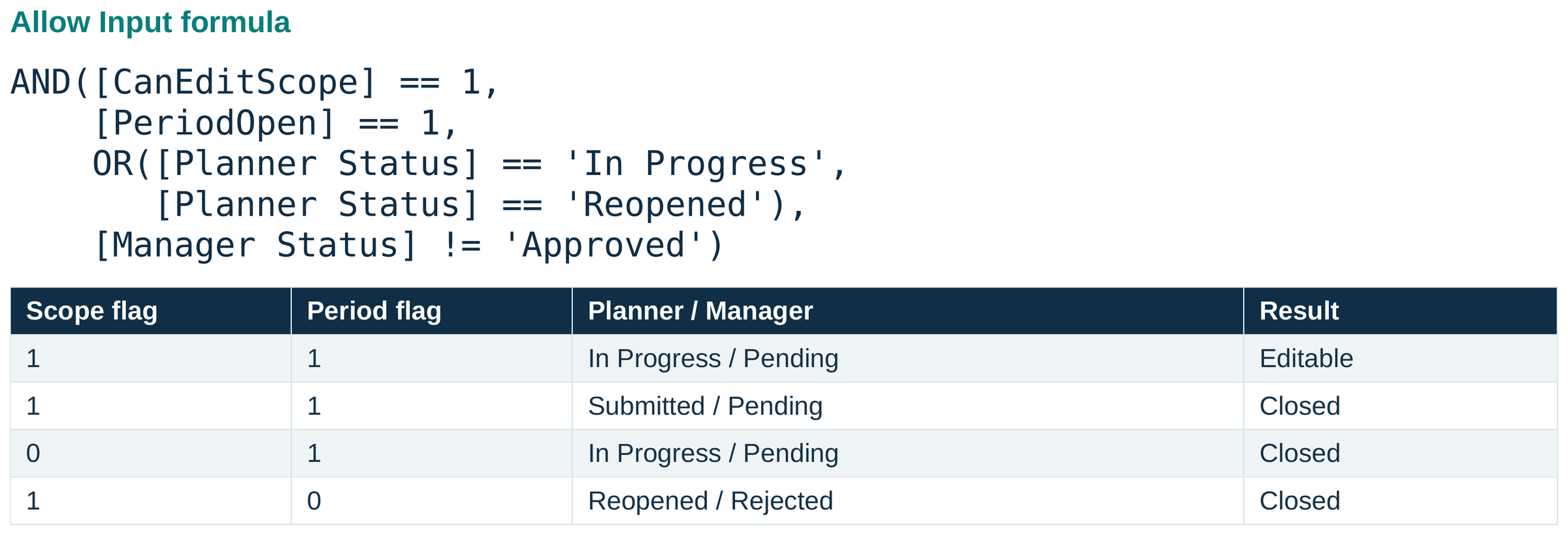
The preset tracks status. To freeze the numbers once they’re approved, set Allow Input on the input measure to Based on formula and add:
[Manager Status] != "Approved"
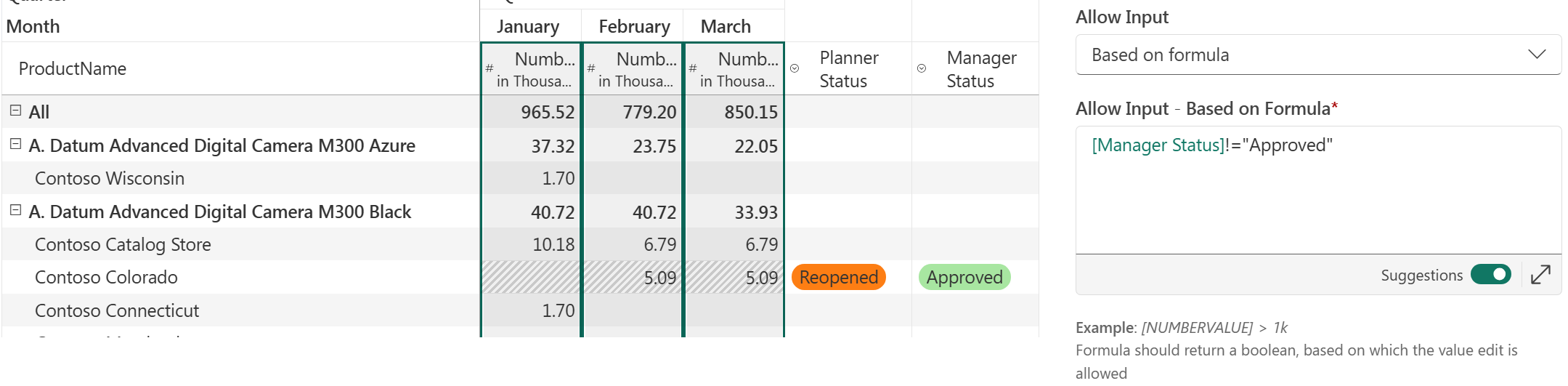
Look at Contoso Colorado. The planner has set it to Reopened, but the manager’s Approved is still there, so the row stays locked. That’s right for this rule, because it only checks Manager Status. If planners need to reopen approved rows, reset the approval as part of reopening or widen the rule.
Make the next step happen on its own
On Change formulas run when a field changes. Put this one on Planner Status:
IF(THIS == 'Submitted', SETVALUE([Manager Status], 'Pending'), '')
IF(THIS == 'Submitted', NOTIFY_USER([Reviewer Email]), '')
THIS is the new value. When the planner submits, the manager’s status flips to Pending and the reviewer gets a Teams message. The same approach stamps who changed what and when: write NOW() and LOGGEDIN_EMAIL into a date field and a person field. Guard every transition, so a row that’s already Pending doesn’t send the notification again.
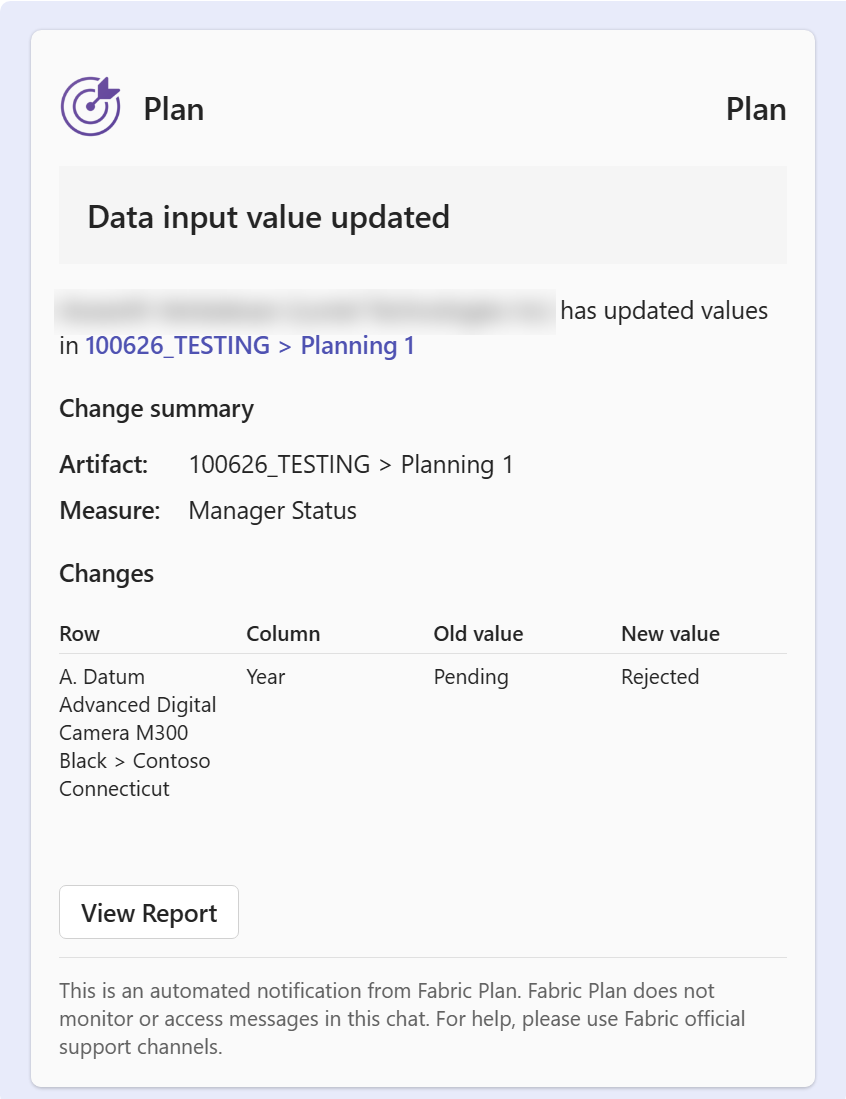
The Teams card shows who made the change and in which plan. It also shows the row and column with the old and new values. View Report takes the reviewer straight back to the record.
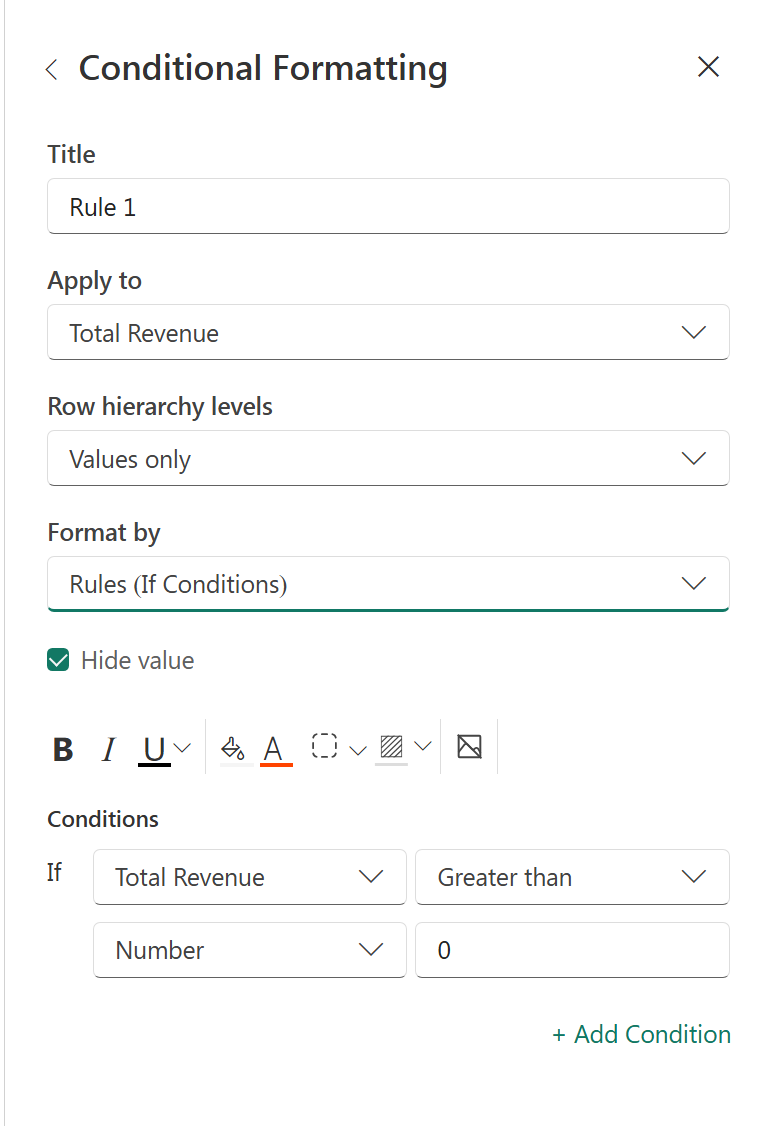
Conditional formatting shows the state at a glance, for example pink for needs action, yellow for in review and green for approved. Color tells people where things stand. Allow Input is what actually locks the cell.
One February forecast, start to finish
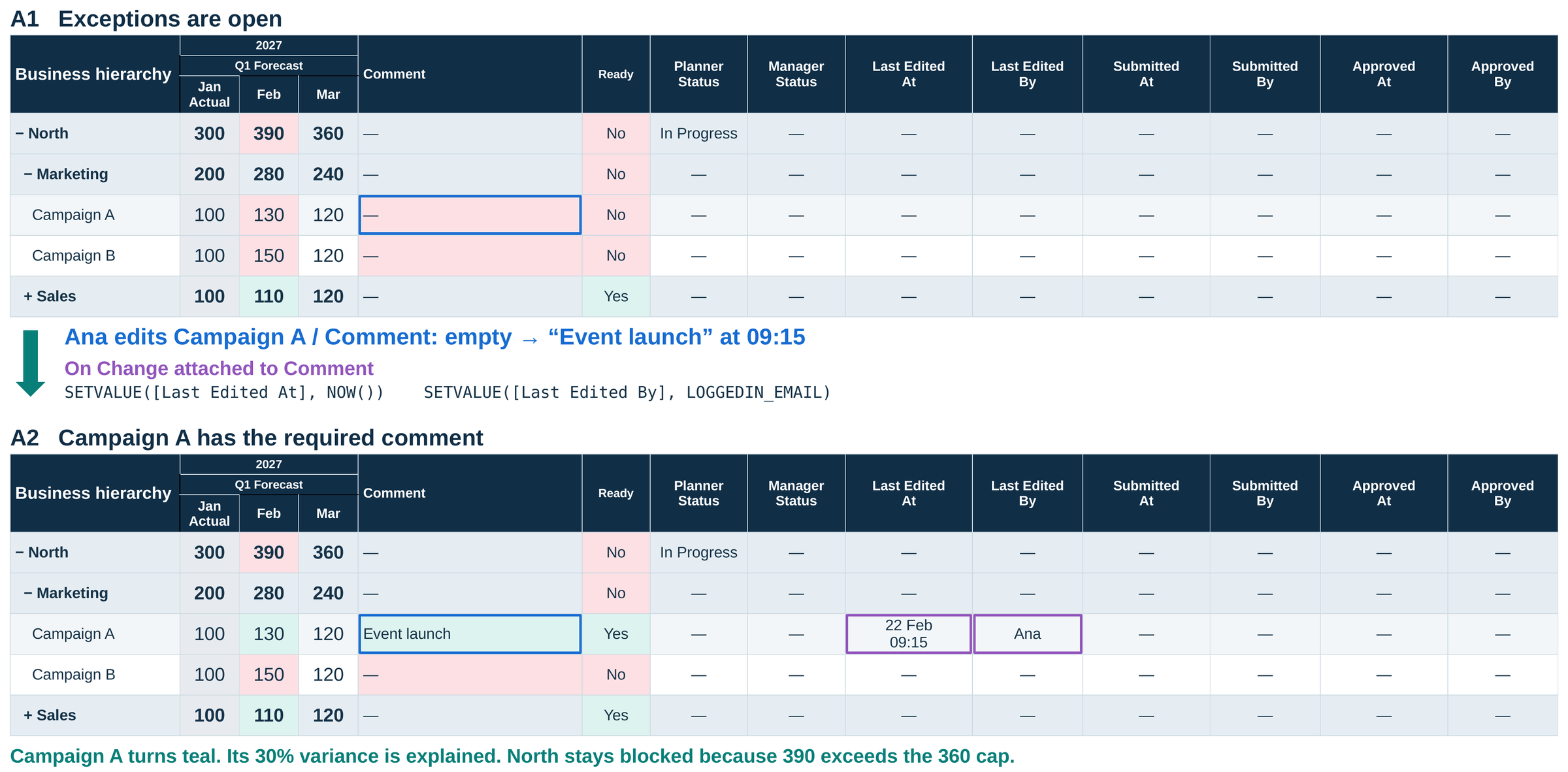
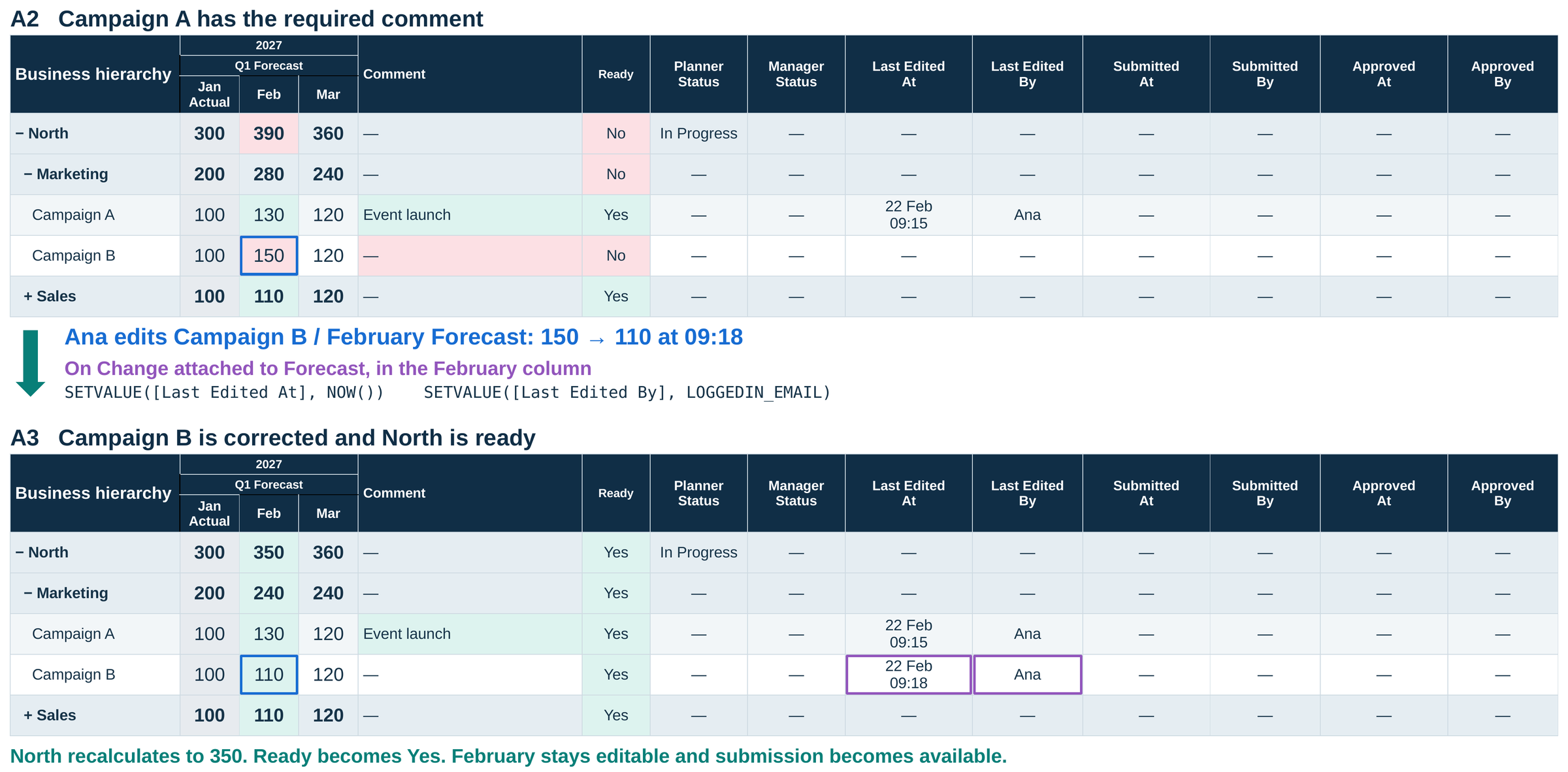
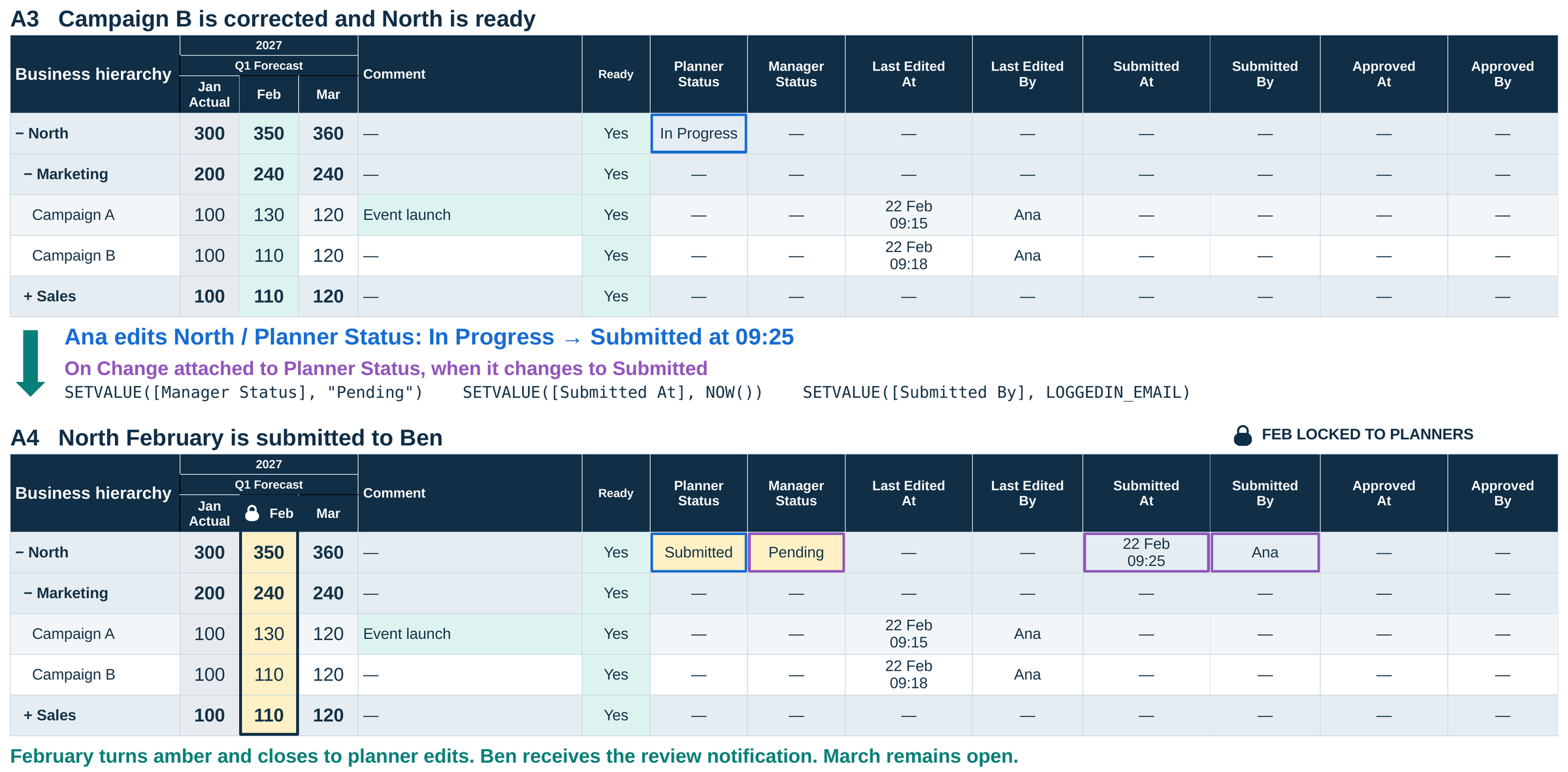
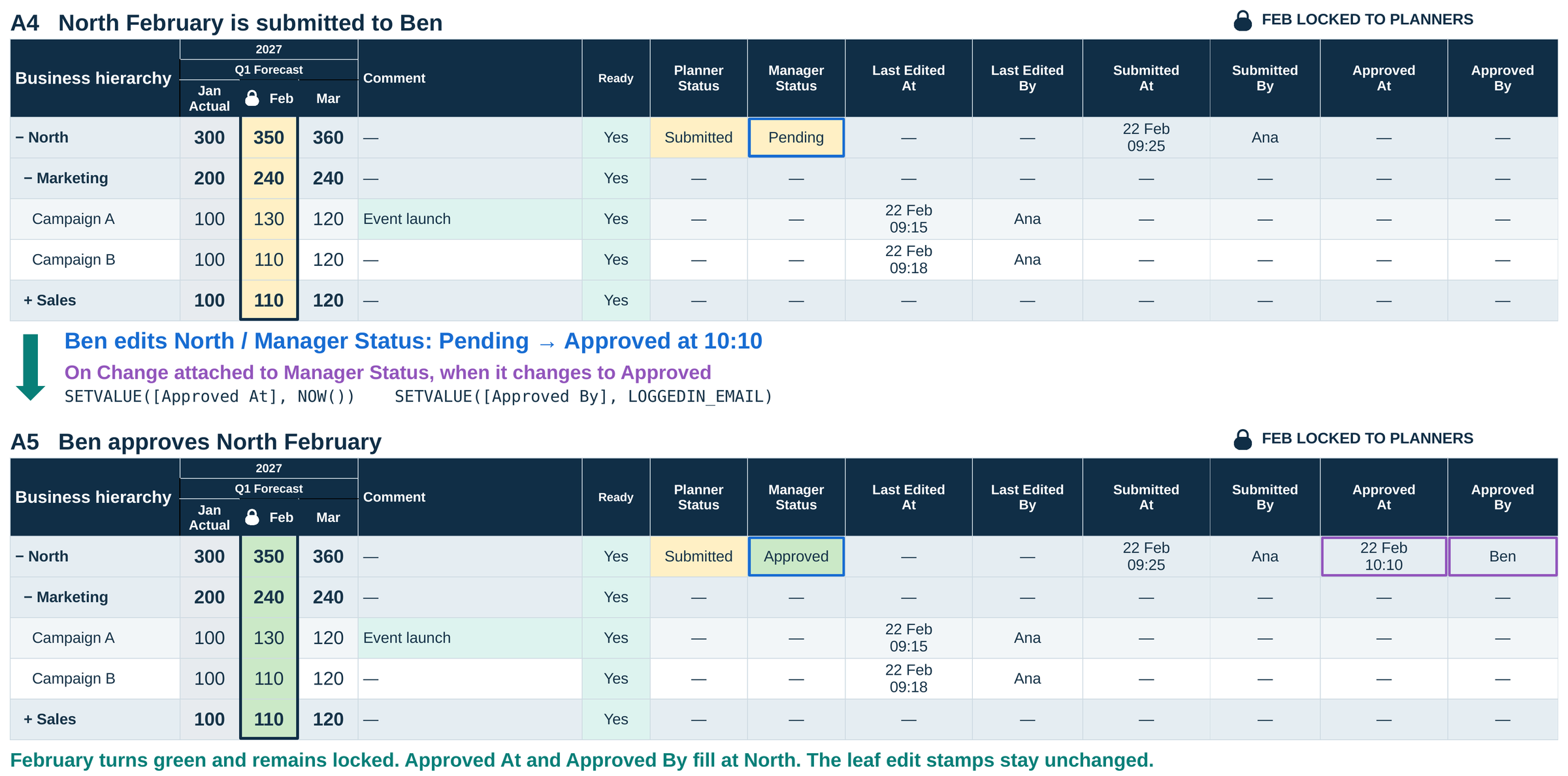
Here’s an example setup. Ana plans North’s February forecast. Any line more than 15% off January needs a comment, and North has a cap of 360. Blue boxes are Ana’s edits. Purple boxes are what the On Change formulas write.
1. Ana explains Campaign A. It went from 100 to 130, so it needs a comment. She adds “Event launch” and the edit is stamped with her name and the time. North is still blocked at 390.
2. Ana corrects Campaign B. She cuts it from 150 to 110. North drops to 350, under the cap, and the row is ready to submit.
3. Ana submits. Manager Status moves to Pending and the submission is stamped. February locks and Ben gets a Teams message. March is still open.
4. Ben approves. The approval is stamped and February stays locked.
The comment rule, the cap and the readiness check are formulas you add on top of the preset.
Route by amount
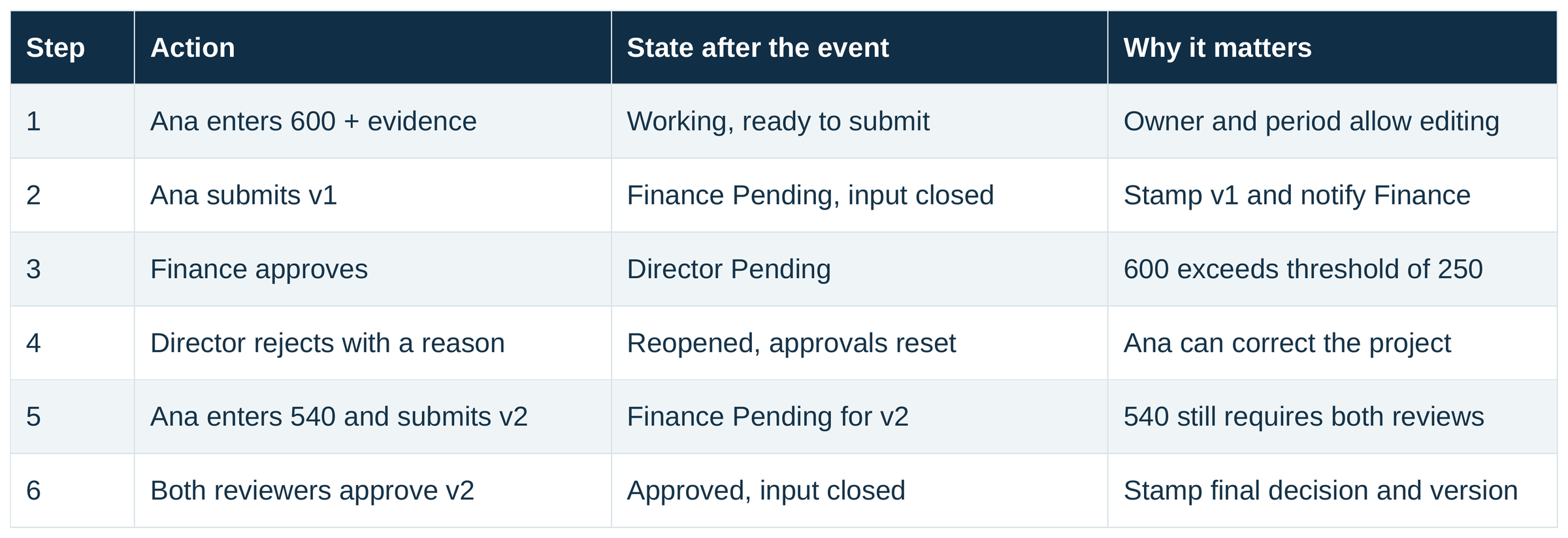
Not every request needs every reviewer. This capital example is a custom setup built with the same On Change formulas: Finance reviews first, and a Director steps in above 250. Project P-202 starts at 600, so it goes to both. The Director rejects it with a reason, which resets the approvals. Ana brings it down to 540, but that’s still above 250, so it needs both reviews again before it’s approved and closed.
When the rules belong to the business
Some rules shouldn’t sit in a formula someone has to edit: who owns which region, which months are open. Keep those in a table the business maintains and bring it into the semantic model. A DAX measure checks the signed-in user with USERPRINCIPALNAME and returns 1 or 0.
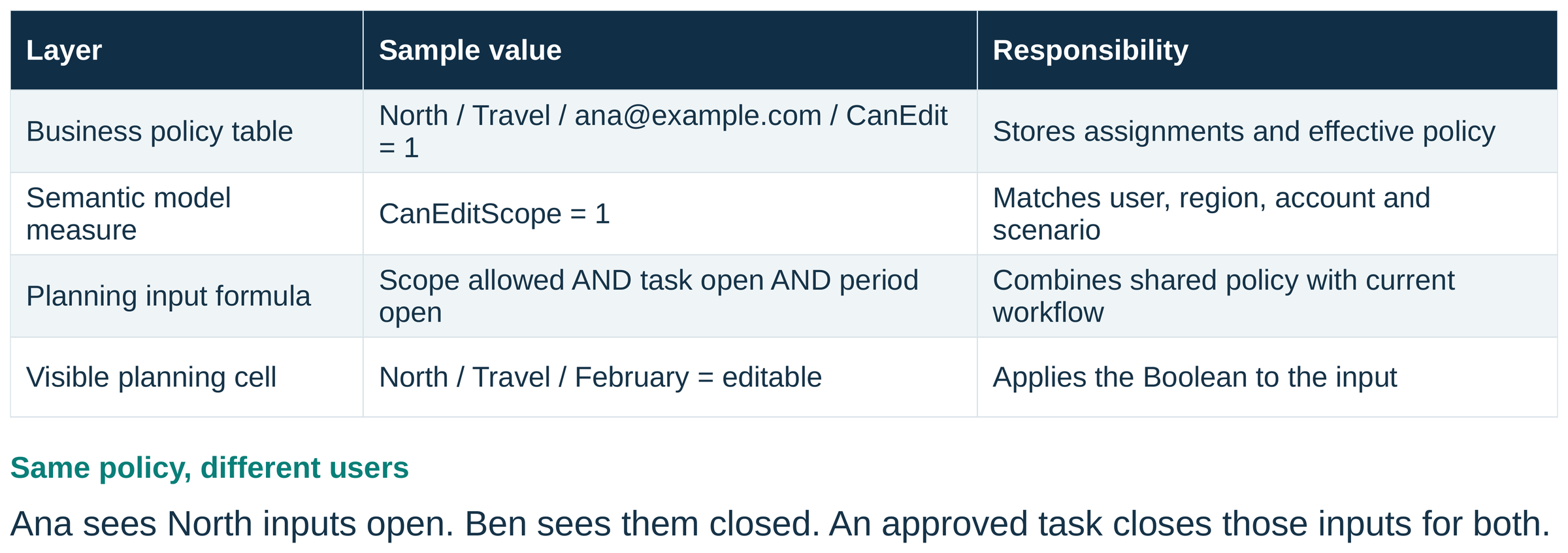
Allow Input then combines the model’s flags with the live status, so on the same sheet Ana sees North open and Ben sees it closed.
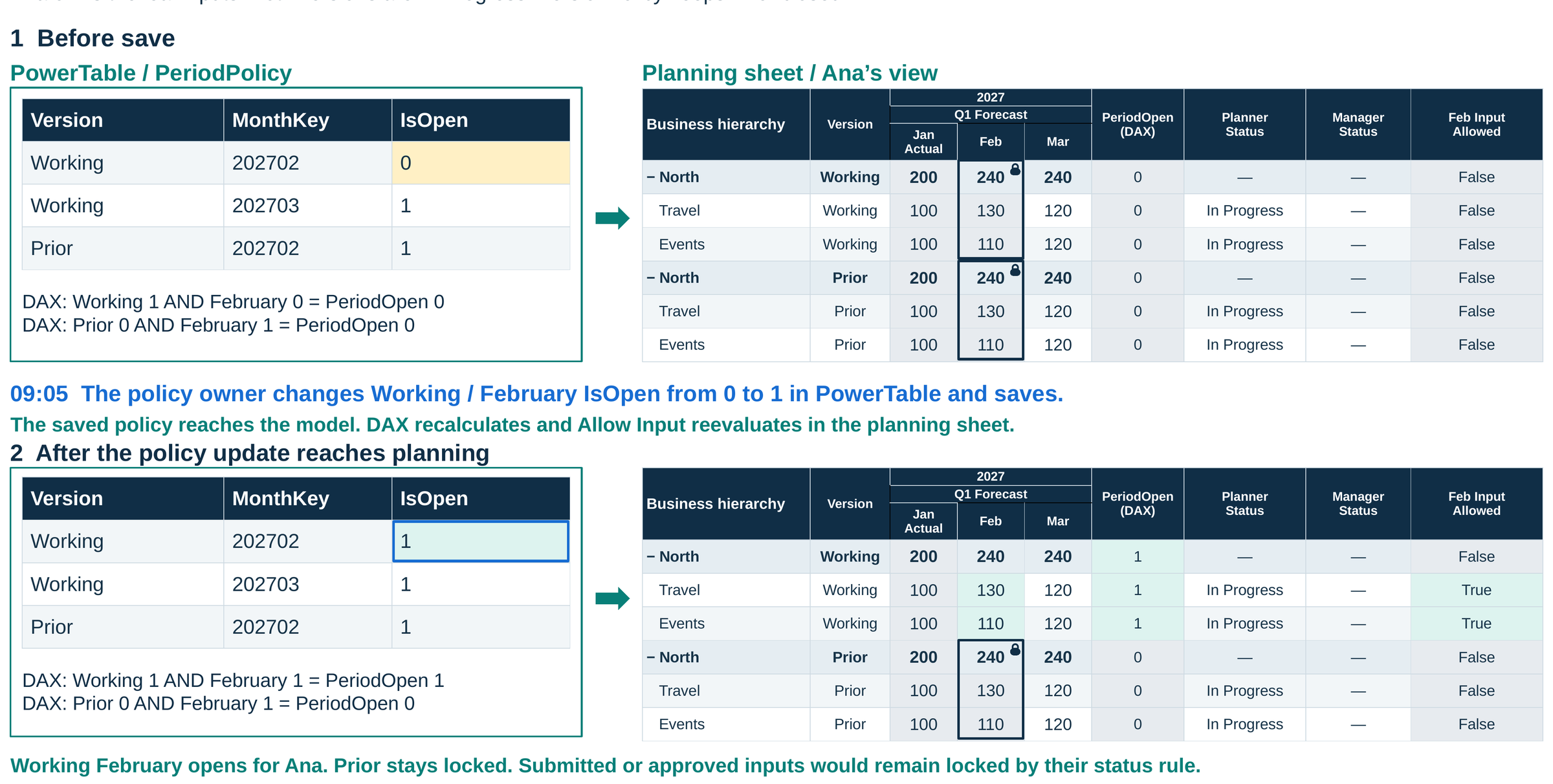
PowerTable works well for those tables, since business owners can maintain them in a grid. The tables still need to be part of the semantic model the planning sheet uses. Here the policy owner opens February for the working forecast in PowerTable. Once the change reaches the model, February opens for Ana in the planning sheet, and the prior version stays locked. (The screens are illustrative layouts.)
Who can write is a separate setting
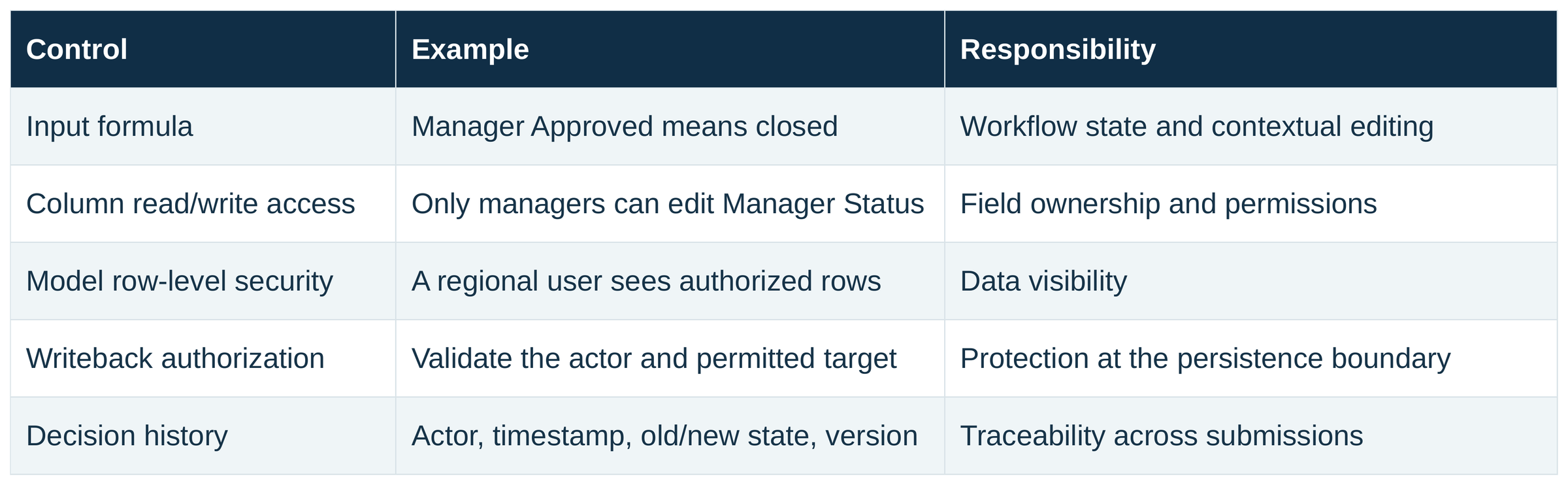
A formula lock controls the grid. Who is allowed to write is set by input permissions in the plan’s security roles, row-level security in the model and authorization on writeback. Lock down the status fields too. Anyone who can edit Manager Status can unlock the row.
For exact syntax, the docs on approval workflows cover NOTIFY_USER. SETVALUE has its own page.




Comments
0Please log in to comment.