
Lumel
Introducing Driver-Based Planning in Microsoft Fabric Plan
Driver Based PlanningFabric Planning
A plan rarely stops when the numbers are submitted. With writeback event triggers, a writeback can refresh reports, feed downstream systems and alert the right people, configured from the planning UI with no code. The loop from plan to action closes entirely within Fabric.
In this article:
Before Event Triggers, the steps after a writeback were manual or needed external plumbing: someone refreshed the report, re-ran a pipeline or called an API from an Azure Function. Now the plan starts that work itself, the moment the data lands, using the Fabric items your data team already runs.
The result: reports show approved numbers within minutes, downstream systems get the plan without a hand-off, and failures reach someone who can fix them.
| When a writeback… | Typical actions | Example |
|---|---|---|
| Starts | Stored procedure, Teams or Outlook notification | Snapshot the current destination table before it changes, or tell data owners a load is under way |
| Succeeds | Semantic model refresh, pipeline, notebook, Dataflow Gen2, stored procedure, notification | Refresh the variance report, push the approved budget to the ERP, or recalculate a downstream allocation |
| Fails | Teams or Outlook notification, stored procedure | Alert the plan administrator with the error details and log the failed run |
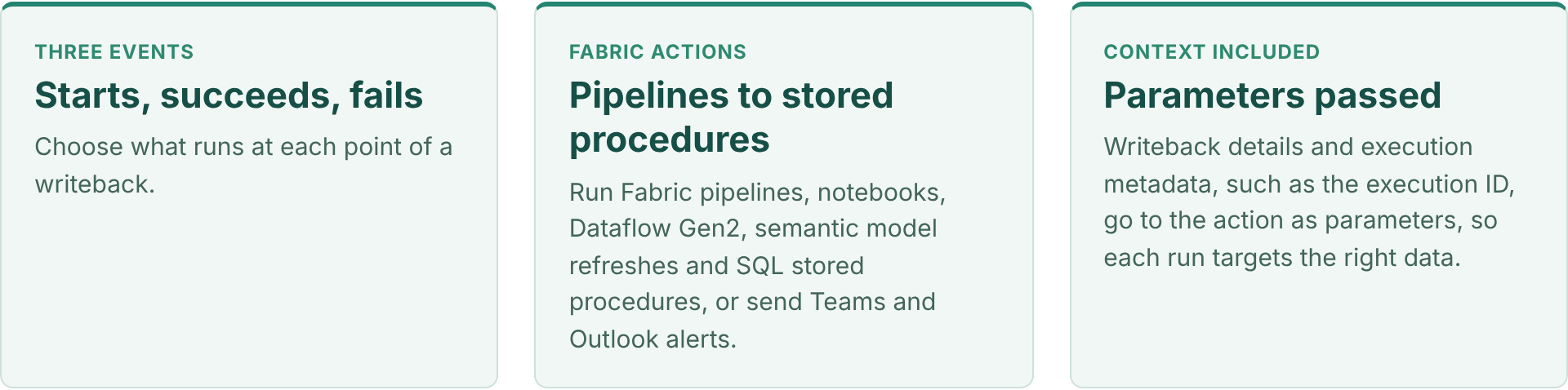
You can configure several triggers on one planning sheet, so different automation paths run for different events, and run actions in sequence, such as a stored procedure followed by a semantic model refresh.
Demo, about 3 minutes: set up a trigger that runs a pipeline after a successful writeback, pass the execution ID as a parameter, chain a stored procedure with a semantic model refresh, and check each run in the trigger logs. Also on the Fabric Plan community.
Each one replaces a manual step that usually follows a planning cycle.
On succeeds, refresh the semantic model that holds plan versus actuals, so the variance report shows the new plan without waiting for the next scheduled refresh. See it end to end in Planning Decision to Business Action.
Once the plan clears approvals and is written back, run a Fabric pipeline on succeeds that copies the approved version to the ERP or a finance data mart, passing the scenario and version as parameters.
On succeeds, run a stored procedure or notebook that rebuilds allocations, aggregates or derived tables that depend on the plan, then refresh the semantic model that reports on them.
On fails, send a Teams or Outlook message to the plan administrator with the writeback details, so issues are fixed before the deadline.
Event Triggers are configured on the planning sheet, after a writeback destination exists.
Set up writeback to Fabric SQL or OneLake for the planning sheet. See writeback to OneLake and the Planning 103 – Writeback video.
From the planning UI, add a trigger and choose the event: when the writeback starts, succeeds or fails.
Pick the Fabric item to run and its connection, such as a pipeline, notebook, Dataflow Gen2, semantic model refresh or stored procedure, or a Teams or Outlook notification.
Pass writeback details and execution metadata, such as the execution ID, to the action, so it processes only what changed.
Run a writeback on a test version and confirm each action ran in the trigger logs, then add more triggers for other paths.
PowerTable too. PowerTable Automations can run stored procedures from a Fabric SQL database, passing values from the record that triggered them, alongside no-code create, update and find-record actions. Watch Execute Stored Procedure Action in PowerTable Automations and Setting Up Automations in PowerTable.
Pick the one task that always follows a writeback today, usually a report refresh, and make it an Event Trigger. Add the failure alert at the same time.
Sources
Feature details reflect published Fabric Plan updates at the time of writing.


Comments
0Please log in to comment.