
Lumel
Introducing Driver-Based Planning in Microsoft Fabric Plan
Driver Based PlanningFabric Planning
A logistics organization manages employee, warehouse, and shipment information across multiple locations. While different teams work with the same data, they do not all need access to every column.
Row-level security controls which records each user can see, but on its own it cannot restrict columns. Anyone with access to a record could see every column in it, including salaries and other sensitive details. That gap made it hard to share one table safely across teams.
PowerTable Column Access closes that gap by bringing column-level security to PowerTable. You can control who can view, insert, or update each column, role by role, while every team keeps working in the same shared table.
Here’s how it works in a logistics organization.
In this post:
One shared Employees table serves three teams with different needs.
Consider a logistics organization with 50 employees managing operations across five warehouses: Newark Gateway Logistics Park, Atlanta Southern Distribution Center, Chicago O’Hare Freight Hub, Dallas Lone Star Logistics Hub, and Los Angeles Pacific Port Terminal.
The Employees table contains Employee ID, Employee Name, Designation, Department, Work Email, Hourly Rate, Monthly Salary, Salary, Performance Rating, Is Active, and Warehouse Assignment.
Without column-level access, users may be able to view or modify information that is not relevant to their responsibilities.
Column Access gives each column three permissions per role. Read shows or hides the column. Insert controls whether a user can enter a value in a new row. Update controls whether a user can change a value in an existing row. Settings apply to all roles or to specific roles, and when a user has several roles, an access is granted if any of those roles grant it.
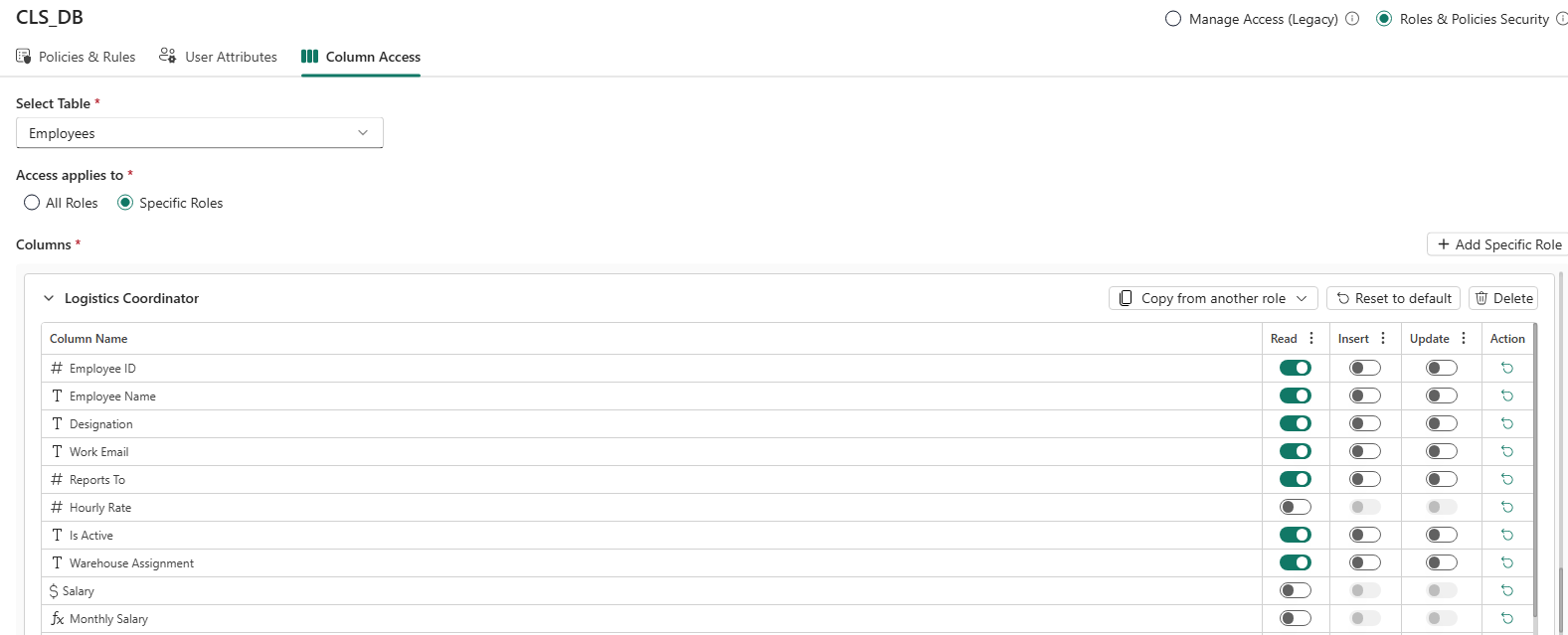
Turn off Read for a column, and it disappears for that role everywhere in PowerTable.
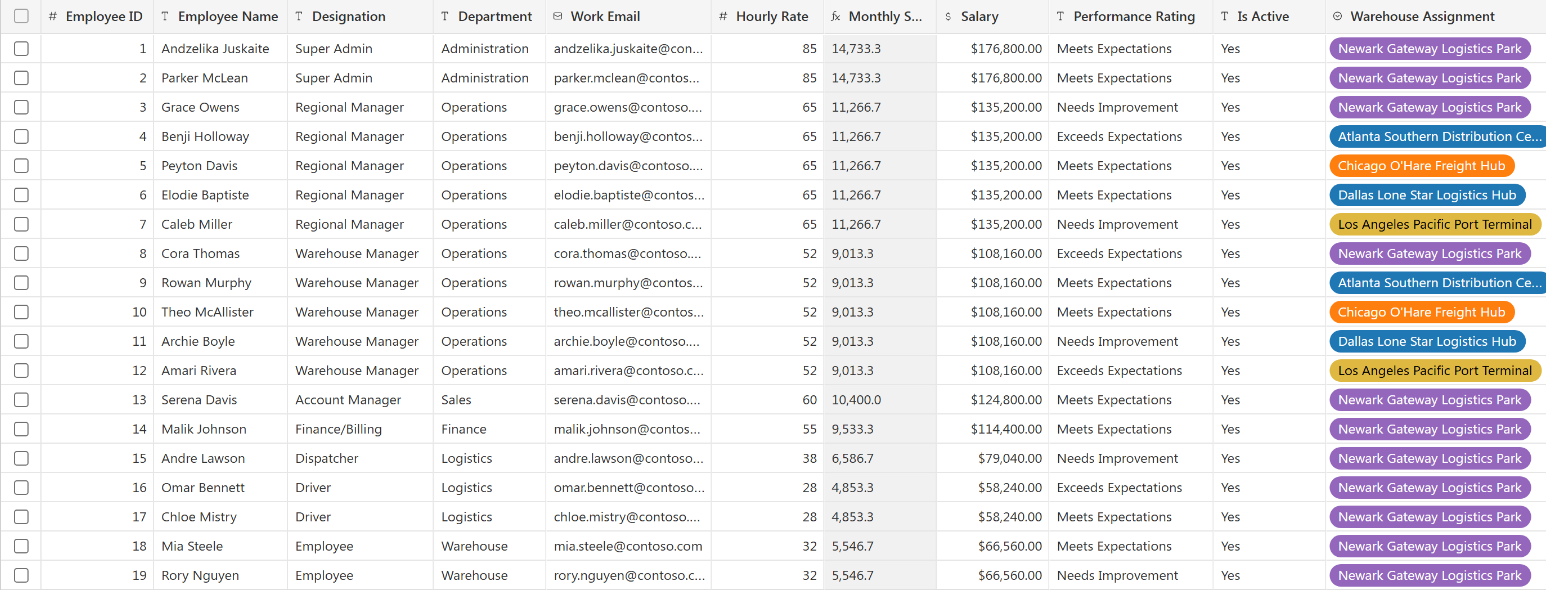
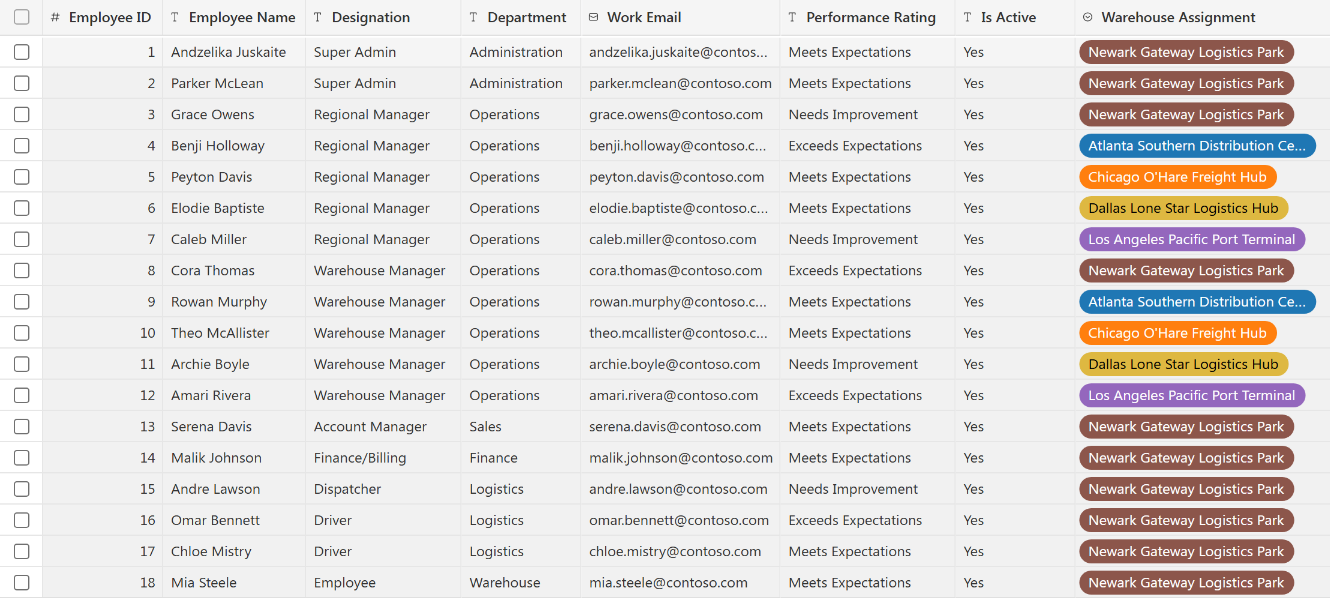
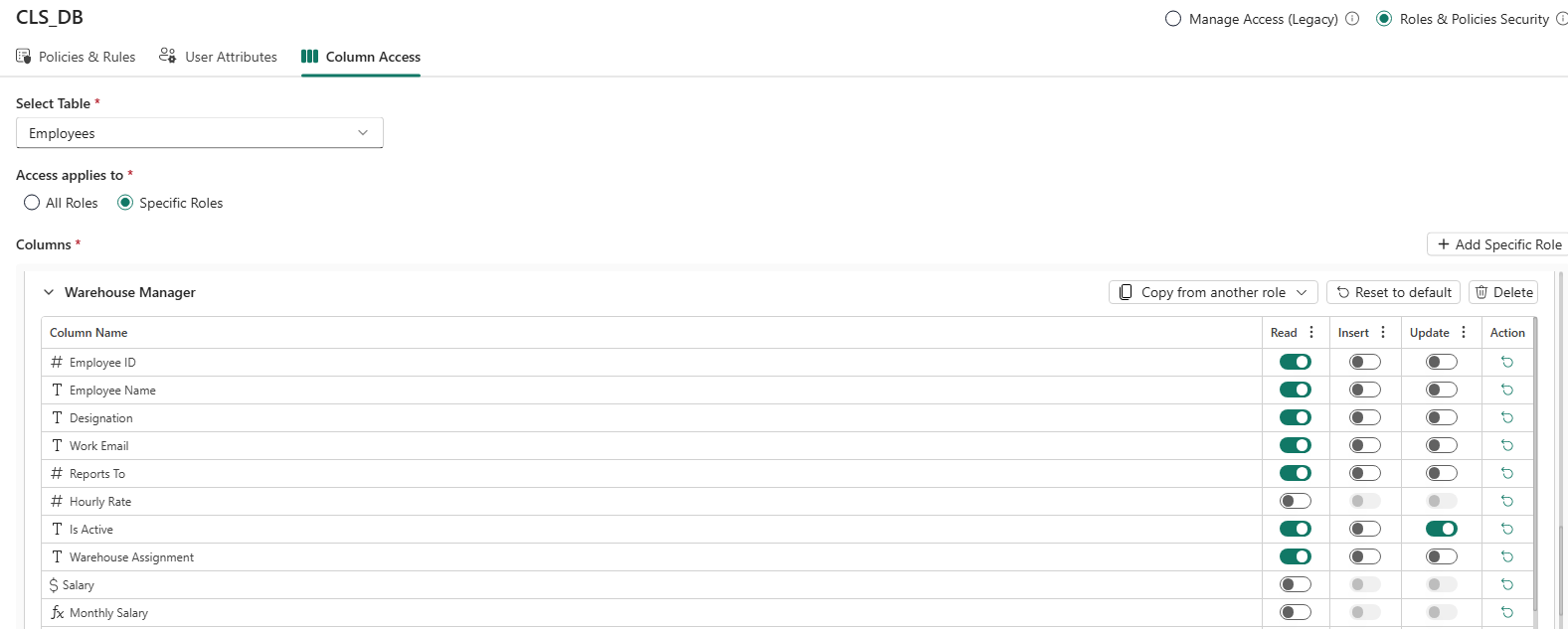
Problem: The HR team needs Salary, Hourly Rate, and Monthly Salary, but Warehouse Managers and Logistics Coordinators should not see them.
What changes: You can turn off Read for specific columns and roles. The column is hidden from the grid and from other product areas where columns can be selected, and Insert and Update are disabled for it.
| User role | Column access |
|---|---|
| HR Team | Can view all columns |
| Warehouse Manager | Salary, Hourly Rate, and Monthly Salary are hidden |
| Logistics Coordinator | Salary, Hourly Rate, and Monthly Salary are hidden |
What each role sees
How to configure
Turn off Update for a column, and users can still see its values but can no longer change them.
Problem: Warehouse Managers need to keep the Is Active status of their team current, but should not change other employee details such as Department or Designation. Logistics Coordinators only need to view employee details. HR must keep the ability to update them all.
What changes: Update is controlled independently for each column. With Read on and Update off, the column is view only.
| User role | Department | Designation | Is Active |
|---|---|---|---|
| HR Team | View and Update | View and Update | View and Update |
| Warehouse Manager | View only | View only | View and Update |
| Logistics Coordinator | View only | View only | View only |
What it looks like

How to configure
Pair Column Access with row-level security to control both which records and which columns each user can reach.
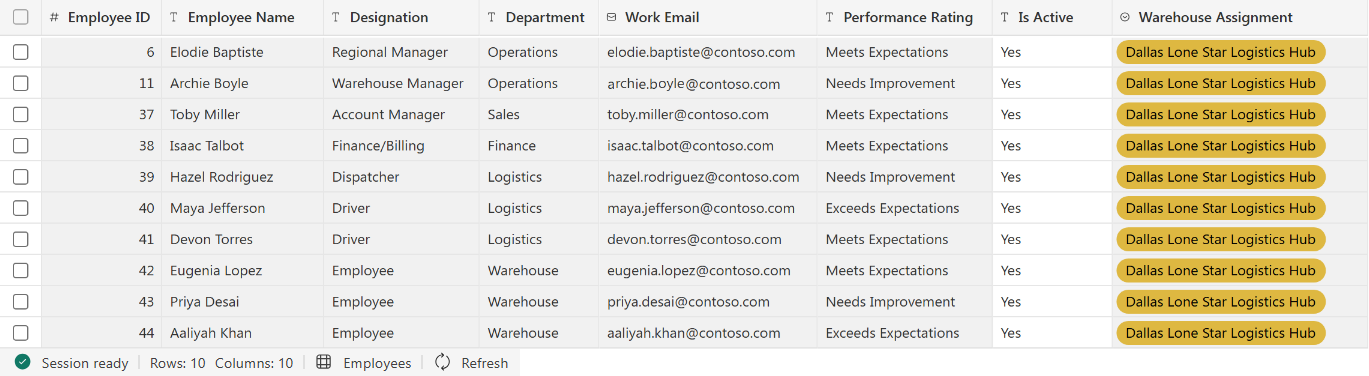
Problem: Each Warehouse Manager should see employees only from their own warehouse. The Dallas Warehouse Manager, for example, should not see records from Newark, Atlanta, Chicago, or Los Angeles. Column Access controls columns, not rows.
What changes: Row-Level Security (RLS) decides which records a user can access, and Column Access decides which columns. A policy limits the Dallas Warehouse Manager to records where Warehouse Assignment is Dallas Lone Star Logistics Hub, and Column Access hides Salary, Hourly Rate, and Monthly Salary for the Warehouse Manager role.
| Access requirement | Result |
|---|---|
| Warehouse-level access | Only the 10 Dallas employee records |
| Column-level access | Salary, Hourly Rate, and Monthly Salary are hidden |
What it looks like
How to configure
Column Access completes PowerTable’s security model. Together with row-level security, it controls both which records and which columns each role can view, insert, and update.
One shared table. The right access for every role, down to the column.
Ready to secure your shared tables?
Feature details reflect Fabric Plan at the time of writing.


Comments
0Please log in to comment.