A plan rarely stops when the numbers are submitted. With writeback event triggers, a writeback can refresh reports, feed downstream systems and alert the right people, configured from the planning UI with no code. The loop from plan to action closes entirely within Fabric.
In this article:
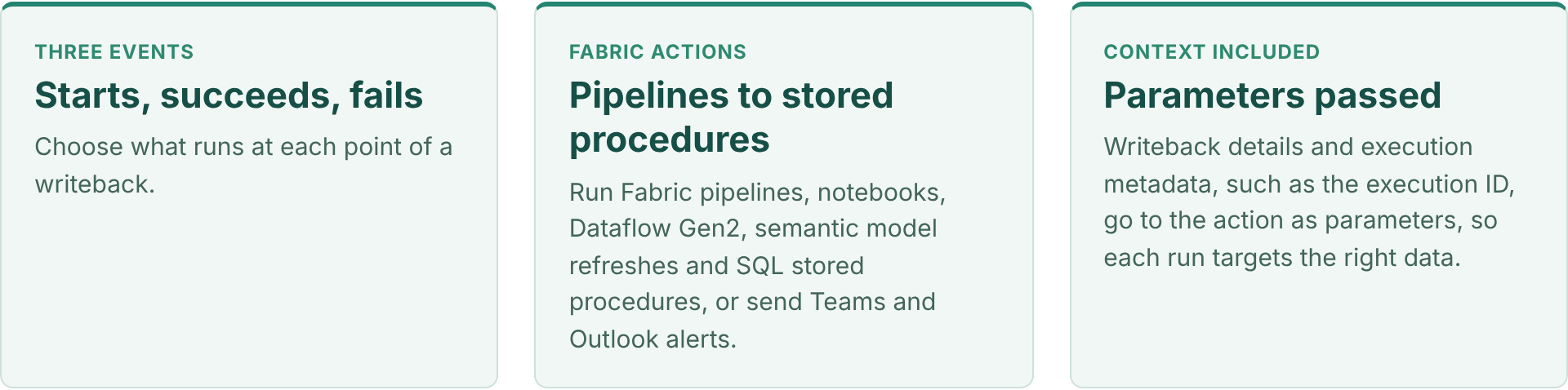
Before Event Triggers, the steps after a writeback were manual or needed external plumbing: someone refreshed the report, re-ran a pipeline or called an API from an Azure Function. Now the plan starts that work itself, the moment the data lands, using the Fabric items your data team already runs.
The result: reports show approved numbers within minutes, downstream systems get the plan without a hand-off, and failures reach someone who can fix them.
| When a writeback… | Typical actions | Example |
|---|---|---|
| Starts | Stored procedure, Teams or Outlook notification | Snapshot the current destination table before it changes, or tell data owners a load is under way |
| Succeeds | Semantic model refresh, pipeline, notebook, Dataflow Gen2, stored procedure, notification | Refresh the variance report, push the approved budget to the ERP, or recalculate a downstream allocation |
| Fails | Teams or Outlook notification, stored procedure | Alert the plan administrator with the error details and log the failed run |
You can configure several triggers on one planning sheet, so different automation paths run for different events, and run actions in sequence, such as a stored procedure followed by a semantic model refresh.
Demo, about 3 minutes: set up a trigger that runs a pipeline after a successful writeback, pass the execution ID as a parameter, chain a stored procedure with a semantic model refresh, and check each run in the trigger logs. Also on the Fabric Plan community.
Each one replaces a manual step that usually follows a planning cycle.
On succeeds, refresh the semantic model that holds plan versus actuals, so the variance report shows the new plan without waiting for the next scheduled refresh. See it end to end in Planning Decision to Business Action.
Once the plan clears approvals and is written back, run a Fabric pipeline on succeeds that copies the approved version to the ERP or a finance data mart, passing the scenario and version as parameters.
On succeeds, run a stored procedure or notebook that rebuilds allocations, aggregates or derived tables that depend on the plan, then refresh the semantic model that reports on them.
On fails, send a Teams or Outlook message to the plan administrator with the writeback details, so issues are fixed before the deadline.
Event Triggers are configured on the planning sheet, after a writeback destination exists.
Set up writeback to Fabric SQL or OneLake for the planning sheet. See writeback to OneLake and the Planning 103 – Writeback video.
From the planning UI, add a trigger and choose the event: when the writeback starts, succeeds or fails.
Pick the Fabric item to run and its connection, such as a pipeline, notebook, Dataflow Gen2, semantic model refresh or stored procedure, or a Teams or Outlook notification.
Pass writeback details and execution metadata, such as the execution ID, to the action, so it processes only what changed.
Run a writeback on a test version and confirm each action ran in the trigger logs, then add more triggers for other paths.
PowerTable too. PowerTable Automations can run stored procedures from a Fabric SQL database, passing values from the record that triggered them, alongside no-code create, update and find-record actions. Watch Execute Stored Procedure Action in PowerTable Automations and Setting Up Automations in PowerTable.
Pick the one task that always follows a writeback today, usually a report refresh, and make it an Event Trigger. Add the failure alert at the same time.
Sources
Feature details reflect published Fabric Plan updates at the time of writing.
Write back Fabric Plan results as Delta Parquet, use them in Direct Lake semantic models, and reuse them across Fabric.
This is Part 2 of our three-part Native Planning Engine series. Part 1 introduces the Native Planning Engine, and Part 3 covers the performance improvements across Fabric Plan.
Alongside the brand new Native Planning Engine, now in Public Preview (Part 1), Fabric Plan now supports writeback to OneLake as a new writeback destination, in Delta Parquet format.
Writeback outputs land as Delta tables in OneLake. You can add them to a semantic model in Direct Lake mode and reuse them across Fabric through lakehouse shortcuts, without another copy of the data. Fabric SQL remains a fully supported writeback destination.
This post assumes your Plan items run on the Native Planning Engine. If they don’t yet, turn it on first (Part 1).
In this article:
Choose OneLake to write back as Delta Parquet. File-based writes are about 5–6× faster than SQL-based writes at typical volumes, rising to 13× at 12M cells, and are tested up to 50 million cells per writeback instance. Fabric SQL remains fully supported and is a great fit for writeback up to 2.4 million cells and for SQL-based workflows.
| Writeback capability with the Native Planning Engine | Writeback destination: Fabric SQL | Direct writeback to OneLake |
|---|---|---|
| Destination support | Fabric SQL (fully supported) | OneLake (direct writeback) |
| Cells per writeback instance | 2.4M recommended | 50M tested |
| Writeback speed | 3 mins | 30 sec (about 6× faster) |
| Output format | SQL tables | Delta Parquet in OneLake |
Writeback speed measured at 2.4M cells. See Writeback performance for every volume tested. Actual speed depends on data volume, workload and capacity.
Approximately 5–6× faster at typical customer volumes. Most customers write back 1.2M–2.4M cells; those volumes are marked as typical below. The gap widens as volume grows, reaching 13× at 12M cells, because of the write approach: SQL-based writes versus file-based Delta Parquet writes.
| Volume (cells) | Writeback to Fabric SQL (SQL-based writes) | Direct writeback to OneLake (file-based Delta Parquet writes) | Approx. speedup |
|---|---|---|---|
| 120K | 13 sec | 6 sec | 2× faster |
| 480K | 30 sec | 9 sec | 3× faster |
| 1.2M (typical) | 1 min 09 sec | 15 sec | 5× faster |
| 2.4M (typical) | 2 min 54 sec | 30 sec | 6× faster |
| 4.8M | 10 min 11 sec | 52 sec | 12× faster |
| 12M | 22 min 29 sec | 1 min 40 sec | 13× faster |
| 30M | Not tested | 4 min 15 sec | N/A |
| 50M | Not tested | 9 min 05 sec | N/A |
Speedup = SQL-based writeback time ÷ file-based OneLake writeback time, rounded to the nearest whole number. SQL-based writeback was not tested at 30M and 50M cells. Actual times depend on workload, model design and capacity. Writeback volume is counted per writeback instance and is separate from the interactive planning grid, which supports up to 12 million cells in aggregate on the Native Planning Engine (see Part 1). On our roadmap, OneLake writeback will extend to support 120 million cells and beyond, matching the planning grid roadmap in Part 1.
The workflow: Plan → OneLake (Delta Parquet) → Direct Lake semantic model.
Open the Plan’s Writeback tab and select Add destination.

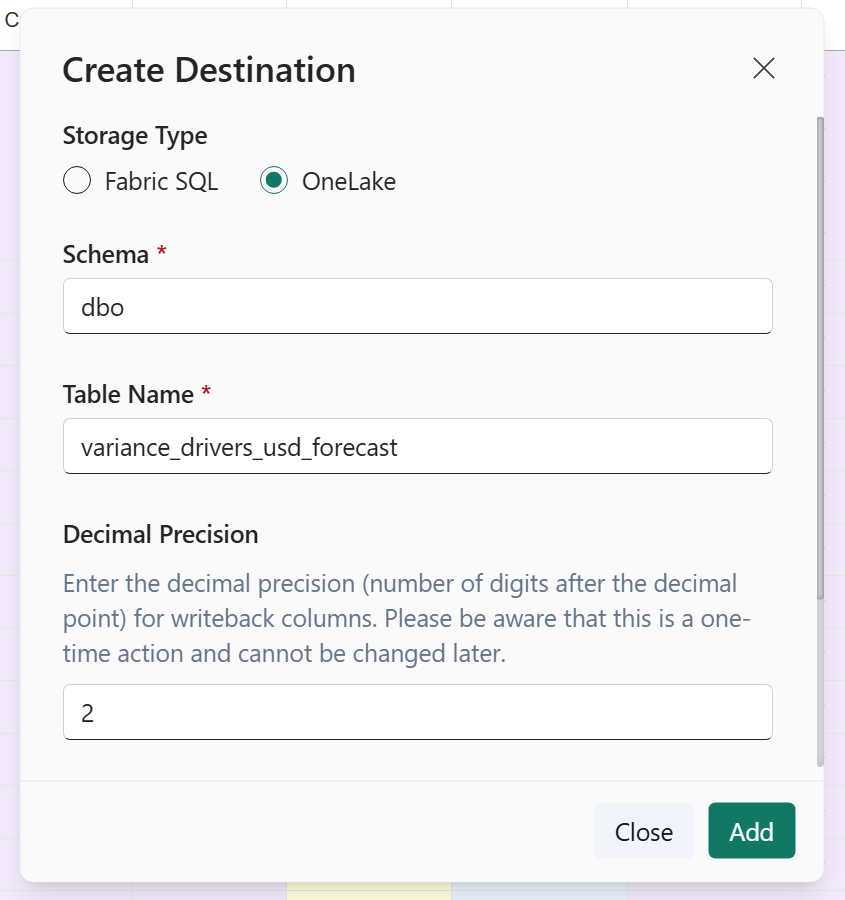
In Create Destination, select OneLake. Enter the Schema, Table Name, and Decimal Precision, then select Add.
The example uses dbo, variance_drivers_usd_forecast, and two decimal places. The dialog notes that decimal precision cannot be changed later.
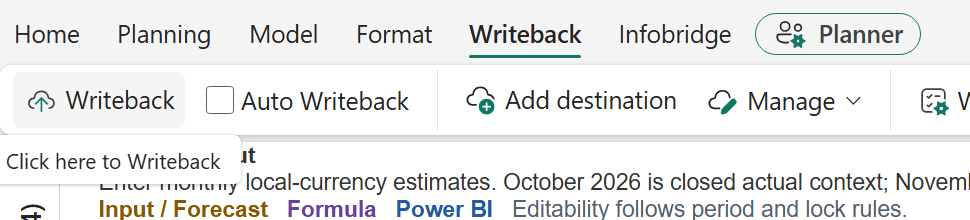
Select Writeback. When the operation finishes, the Plan displays Writeback completed.

Open Logs and confirm Destination Type: OneLake and Status: Success.

Plan items are now a supported source in the OneLake catalog. Each Plan item can contain multiple writeback tables; choose the ones your semantic model needs.
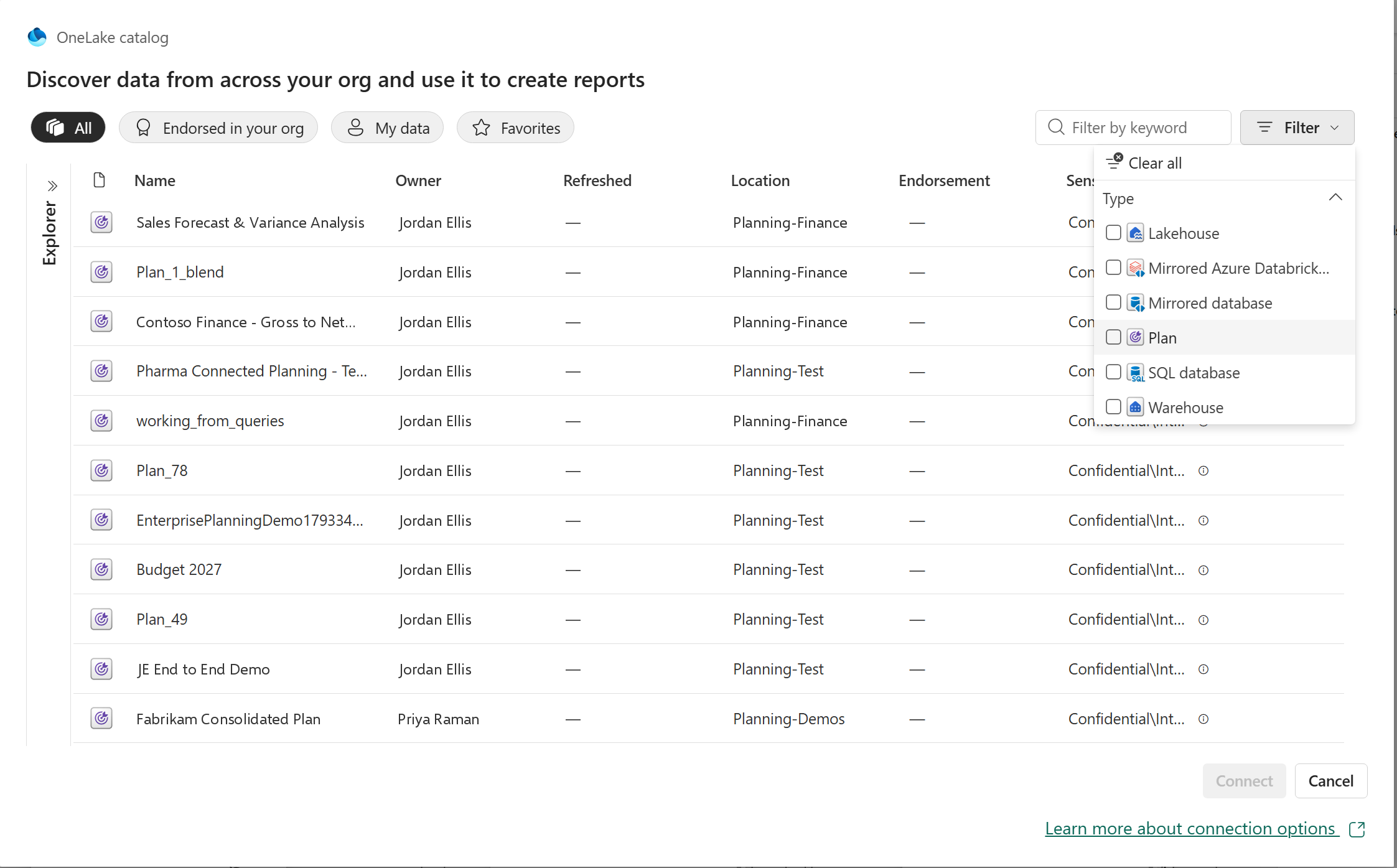
In the semantic model editor, select OneLake catalog. Open the top-right Filter, choose Type → Plan, select the Plan item, and select Connect.
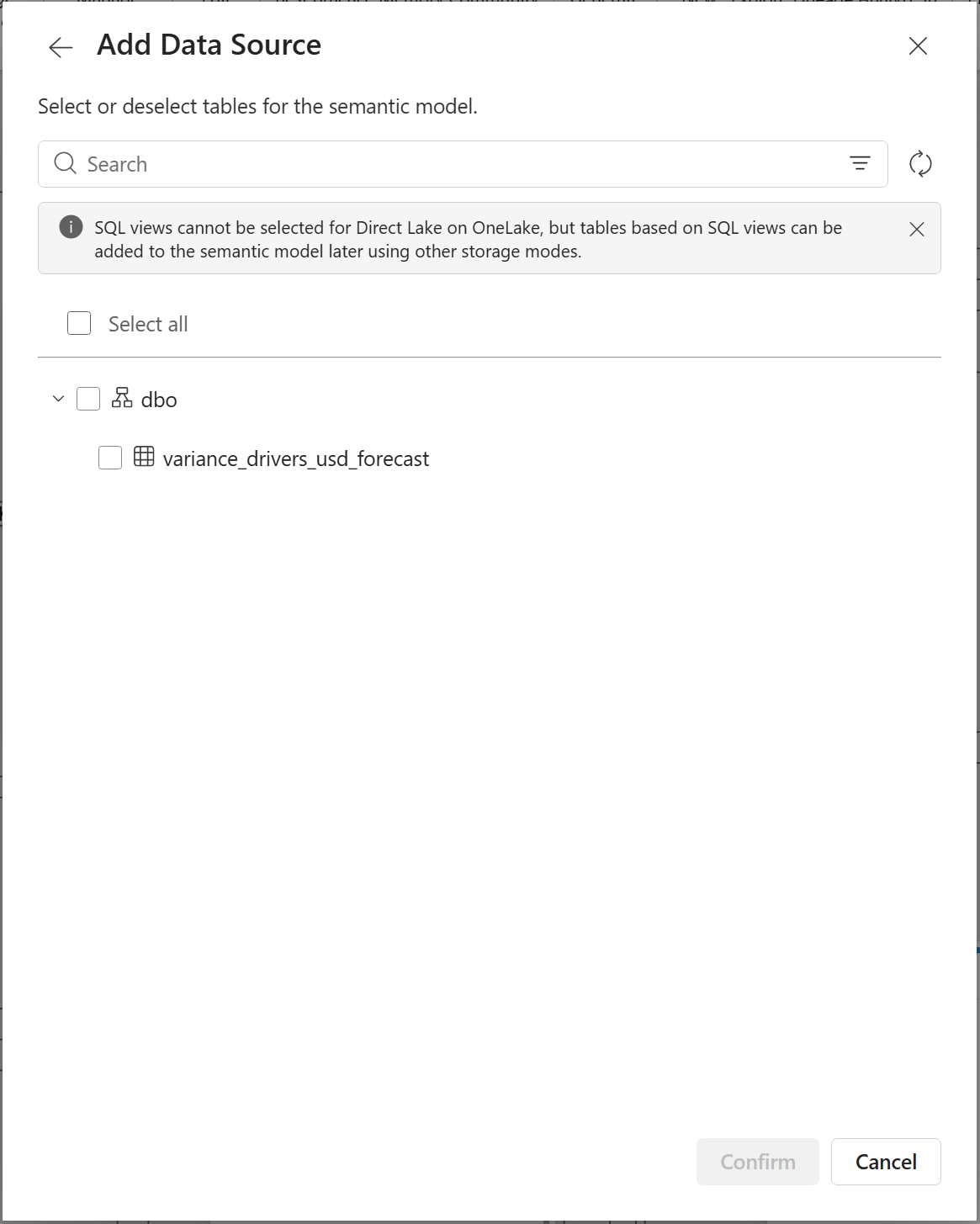
The Add Data Source dialog lists the available writeback tables in the selected Plan. Expand the schema, select one or more tables, and select Confirm.
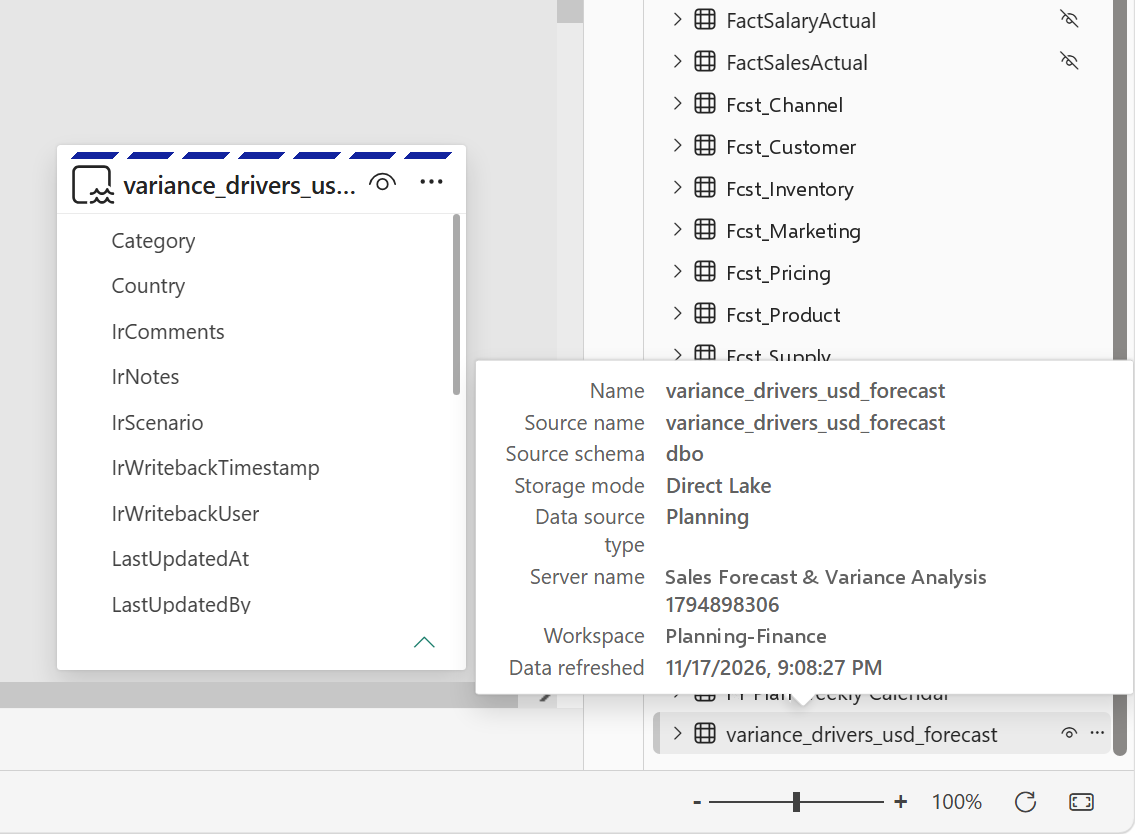
The selected table is added to the semantic model in Direct Lake mode. Hover over the table to inspect its details: Storage mode shows Direct Lake, and Data source type shows Planning.
Create a shortcut in the lakehouse’s Tables area that points to the Plan’s Delta table in OneLake. The lakehouse can use the table without another copy of the output. About OneLake shortcuts
With the writeback table available through the lakehouse, bind it to the relevant entity types and properties in Fabric ontology. This brings planning outputs into the business relationships used by that ontology. Ontology data binding
The reuse path: OneLake writeback table → Lakehouse shortcut → Ontology.
To start pipelines, refreshes or alerts automatically after each writeback, see Writeback that sets work in motion.
The screenshots show the writeback and semantic-model workflow; observed run times are examples, not performance guarantees.
A brand new in-memory engine for planning in Microsoft Fabric, with 10x+ improvements in both performance and scale. No separate system database is required anymore.
This is Part 1 of our three-part Native Planning Engine series. Part 2 covers writeback to OneLake, and Part 3 covers the performance improvements across Fabric Plan.

The scale figure compares the Native Planning Engine’s 12M-cell aggregate limit with 1.2M cells on the previous planning engine. The calculation figure is compared with the March preview; for writeback, the full benchmark in Part 2 shows up to 13× at 12M cells. Performance varies with semantic model design and capacity. For every user-facing improvement, see Part 3.
You can now enable the Native Planning Engine in Tenant settings as a Public Preview capability, as announced on our roadmap at FabCon Barcelona. Planning inputs are stored in OneLake as Apache Arrow files and loaded in memory for planning, so Plan items no longer need a separate system database.
We are also excited to share that you can now write back directly to OneLake as a new writeback destination, in Delta Parquet format. We cover that in Part 2: Writeback to OneLake.
In this article:
The Native Planning Engine is turned on by the Store new Plan items in OneLake setting. Once it is on, planning inputs are persisted in OneLake, and business output tables can write directly to OneLake as Delta Parquet. Turn the setting on at two levels.
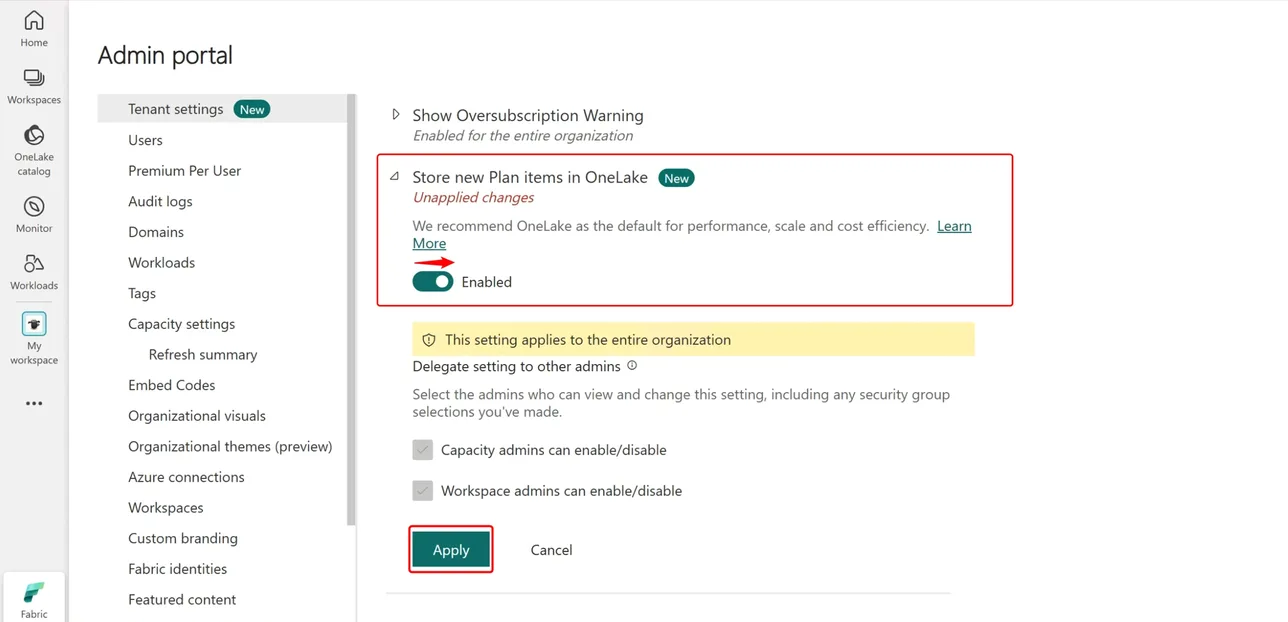
Your Fabric administrator opens the Admin portal, goes to Tenant settings, turns on Store new Plan items in OneLake, and selects Apply.
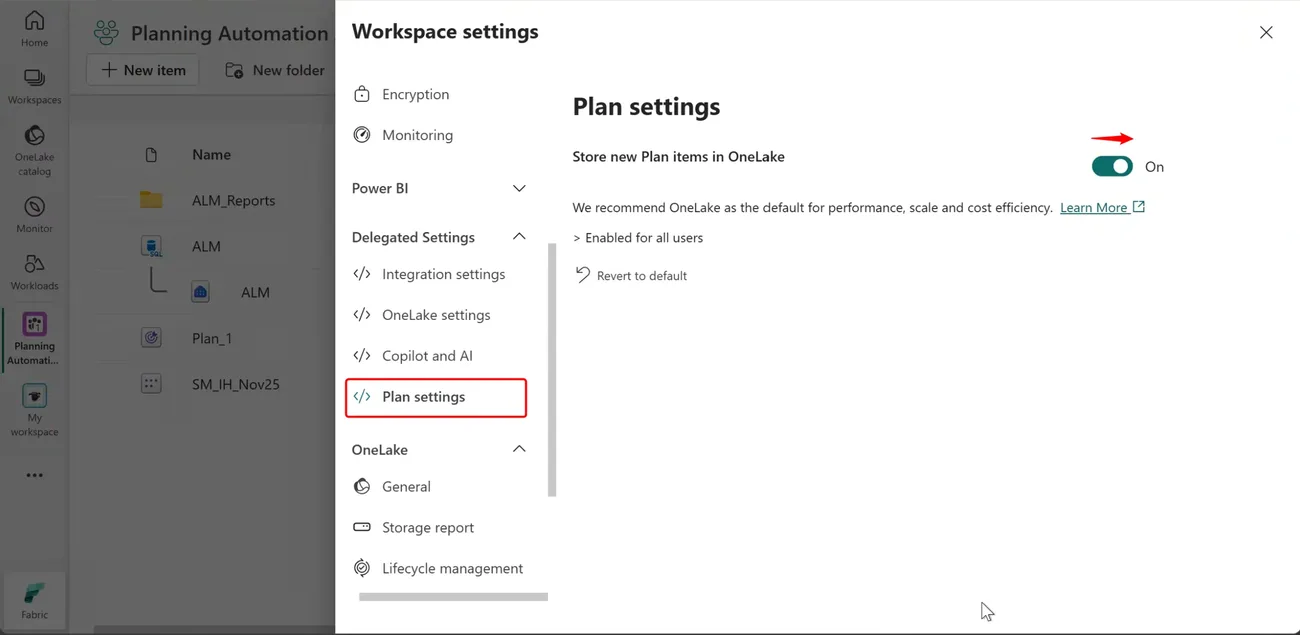
In the workspace that holds your Plan items, open Workspace settings, go to Plan settings under Delegated Settings, and turn on Store new Plan items in OneLake.
At general availability, every remaining Plan item moves automatically. GA is planned in the next few weeks. Plan items still on the previous planning engine will be migrated to the Native Planning Engine, so we recommend moving and checking your key items during the preview.
Fabric Plan now runs on a brand new native, file-based, in-memory planning engine that raises the planning limit tenfold, from 1.2 million to 12 million cells in aggregate. Apache Arrow supports efficient planning data access, while Delta Parquet makes business writeback outputs available across Fabric.
Plan items no longer need their own system database. Planning inputs live in OneLake, so there’s one less item to provision and manage, and storage is billed as part of your Fabric capacity. Fabric SQL remains a fully supported writeback destination, and PowerTable uses it as its writeback database.
Power BI semantic models can be massive, from millions to billions of rows or more. Because Fabric Plan runs directly on top of those semantic models, it can support any number of dimensions, measures and scenarios. That sets it apart from other planning tools, where performance degrades as the number of dimensions, measures or scenarios grows.
Any planning method, with the controls to run it across every line of business.
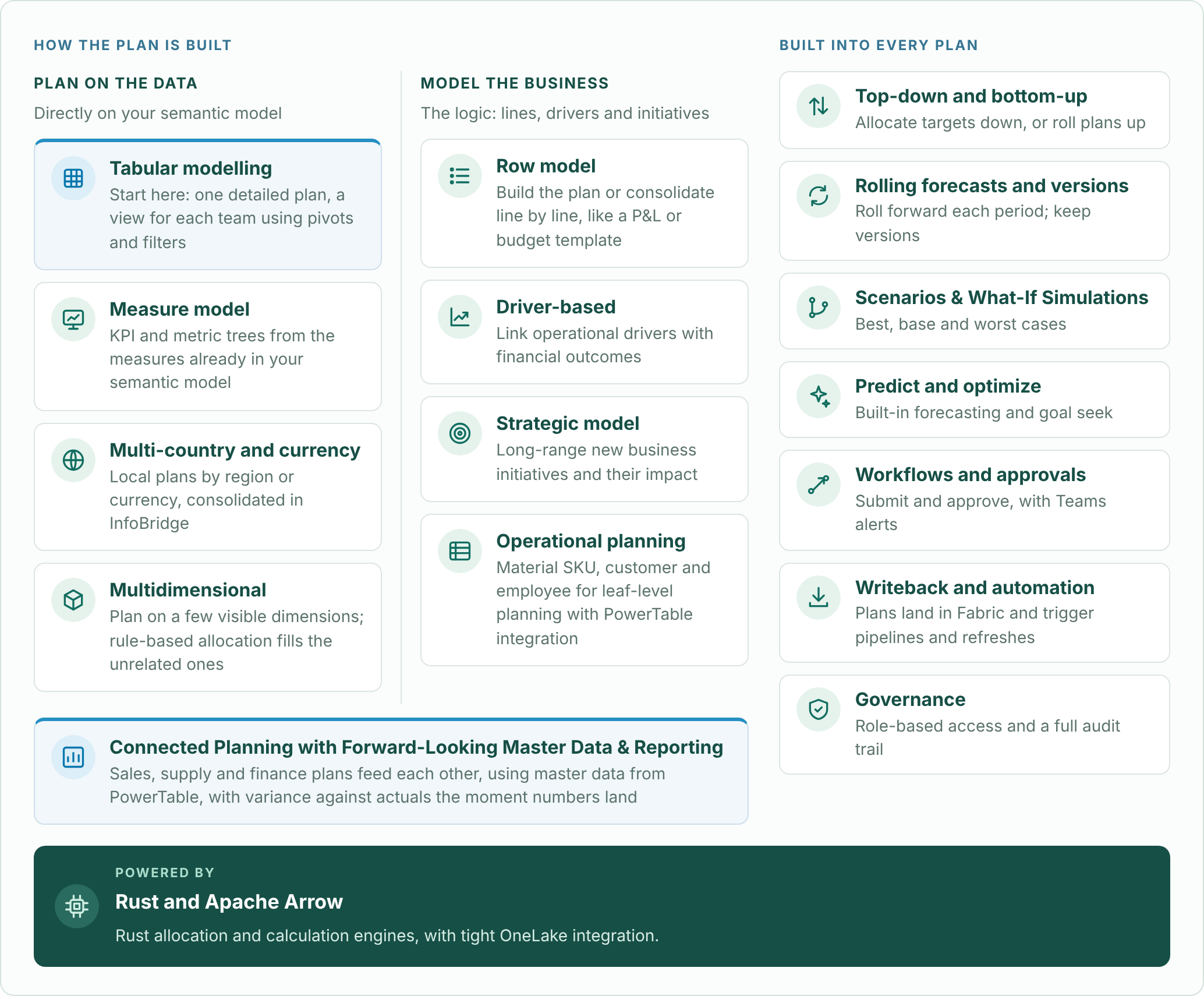
Go deeper: tabular modelling and choosing a planning method, measure models, row models, driver-based planning, operational planning with PowerTable, writeback and automation, and governance with Audit Cell History.
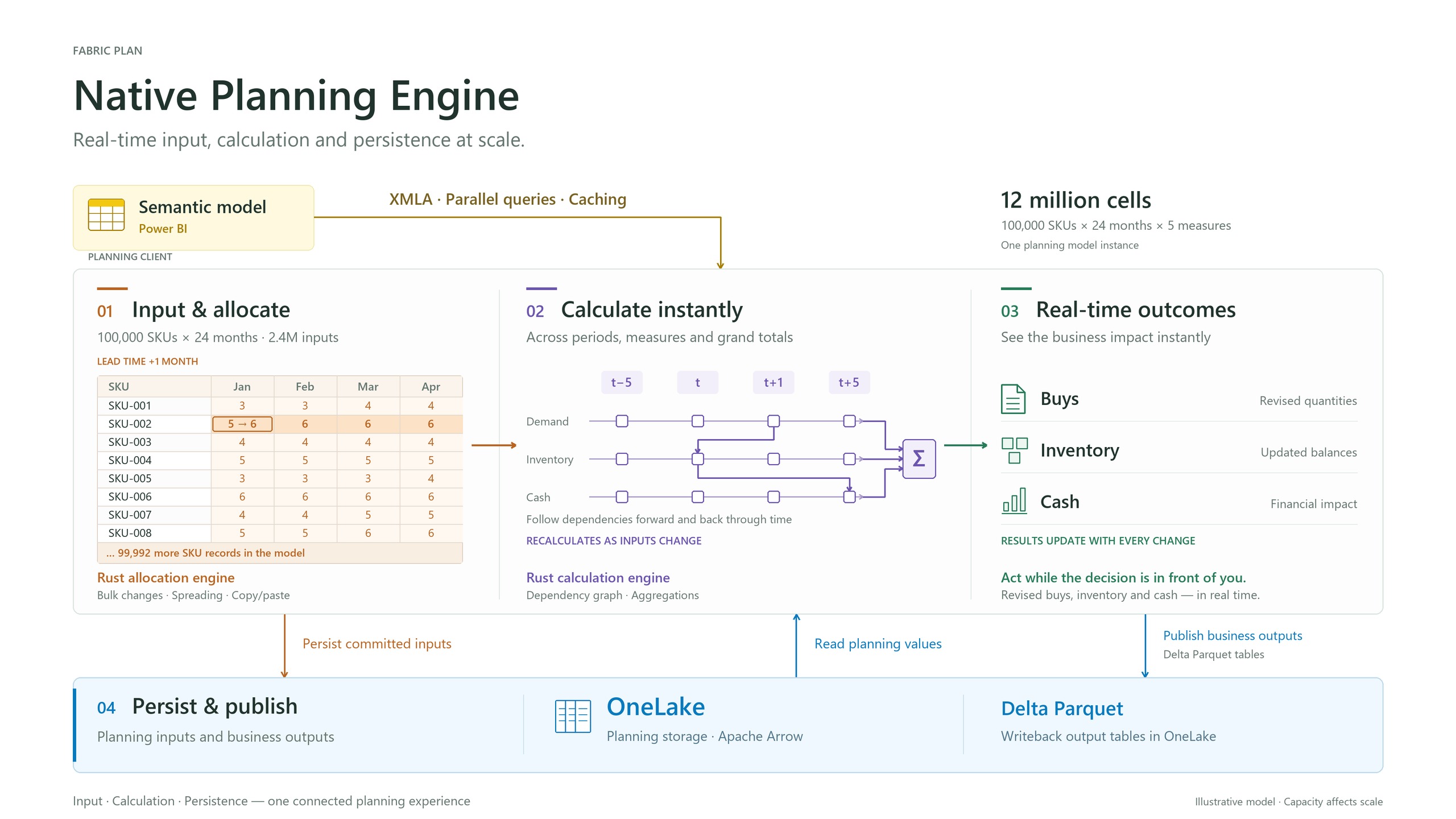
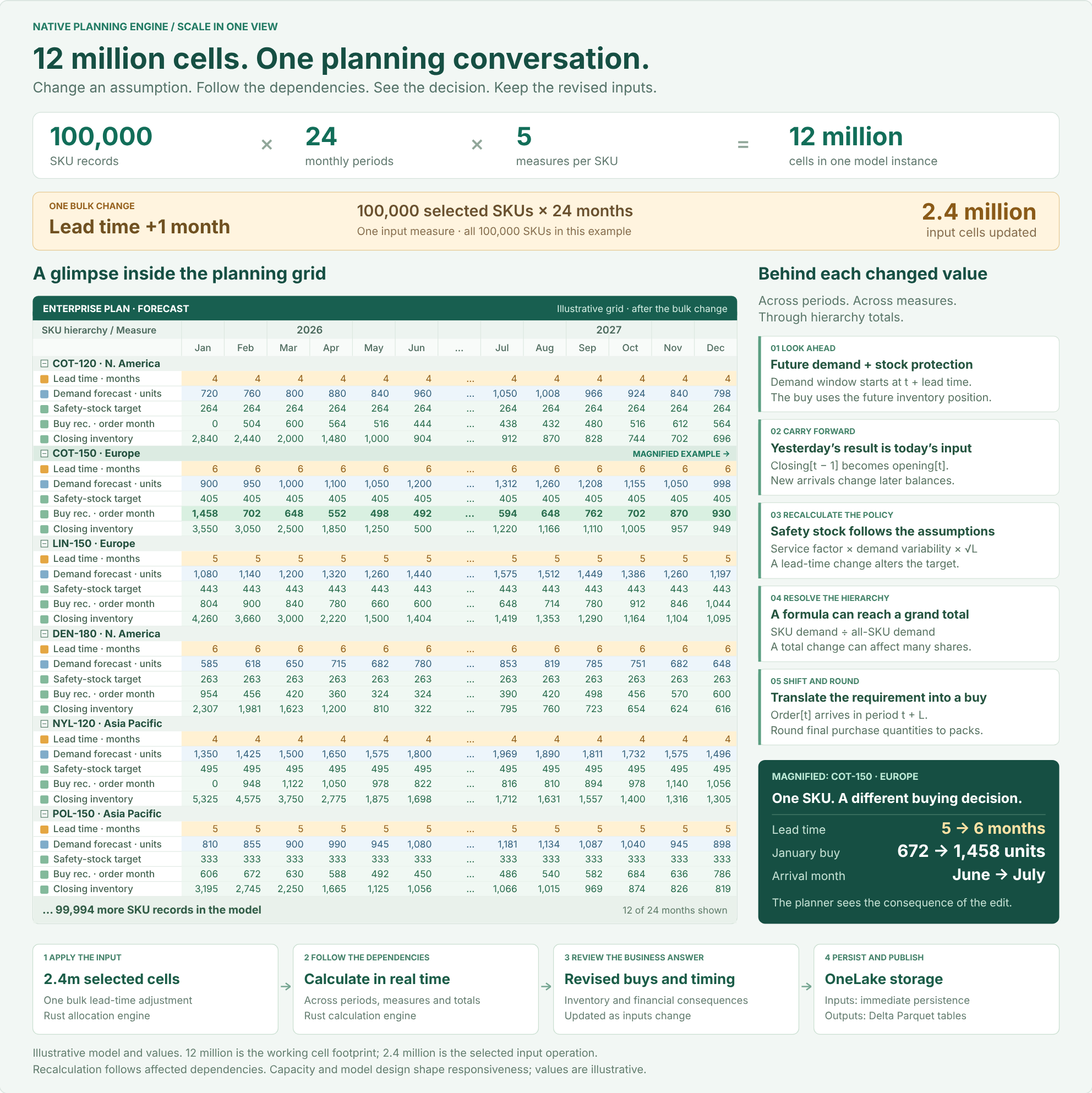
The illustration shows 12 million model cells, with 2.4 million cells affected by the bulk input operation.
Data fetched through XMLA affects capacity and responsiveness. The size of an interactive planning model is distinct from the volume published in a writeback instance. For scaling techniques such as context filtering, dimension partitioning, cubes and PowerTable, see Key Considerations for Planning at Scale with Microsoft Fabric Plan.
Caution: watch your Power BI XMLA query and concurrency limits. Large plans can reach the XMLA query and concurrency limits of your Fabric capacity, which can cause throttling. Limits depend on your capacity size, so consider a larger capacity when you need to fetch more Actuals data per query from the semantic model.
With this release, the Native Planning Engine supports up to 12 million cells in aggregate, 10x the 1.2 million cells of the previous engine. That total covers Actuals fetched from your semantic model plus visual forecast and formula measures. Next on our roadmap is support for up to 120 million cells inside the planning grid, 100x the previous limit. At that point, the only limit will be how much data you can fetch efficiently from your semantic models without throttling. Data fetched through XMLA alone will be capped at around 12 to 24 million cells.
This is a forward-looking roadmap item; release timing may change.
The Native Planning Engine is our default recommendation going forward.
Advanced modeling features require OneLake storage. Audit cell history and driver-based modeling are available now, and snapshots (frozen versions) arrive on December 8, 2026. These capabilities are supported only by the Native Planning Engine: they require its file-based architecture and will not be supported by the previous planning engine.
Fabric SQL remains a fully supported writeback destination.
A Fabric administrator turns on Store new Plan items in OneLake in Tenant settings. The setting can be delegated so that capacity and workspace admins can enable or disable it, and it is then turned on for each workspace in Workspace settings → Plan settings. See Turn on the Native Planning Engine.
No. The setting applies to new Plan items. Existing items keep running on the previous planning engine until you migrate them, or until the automatic migration at general availability.
Yes, but not as the system database. Planning inputs are now stored in OneLake, which removes the need for a second database. PowerTable continues to use Fabric SQL as its writeback database, and Planning sheets continue to support Fabric SQL as a writeback destination, alongside OneLake writeback.
Migrating an item from Item settings moves that item to the new engine. Copying an item with deployment pipelines creates a new item without its data, which is useful for testing. The recommended path is to smoke test first: copy the item with deployment pipelines, check it on the Native Planning Engine, then migrate the original from Item settings.
No. Migration is one-way, so a migrated item can’t be moved back to the previous planning engine. Smoke test a copy first, as described above, before migrating the original.
Once every Plan item in the workspace has been migrated to OneLake, the Fabric SQL system database (the application database) can be safely deleted. If any Plan items in the workspace haven’t been migrated yet, leave the database in place so their metadata isn’t lost. Keeping it does no harm.
The pricing model doesn’t change: Fabric Plan is still billed by session type on your Fabric capacity. What changes is the other resources part of the bill. Instead of charges for a Fabric SQL system database, you now incur OneLake storage. See how Fabric Plan pricing works.
No. There are no known limitations during the preview.
The inventory illustration uses fictional data. Performance figures are examples, not performance guarantees.