

Lumel
Introducing Driver-Based Planning in Microsoft Fabric Plan
Driver Based PlanningFabric Planning
Write back Fabric Plan results as Delta Parquet, use them in Direct Lake semantic models, and reuse them across Fabric.
This is Part 2 of our three-part Native Planning Engine series. Part 1 introduces the Native Planning Engine, and Part 3 covers the performance improvements across Fabric Plan.
Alongside the brand new Native Planning Engine, now in Public Preview (Part 1), Fabric Plan now supports writeback to OneLake as a new writeback destination, in Delta Parquet format.
Writeback outputs land as Delta tables in OneLake. You can add them to a semantic model in Direct Lake mode and reuse them across Fabric through lakehouse shortcuts, without another copy of the data. Fabric SQL remains a fully supported writeback destination.
This post assumes your Plan items run on the Native Planning Engine. If they don’t yet, turn it on first (Part 1).
In this article:
Choose OneLake to write back as Delta Parquet. File-based writes are about 5–6× faster than SQL-based writes at typical volumes, rising to 13× at 12M cells, and are tested up to 50 million cells per writeback instance. Fabric SQL remains fully supported and is a great fit for writeback up to 2.4 million cells and for SQL-based workflows.
| Writeback capability with the Native Planning Engine | Writeback destination: Fabric SQL | Direct writeback to OneLake |
|---|---|---|
| Destination support | Fabric SQL (fully supported) | OneLake (direct writeback) |
| Cells per writeback instance | 2.4M recommended | 50M tested |
| Writeback speed | 3 mins | 30 sec (about 6× faster) |
| Output format | SQL tables | Delta Parquet in OneLake |
Writeback speed measured at 2.4M cells. See Writeback performance for every volume tested. Actual speed depends on data volume, workload and capacity.
Approximately 5–6× faster at typical customer volumes. Most customers write back 1.2M–2.4M cells; those volumes are marked as typical below. The gap widens as volume grows, reaching 13× at 12M cells, because of the write approach: SQL-based writes versus file-based Delta Parquet writes.
| Volume (cells) | Writeback to Fabric SQL (SQL-based writes) | Direct writeback to OneLake (file-based Delta Parquet writes) | Approx. speedup |
|---|---|---|---|
| 120K | 13 sec | 6 sec | 2× faster |
| 480K | 30 sec | 9 sec | 3× faster |
| 1.2M (typical) | 1 min 09 sec | 15 sec | 5× faster |
| 2.4M (typical) | 2 min 54 sec | 30 sec | 6× faster |
| 4.8M | 10 min 11 sec | 52 sec | 12× faster |
| 12M | 22 min 29 sec | 1 min 40 sec | 13× faster |
| 30M | Not tested | 4 min 15 sec | N/A |
| 50M | Not tested | 9 min 05 sec | N/A |
Speedup = SQL-based writeback time ÷ file-based OneLake writeback time, rounded to the nearest whole number. SQL-based writeback was not tested at 30M and 50M cells. Actual times depend on workload, model design and capacity. Writeback volume is counted per writeback instance and is separate from the interactive planning grid, which supports up to 12 million cells in aggregate on the Native Planning Engine (see Part 1). On our roadmap, OneLake writeback will extend to support 120 million cells and beyond, matching the planning grid roadmap in Part 1.
The workflow: Plan → OneLake (Delta Parquet) → Direct Lake semantic model.
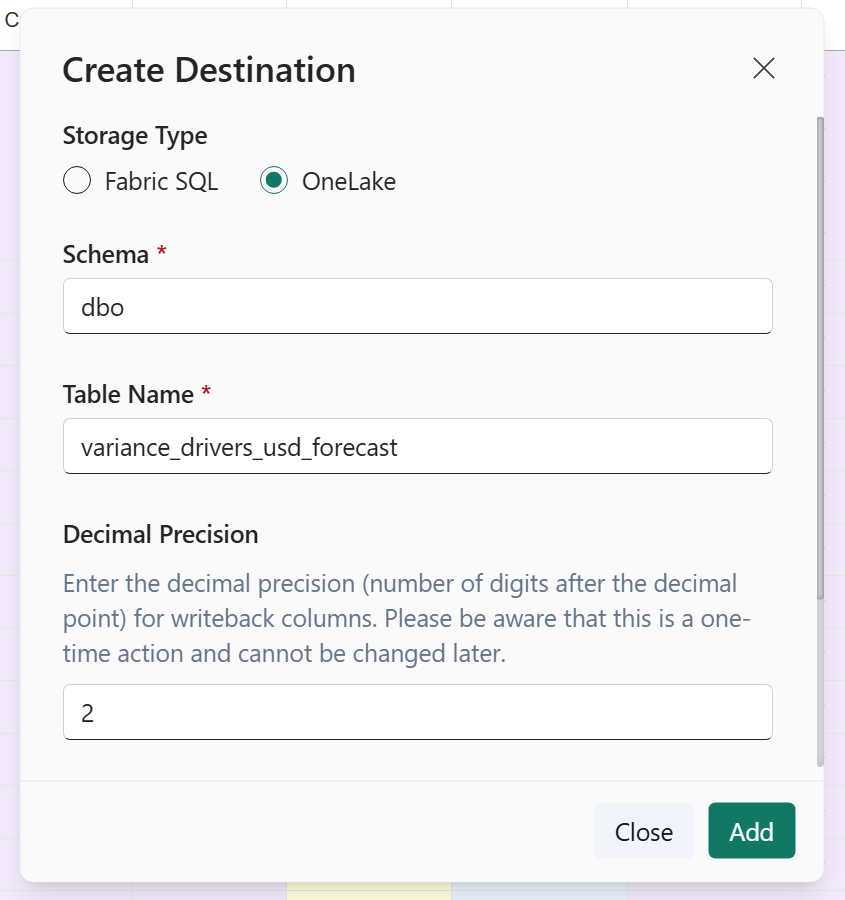
Open the Plan’s Writeback tab and select Add destination.

In Create Destination, select OneLake. Enter the Schema, Table Name, and Decimal Precision, then select Add.
The example uses dbo, variance_drivers_usd_forecast, and two decimal places. The dialog notes that decimal precision cannot be changed later.
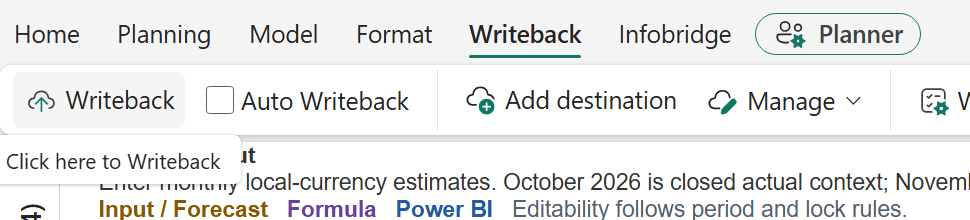
Select Writeback. When the operation finishes, the Plan displays Writeback completed.

Open Logs and confirm Destination Type: OneLake and Status: Success.

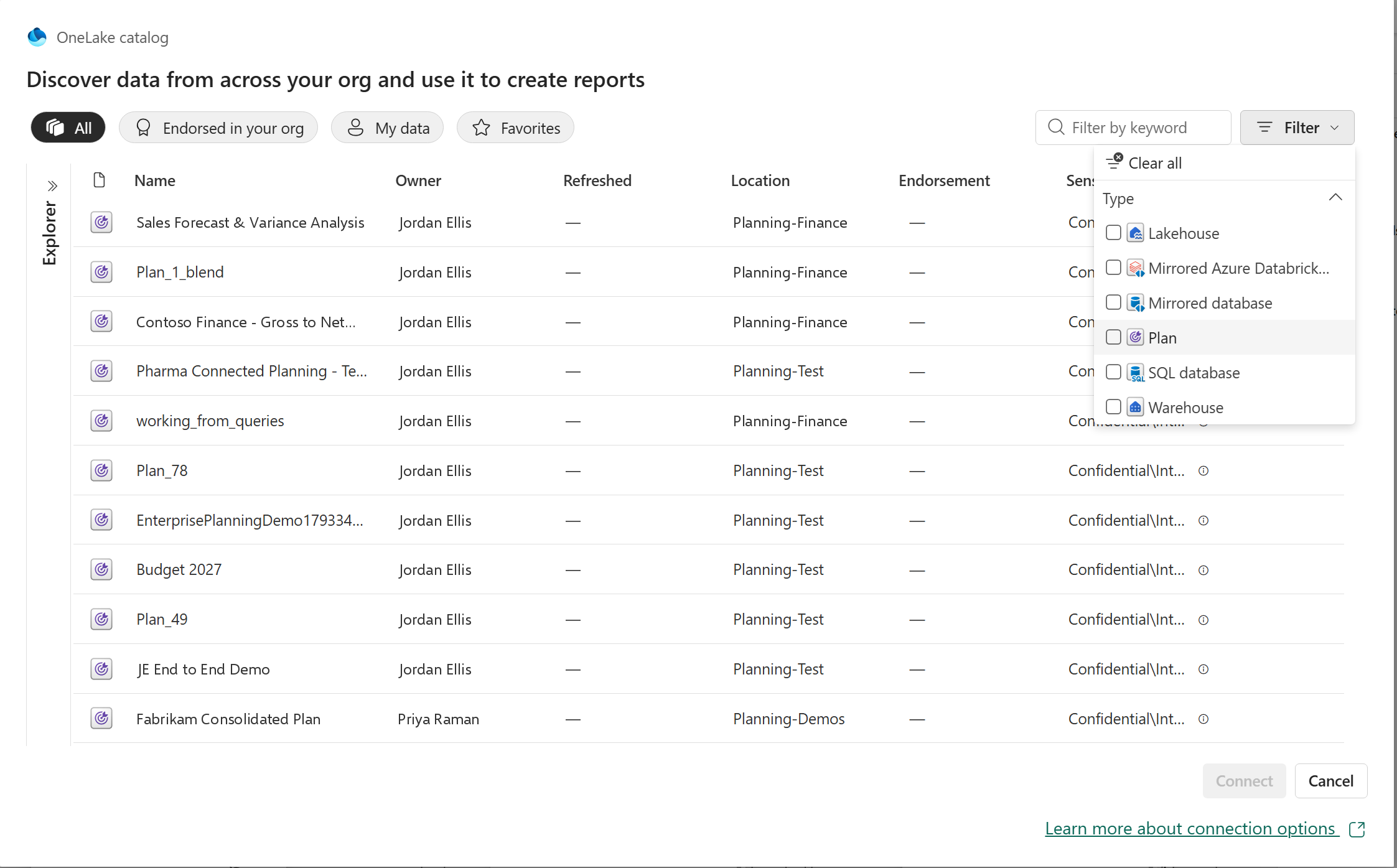
Plan items are now a supported source in the OneLake catalog. Each Plan item can contain multiple writeback tables; choose the ones your semantic model needs.
In the semantic model editor, select OneLake catalog. Open the top-right Filter, choose Type → Plan, select the Plan item, and select Connect.
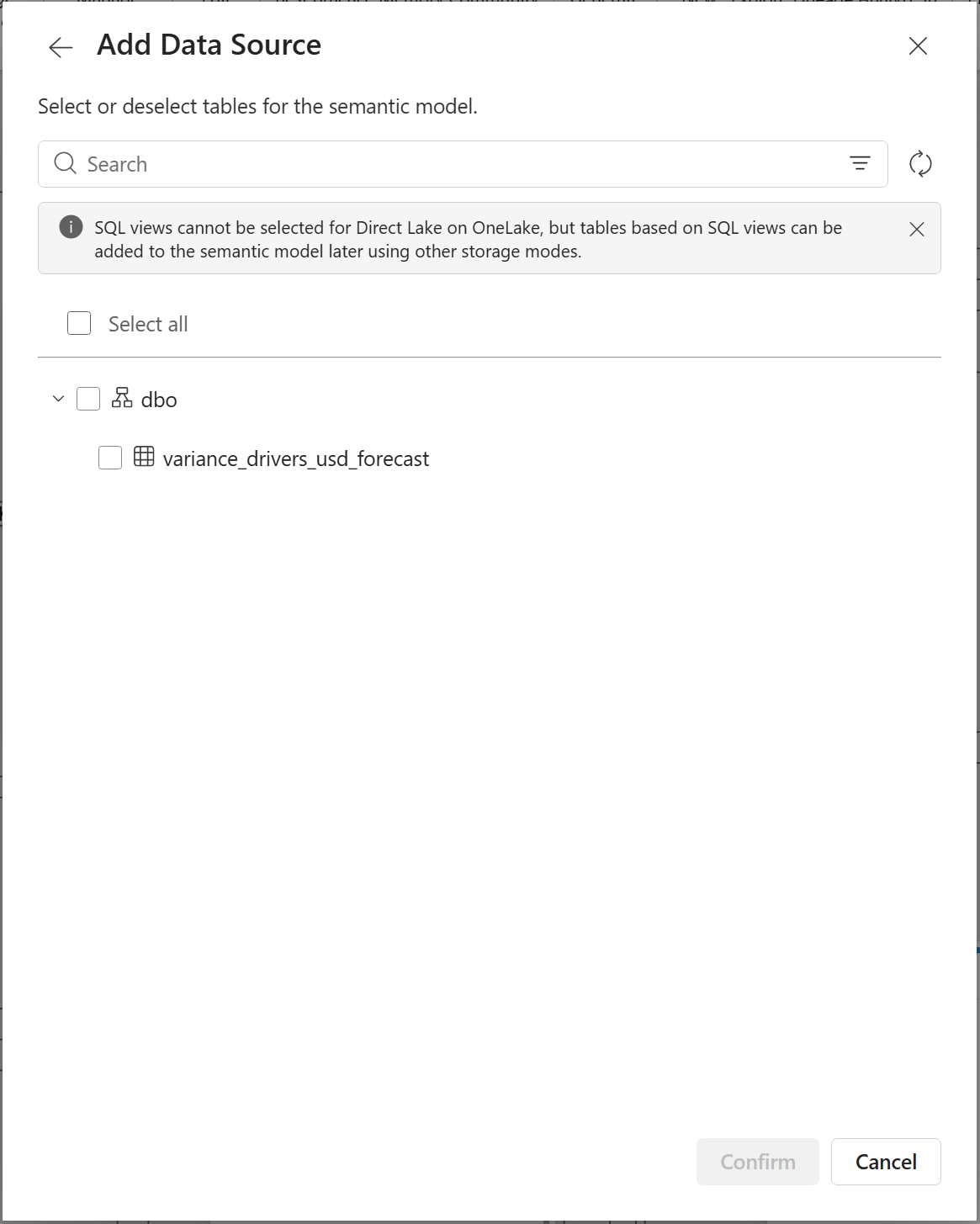
The Add Data Source dialog lists the available writeback tables in the selected Plan. Expand the schema, select one or more tables, and select Confirm.
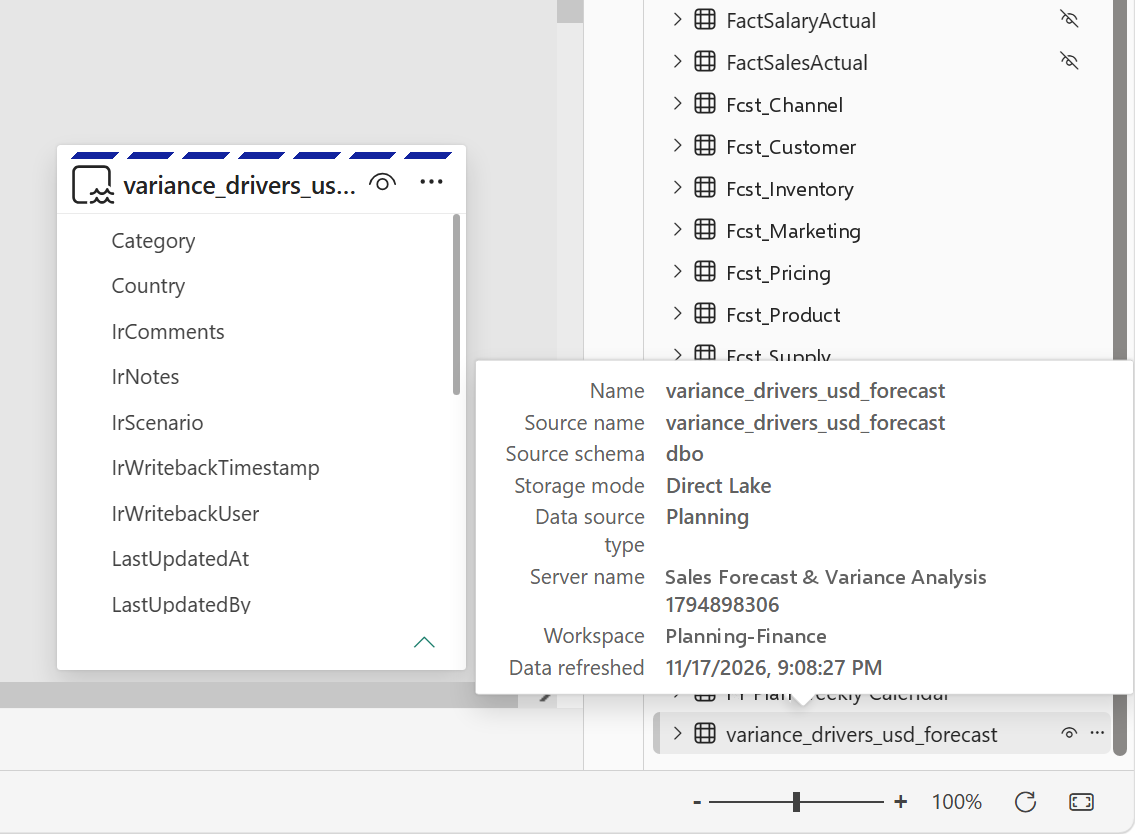
The selected table is added to the semantic model in Direct Lake mode. Hover over the table to inspect its details: Storage mode shows Direct Lake, and Data source type shows Planning.
Create a shortcut in the lakehouse’s Tables area that points to the Plan’s Delta table in OneLake. The lakehouse can use the table without another copy of the output. About OneLake shortcuts
With the writeback table available through the lakehouse, bind it to the relevant entity types and properties in Fabric ontology. This brings planning outputs into the business relationships used by that ontology. Ontology data binding
The reuse path: OneLake writeback table → Lakehouse shortcut → Ontology.
To start pipelines, refreshes or alerts automatically after each writeback, see Writeback that sets work in motion.
The screenshots show the writeback and semantic-model workflow; observed run times are examples, not performance guarantees.




Comments
0Please log in to comment.