

Gopal Krishnamurthy
Write Back Planning Data to OneLake, Up to 13× Faster
Fabric PlanningPlanningWhat's new
Native Planning Engine series · 3 parts
A brand new in-memory engine for planning in Microsoft Fabric, with up to 10x improvements in both performance and scale. No separate system database is required anymore.
This is Part 1 of our three-part Native Planning Engine series. Part 2 covers writeback to OneLake, and Part 3 covers the performance improvements across Fabric Plan.

How we measured. All comparisons are with the previous planning engine, as shipped in the March preview. Scale: the planning limit rises from 1.2 million to 12 million cells. Speed: results vary with volume, from 5 to 6x at 2.4 million cells to 13x for writeback at 12 million cells; the full benchmark is in Part 2. Performance depends on semantic model design and capacity size.
You can now enable the Native Planning Engine in Tenant settings as a Public Preview capability, as announced on our roadmap at FabCon Barcelona. Planning inputs are stored in OneLake as Apache Arrow files and loaded in memory for planning, so Plan items no longer need a separate system database.
We are also excited to share that you can now write back directly to OneLake as a new writeback destination, in Delta Parquet format. We cover that in Part 2: Writeback to OneLake.
In this article:
The Native Planning Engine is turned on by the Store new Plan items in OneLake setting. Once it is on, planning inputs are persisted in OneLake, and business output tables can write directly to OneLake as Delta Parquet. Turn the setting on at two levels.
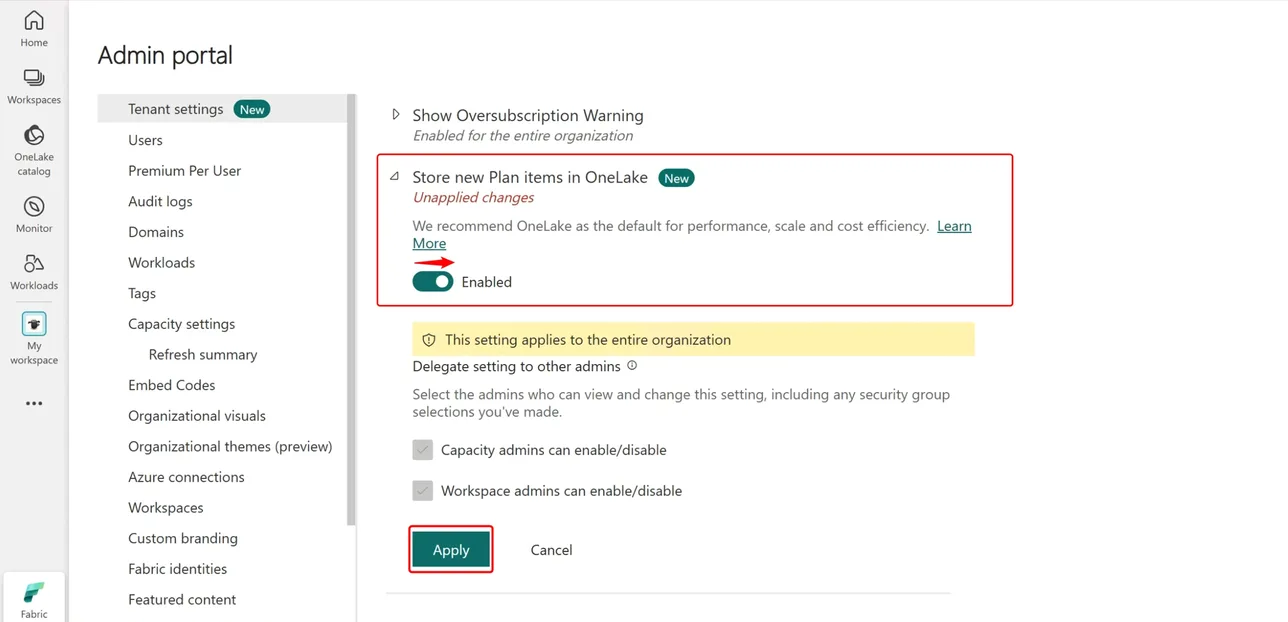
Your Fabric administrator opens the Admin portal, goes to Tenant settings, turns on Store new Plan items in OneLake, and selects Apply.
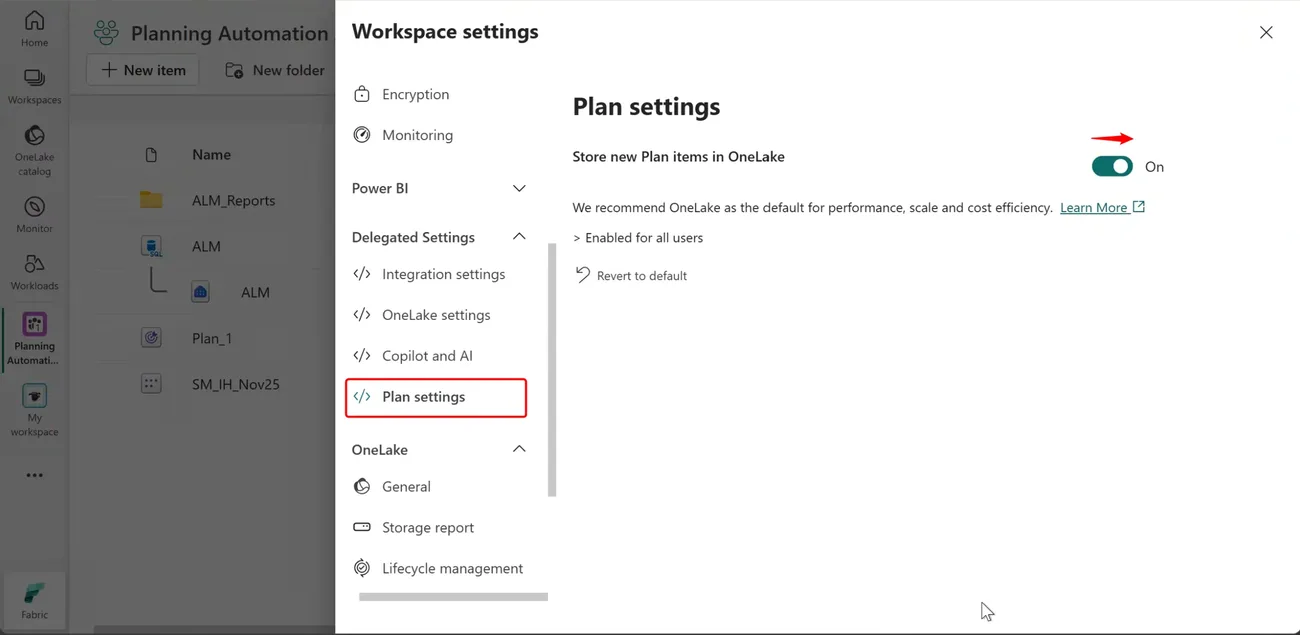
In the workspace that holds your Plan items, open Workspace settings, go to Plan settings under Delegated Settings, and turn on Store new Plan items in OneLake.
At general availability, every remaining Plan item moves automatically. GA is planned in the next few weeks. Plan items still on the previous planning engine will be migrated to the Native Planning Engine, so we recommend moving and checking your key items during the preview.
Fabric Plan now runs on a brand new native, file-based, in-memory planning engine that raises the planning limit tenfold, from 1.2 million to 12 million cells per Planning sheet. Apache Arrow supports efficient planning data access, while Delta Parquet makes business writeback outputs available across Fabric.
What counts as a cell. A cell is one value at the intersection of a row, a column and a measure. The 12-million-cell limit applies to each Planning sheet, not to the Plan item as a whole, and counts everything loaded into it: Actuals fetched from the semantic model plus forecast and formula measures. It is not a per-user limit; filters and row-level security reduce what each user loads.
Plan items no longer need their own system database. Planning inputs live in OneLake, so there’s one less item to provision and manage. Requests to OneLake such as reading and writing data consume Fabric Capacity units. OneLake storage is billed at a pay-as-you-go rate per GB of data used and doesn't consume Fabric Capacity units. Fabric SQL remains a fully supported writeback destination, and PowerTable uses it as its writeback database.
Power BI semantic models can hold millions to billions of rows. Fabric Plan plans directly on top of those models, so you don’t copy data into a separate planning cube or rebuild your dimensions and measures in another tool. What you can bring into one plan is governed by the cell limit and capacity guidance below.
Any planning method, with the controls to run it across every line of business.
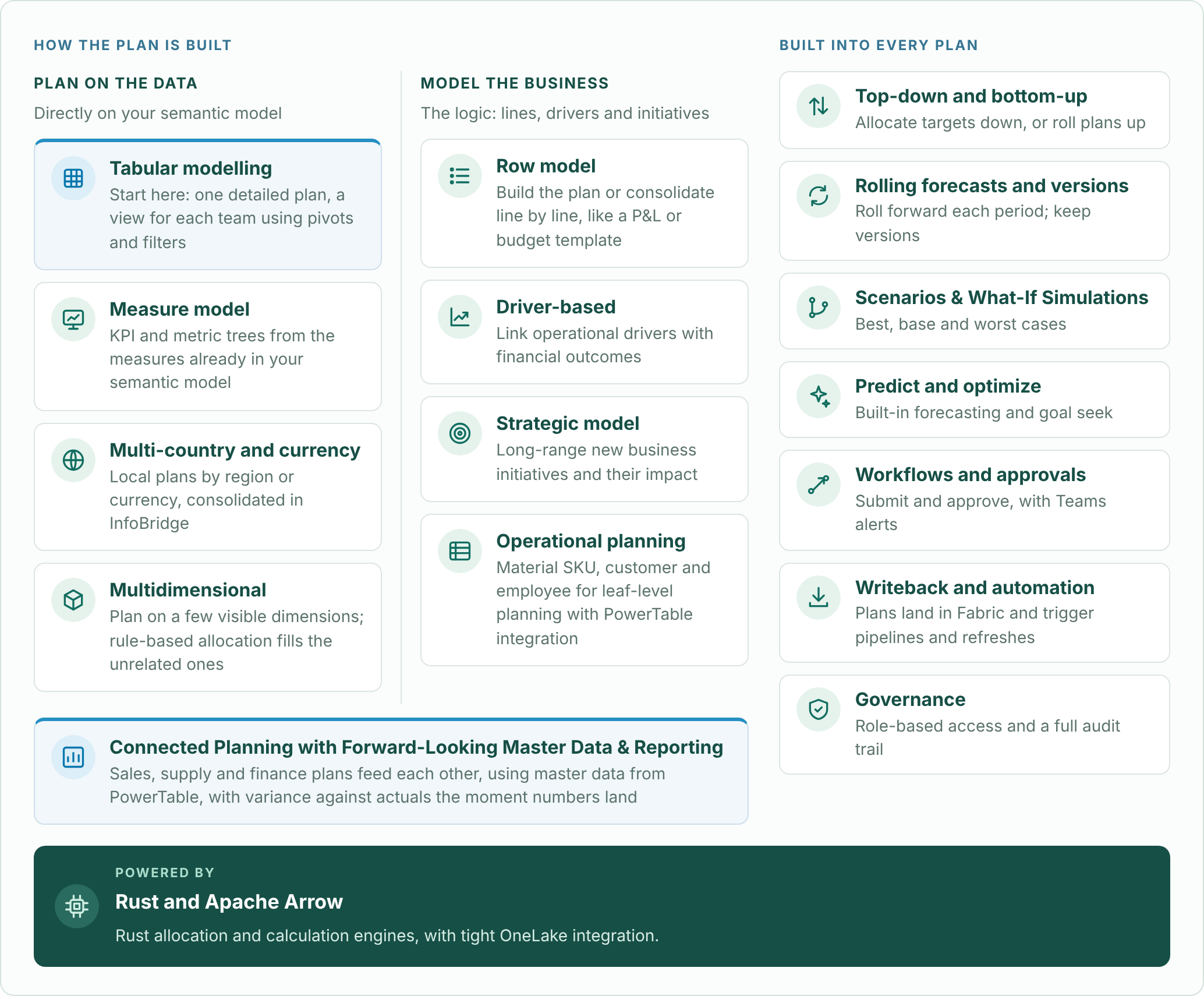
Go deeper: tabular modelling and choosing a planning method, measure models, row models, driver-based planning, operational planning with PowerTable, writeback and automation, and governance with Audit Cell History.
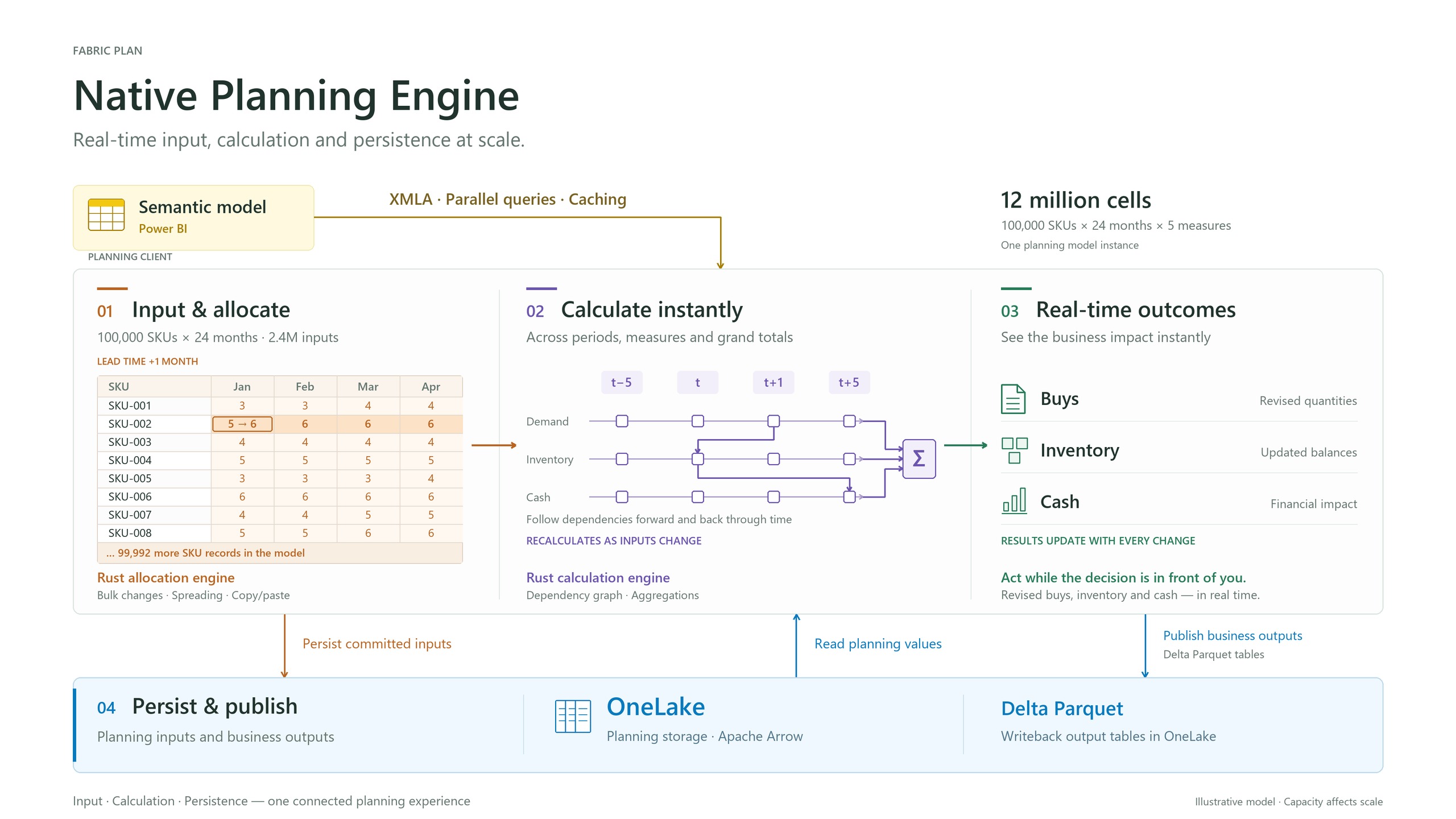
The illustration shows 12 million model cells, with 2.4 million cells affected by the bulk input operation.
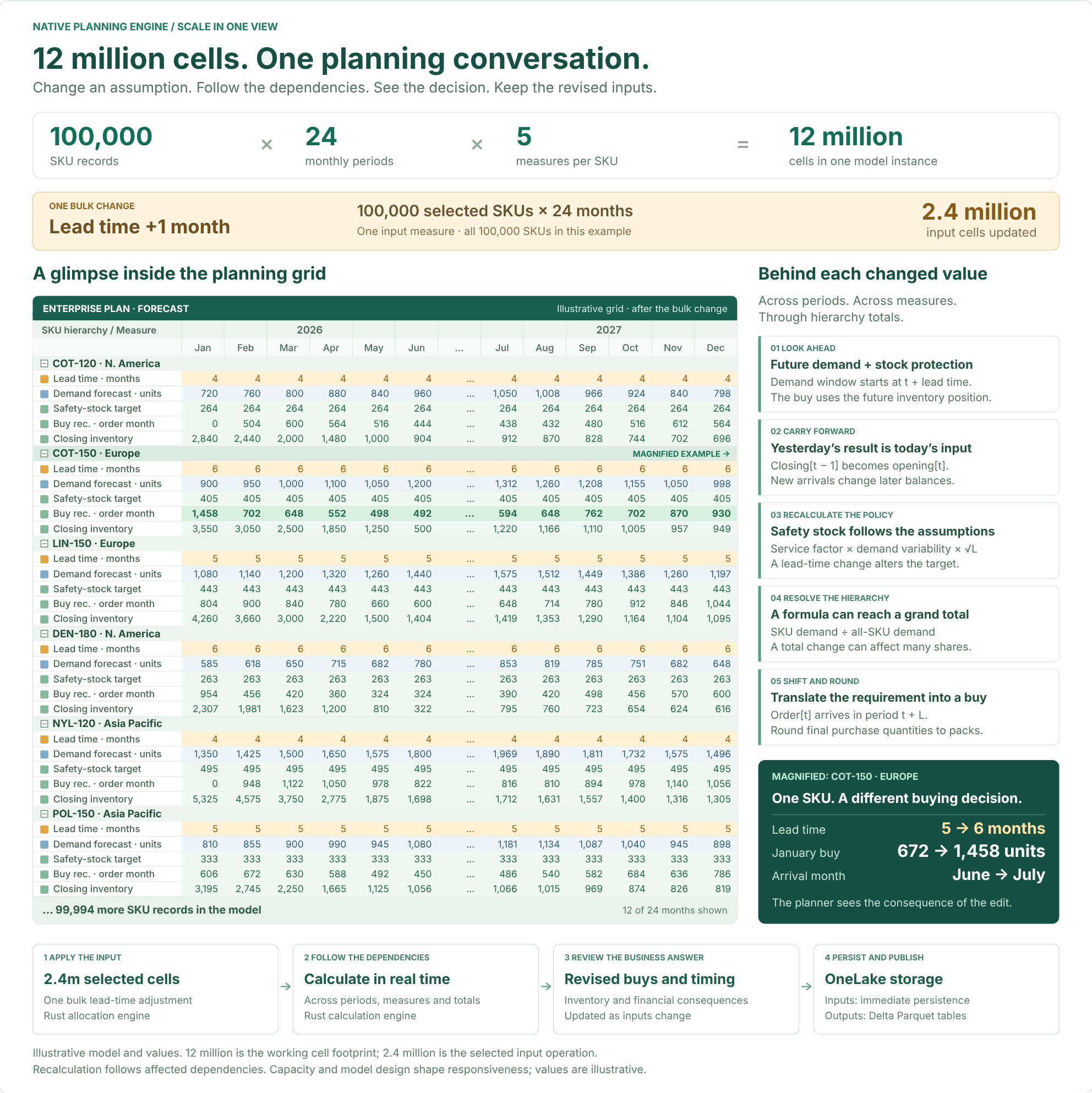
Data fetched through XMLA affects capacity and responsiveness. The size of an interactive planning model is distinct from the volume published in a writeback instance. For scaling techniques such as context filtering, dimension partitioning, cubes and PowerTable, see Key Considerations for Planning at Scale with Microsoft Fabric Plan.
Caution: watch your Power BI XMLA query and concurrency limits. Large plans can reach the XMLA query and concurrency limits of your Fabric capacity, which can cause throttling. Limits depend on your capacity size, so consider a larger capacity when you need to fetch more Actuals data per query from the semantic model.
With this release, the Native Planning Engine supports up to 12 million cells per Planning sheet, 10x the 1.2 million cells of the previous engine. That total covers Actuals fetched from your semantic model plus visual forecast and formula measures. Next on our roadmap is support for up to 120 million cells inside the planning grid, 100x the previous limit. At that point, the only limit will be how much data you can fetch efficiently from your semantic models without throttling. Data fetched through XMLA alone will be capped at around 12 to 24 million cells.
This is a forward-looking roadmap item; release timing may change.
The Native Planning Engine is our default recommendation going forward.
Advanced modeling features require OneLake storage. Audit cell history and driver-based modeling are available now, and snapshots (frozen versions) arrive on December 8, 2026. These capabilities are supported only by the Native Planning Engine: they require its file-based architecture and will not be supported by the previous planning engine.
Fabric SQL remains a fully supported writeback destination.
A Fabric administrator turns on Store new Plan items in OneLake in Tenant settings. The setting can be delegated so that capacity and workspace admins can enable or disable it, and it is then turned on for each workspace in Workspace settings → Plan settings. See Turn on the Native Planning Engine.
No. The setting applies to new Plan items. Existing items keep running on the previous planning engine until you migrate them, or until the automatic migration at general availability.
Yes, but not as the system database. Planning inputs are now stored in OneLake, which removes the need for a second database. PowerTable continues to use Fabric SQL as its writeback database, and Planning sheets continue to support Fabric SQL as a writeback destination, alongside OneLake writeback.
Migrating an item from Item settings moves that item to the new engine. Copying an item with deployment pipelines creates a new item without its data, which is useful for testing. The recommended path is to smoke test first: copy the item with deployment pipelines, check it on the Native Planning Engine, then migrate the original from Item settings.
No. Migration is one-way, so a migrated item can’t be moved back to the previous planning engine. Smoke test a copy first, as described above, before migrating the original.
Once every Plan item in the workspace has been migrated to OneLake, the Fabric SQL system database (the application database) can be safely deleted. If any Plan items in the workspace haven’t been migrated yet, leave the database in place so their metadata isn’t lost. Keeping it does no harm.
The pricing model doesn’t change: Fabric Plan is still billed by session type on your Fabric capacity. What changes is the other resources part of the bill. Requests to OneLake such as reading and writing data consume Fabric Capacity units. OneLake storage is billed at a pay-as-you-go rate per GB of data used and doesn't consume Fabric Capacity units. See how Fabric Plan pricing and OneLake consumption work.
There are no known functional gaps compared with the previous planning engine. There are four things to plan for:
The inventory illustration uses fictional data. Performance figures are benchmark results on our test setup, not guarantees.


Comments
0Please log in to comment.