This article explains how to configure data security in PowerTable by using roles, policies, and user attributes.
Use security roles to configure sheet-level permissions and row-level security (RLS) for each database configured with PowerTable. You can control whether users can access a sheet and whether they can view or edit its data.
For each role, learn how to control user access, manage permissions, apply row-level security (RLS), and secure database tables with configurable access rules.
PowerTable provides two security models. Choose one of the following models to configure data security:
This model is available on the Setup tab. For more information, see manage access.


Use the Roles & Policies Security model if you want to enable row-level security (RLS) in your PowerTable databases. When Roles & Policies Security is enabled, it overrides the settings configured through Manage Access (Legacy).
To choose a security model:


The destination database you select when creating a PowerTable sheet appears in the security window. A Plan item can contain multiple PowerTable sheets, each with one or more configured destination databases.
Use this model, which is enabled by default, to configure row-level and column-level permissions for individual tables. To learn more, see manage access.
When you enable Roles & Policies Security, the Manage Access settings become inactive. PowerTable displays a notification indicating that access is controlled through the configured security policies.
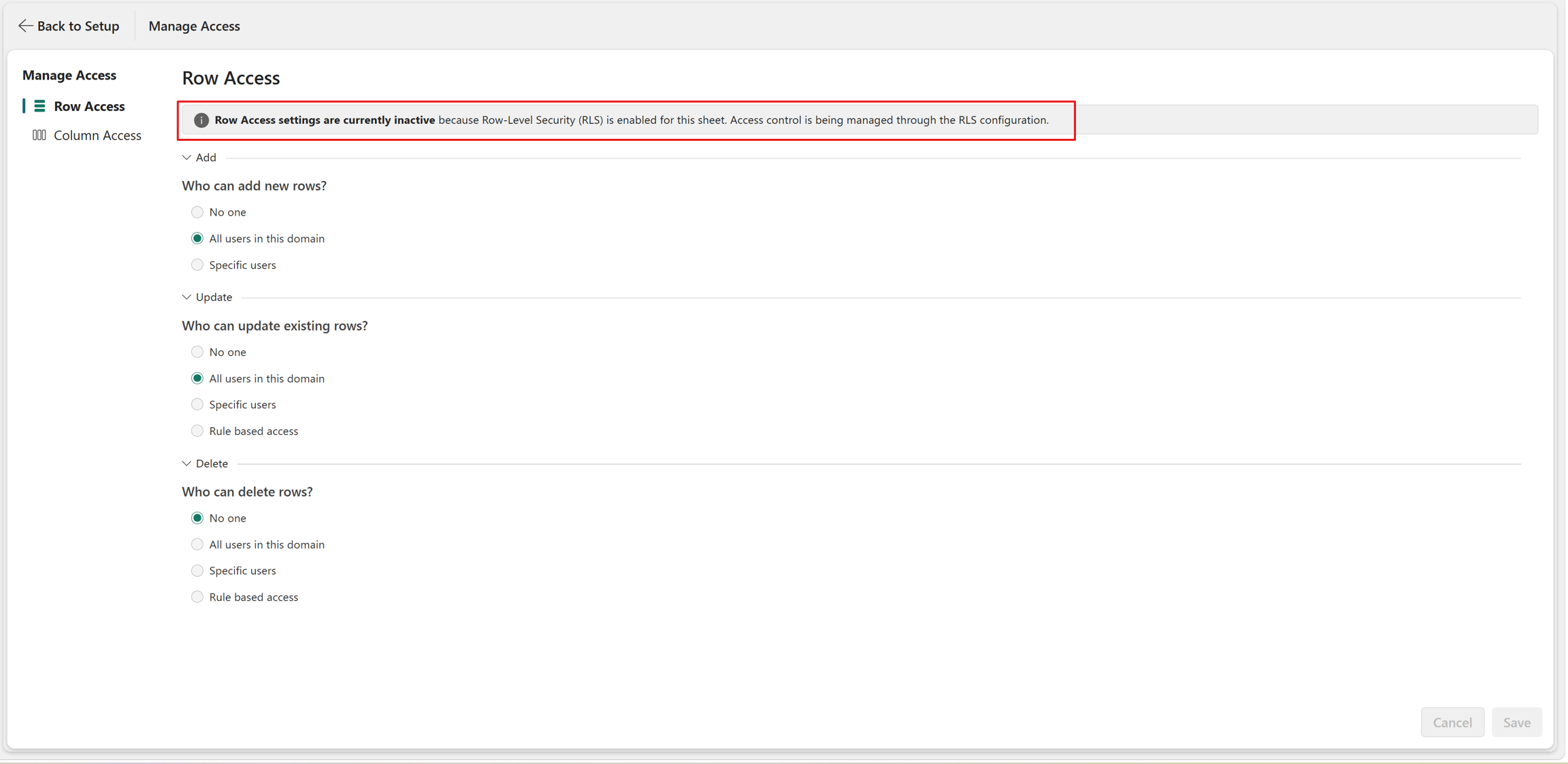
By default, PowerTable databases grant users full access to all tables. To restrict access, create policies and roles, and then assign the roles to users.

Configure security policies separately for each database. Policies you create for a database apply only to the database where you created them and don't apply to other databases in the same Plan item.
A policy groups one or more rules that define how users can access database tables.
To create a policy:

Configure one or more rules for each policy.
To restrict access to a table, add a rule for that table. If you don't add a rule for a table, users have full access to that table. Rules define which rows users can access in each table and which CRUD operations they can perform on the selected table.
To create a rule:


In this example, the rule defines Update and Delete access for products whose product key is from 250 to 300.
The permissions and rules work as follows:


Configure one or more filter conditions to define the records to which the selected rule applies.
The rule configuration provides the following options:
To apply dynamic Row-Level Security (RLS) based on the signed-in user's identity, configure User Attributes to link the user's identity to the data model. You can then use attributes such as Employee or Manager in rules to dynamically retrieve the relevant values from related tables, without manually configuring row values for each user.
Each policy includes an option to enable Bypass Mode. When enabled, Bypass Mode disables the rules configured in that policy and grants users assigned to the policy unrestricted access to all tables in the selected database.
The following image shows a policy with active rules before the bypass mode.

The following image shows a policy with the bypass mode enabled.

When you enable Bypass Mode:
Create a separate policy with Bypass Mode enabled and assign it to roles, such as administrator or superuser. Assign these roles to users who need unrestricted access to all tables in the database.

Important#
- Assign a bypass policy only to trusted users who need unrestricted access to the database.
- Use Bypass Mode when you need to temporarily provide unrestricted access without deleting the configured rules. You can disable Bypass Mode later to restore the configured rules.
- Because Bypass Mode bypasses row-level security rules, don't forget to disable it when unrestricted access is no longer required.
User attributes connect a user's authentication identity to the data model, so you can use attributes such as User ID, Employee ID, or Department in filter rules.
For example, create a source table that maps products or records to the users or departments allowed to access them. Then, create a user attribute that retrieves the records allowed for the users or a department based on this mapping. Use the attribute in a policy rule, and assign the policy to users in the same department.
This approach dynamically retrieves attribute values from related tables and uses them to evaluate policy rules. It eliminates the need to manually specify attribute values for each user in every policy rule.
To create a user attribute:


Note#
- The source table you select contains the mappings between user attributes and the corresponding records that users are allowed to access.
- The output value refers to one or more records that you want to retrieve from the table for the configured user.
- For Static type, the output value is a static value that you manually configured.

Instead of entering values manually for each user, you can attach user attributes to a policy rule and assign it to a group of users.
To attach a user attribute in a rule:

The configured User Attribute returns the list of ProductSubcategoryKey values assigned to UserID 1012 from the UserProductAccess table. Use this user attribute as the value in the policy rule to filter Products Table and return only the products whose ProductSubcategoryKey values match the user attribute.
In this example, ProductSubcategoryKey values 33 and 37 are assigned to UserID 1012. When you attach this policy to a role and assign the role to users, they can access only the products with ProductSubcategoryKey values 33 and 37.

Note
When you configure the user attribute with the Multiple return type, only the Is one of and Is not one of operators are supported.
The example in the previous section assigns access based on a specific UserID. As a result, every user who is assigned a role with the attached policy receives access to the same set of product records.
To provide dynamic access based on each user, configure the user attribute with the Logged in User condition.
To provide dynamic access:


When you attach this policy to a role and assign the role to users, PowerTable retrieves the ProductSubcategoryKey values associated with the signed-in user's email address from the UserProductAccess table. The policy rule uses these returned values to filter the Products Table, allowing each user to access only the products assigned to them.
The following example shows the UserProductAccess table configured with the user to subcategory mappings. In this example, the signed-in user is Andzelika Juskaite.

When Andzelika Juskaite signs in, PowerTable retrieves the assigned ProductSubcategoryKey values (25, 28, and 32) and uses the attached policy to filter the Product table. As a result, only the products belonging to these subcategories are accessible.

Security roles define the permissions available to a group of users. Create multiple roles to provide different levels of access based on user responsibilities and then attach the policies required for each role.
After creating a role, assign it to one or more users. Users receive the permissions defined by the policies attached to their assigned roles.
After creating one or more policies, attach them to a role to control user access. You can attach multiple policies to a single role.
To create a role and attach policies:


Users who aren't assigned any role inherit the permissions configured for the Item Baseline role.
The Item Baseline role is the default role and grants full access to all users. If a user is assigned additional roles, the permissions configured for those roles determine the user's effective access.
To restrict the default access, configure the required sheet-level permissions in the General tab, and then enable Restrict with Policy and attach one or more policies in the PowerTable tab.

To rename a role:

Renaming a role updates only its name. The configured permissions remain unchanged.
To delete a role:
The Item Baseline role is the default system role and you can't rename or delete it.
The General tab controls sheet-level access permissions to all sheets in the item for the selected role. Each sheet is listed individually, so you can configure its visibility and editing permissions.

Select the role on the left. Then, for every sheet, set the following permissions:
| Permission | Description |
|---|---|
| Visible | Determines whether the sheet is visible to users assigned to the selected role. Disable this option to hide the sheet from users. |
| Read Only | Allows users to view the sheet but prevents them from making changes. Disable this option to allow users to edit the sheet. |
By default, you can view and edit all sheets for the selected role. You can configure individual sheets to hide them or make them read-only as required.
Enable the Visible toggle to make the sheet available to users. If you disable the Visible toggle, users can't access the sheet regardless of the Read Only setting.
The final step is to assign the configured roles to users. Users inherit the policies attached to their assigned roles.
To assign roles to users:

When a user is assigned multiple roles for the same table or database, the policies attached to those roles are combined, and the permissions that provide the highest level of access determine the user's effective access.
For example, if one role grants Insert access to the Products table and another role grants Update access with a filter condition, the user can Insert, Read, and Update records in the Products table.


