The Display section allows you to control how column headers and values are displayed in the table.
To configure display properties:
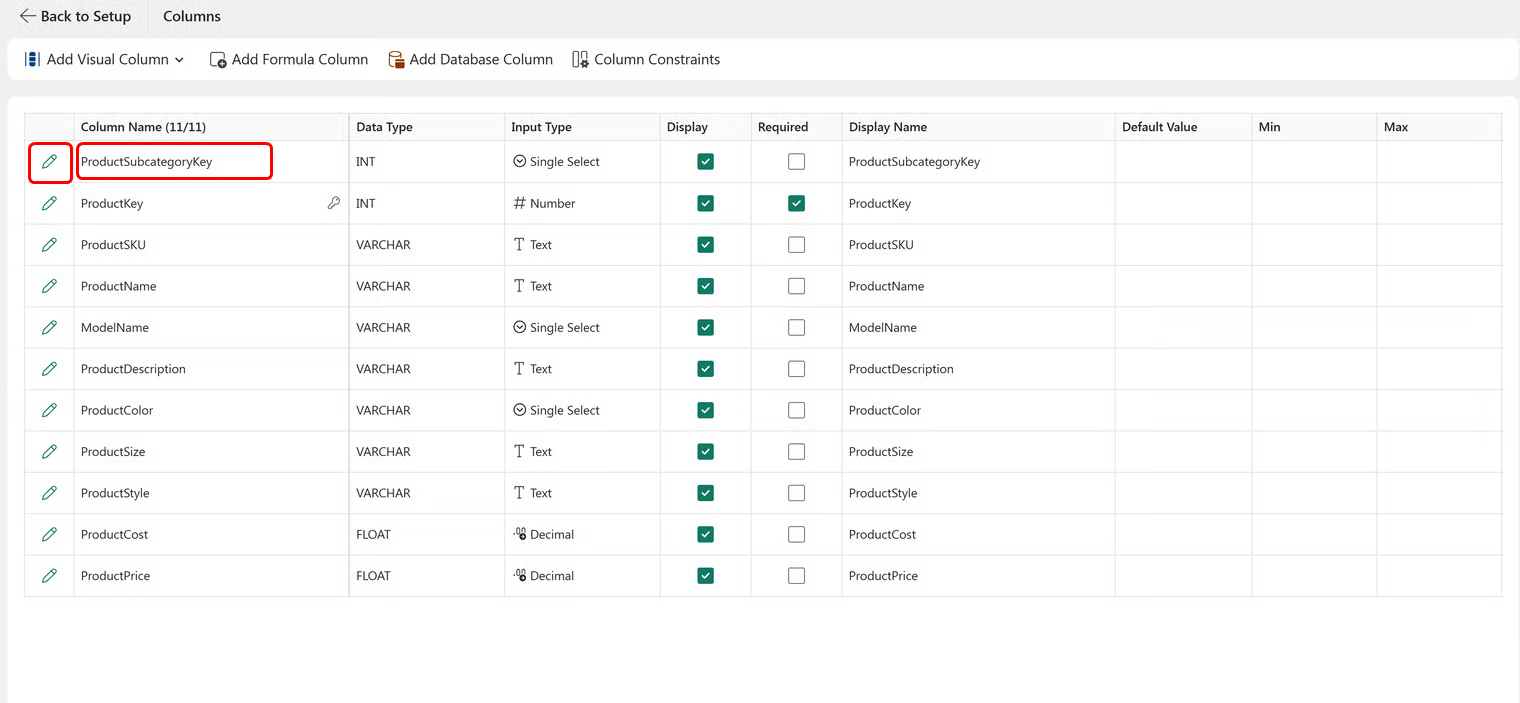
Select Setup > Columns.

The column configuration window opens. Select the pencil icon next to the column name or double-click the column name.
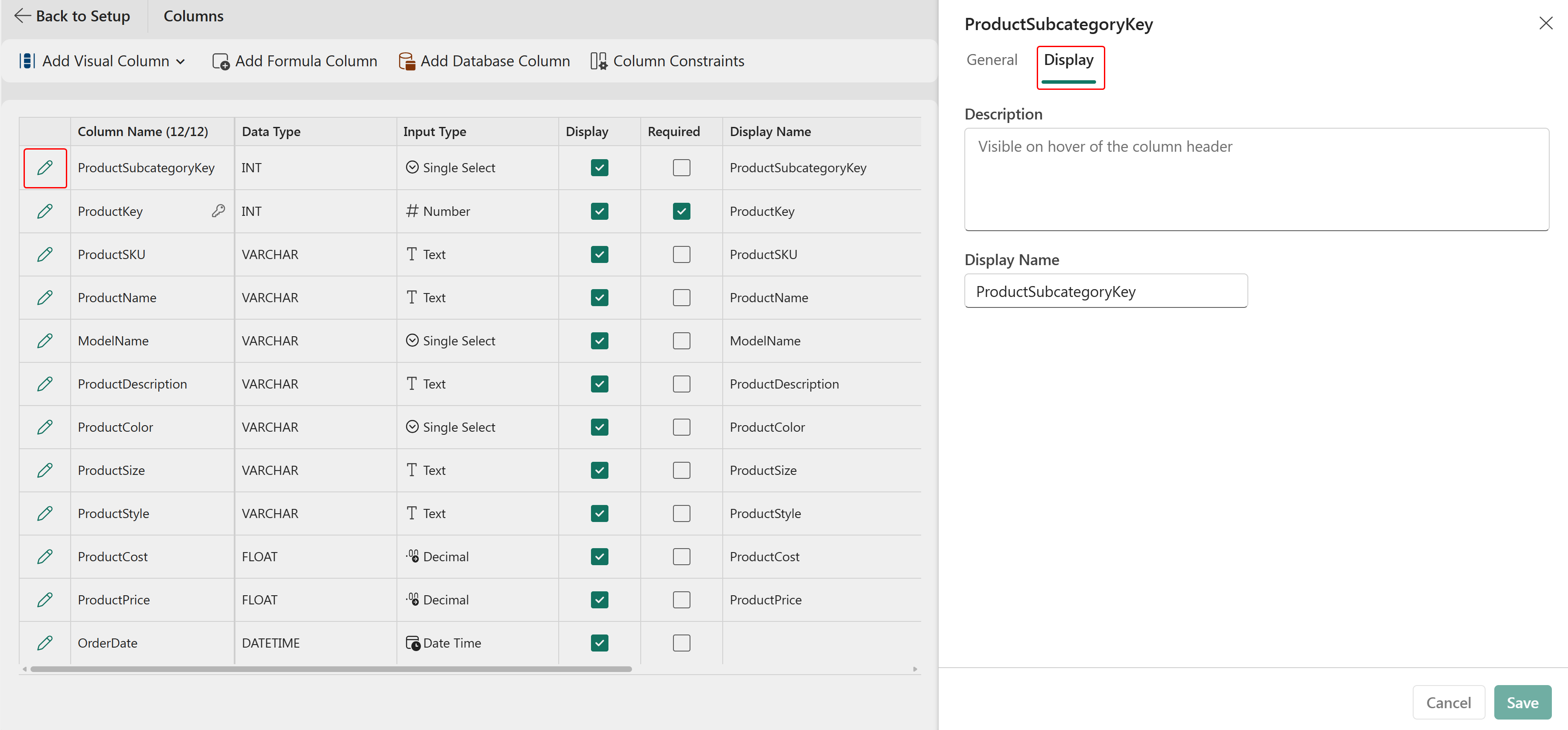
The following display properties are available:
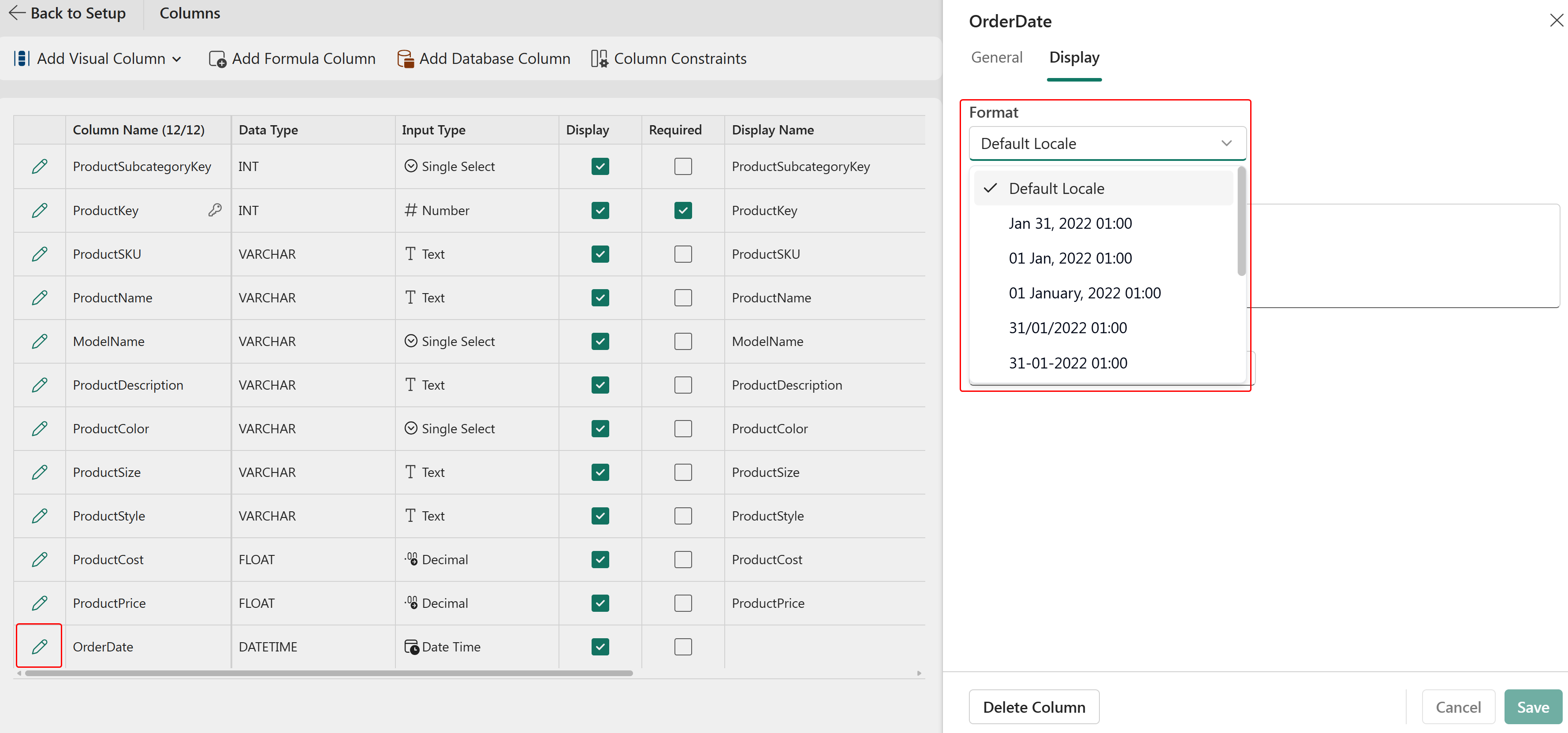
Use the Format property to define how date and date-time values are displayed in a column.
You can choose from various date and date-time formats, such as MM/DD/YYYY, DD/MM/YYYY, DD MMM, YYYY hh:mm:ss and so on.
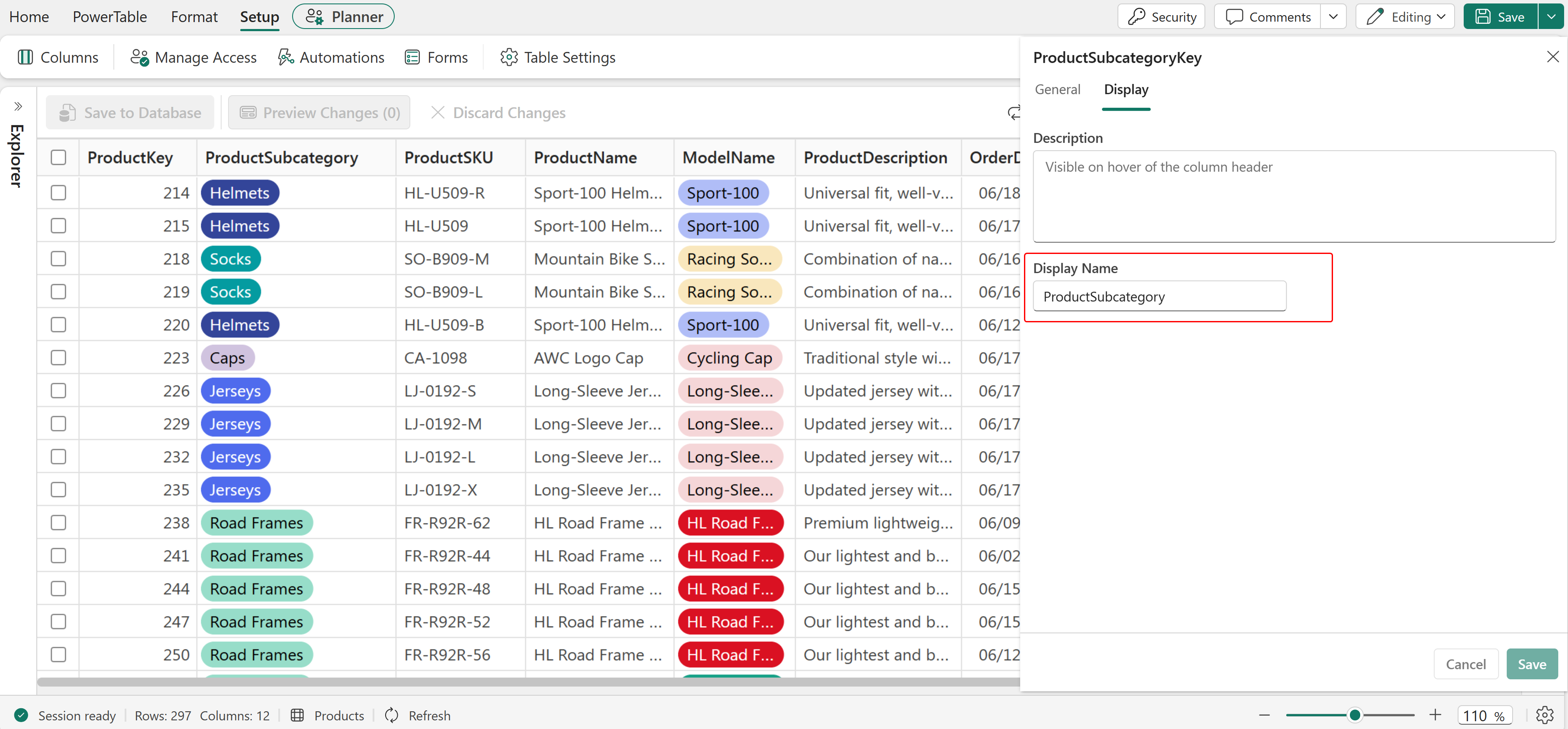
Use the Display Name property to specify a user-friendly column header that differs from the actual field name in the database.
For example, the database field ProductSubcategoryKey can be displayed as Product Subcategory in the table.
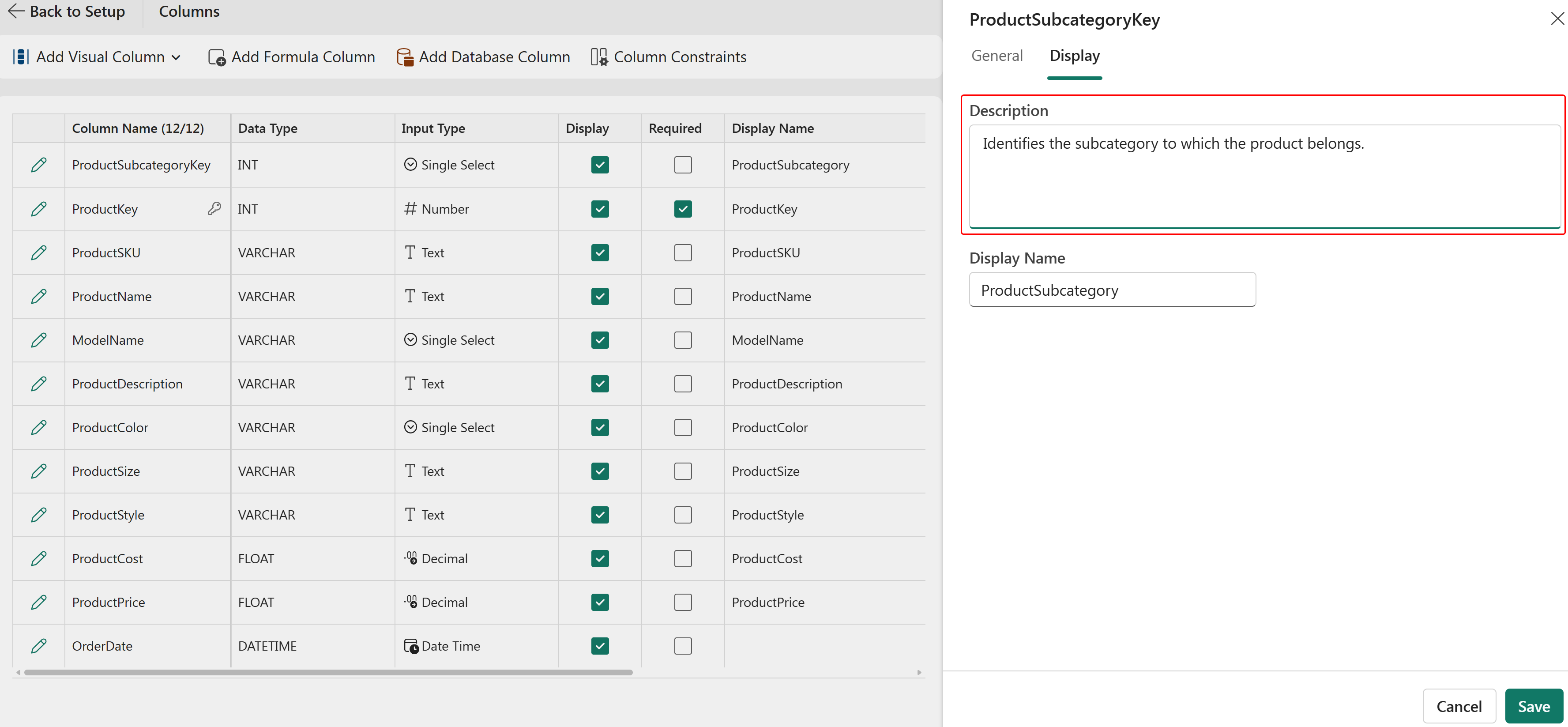
Use the Description property to provide additional information about a column.
When a description is configured, an information icon is displayed next to the column header. Users can hover over the icon to view the description.
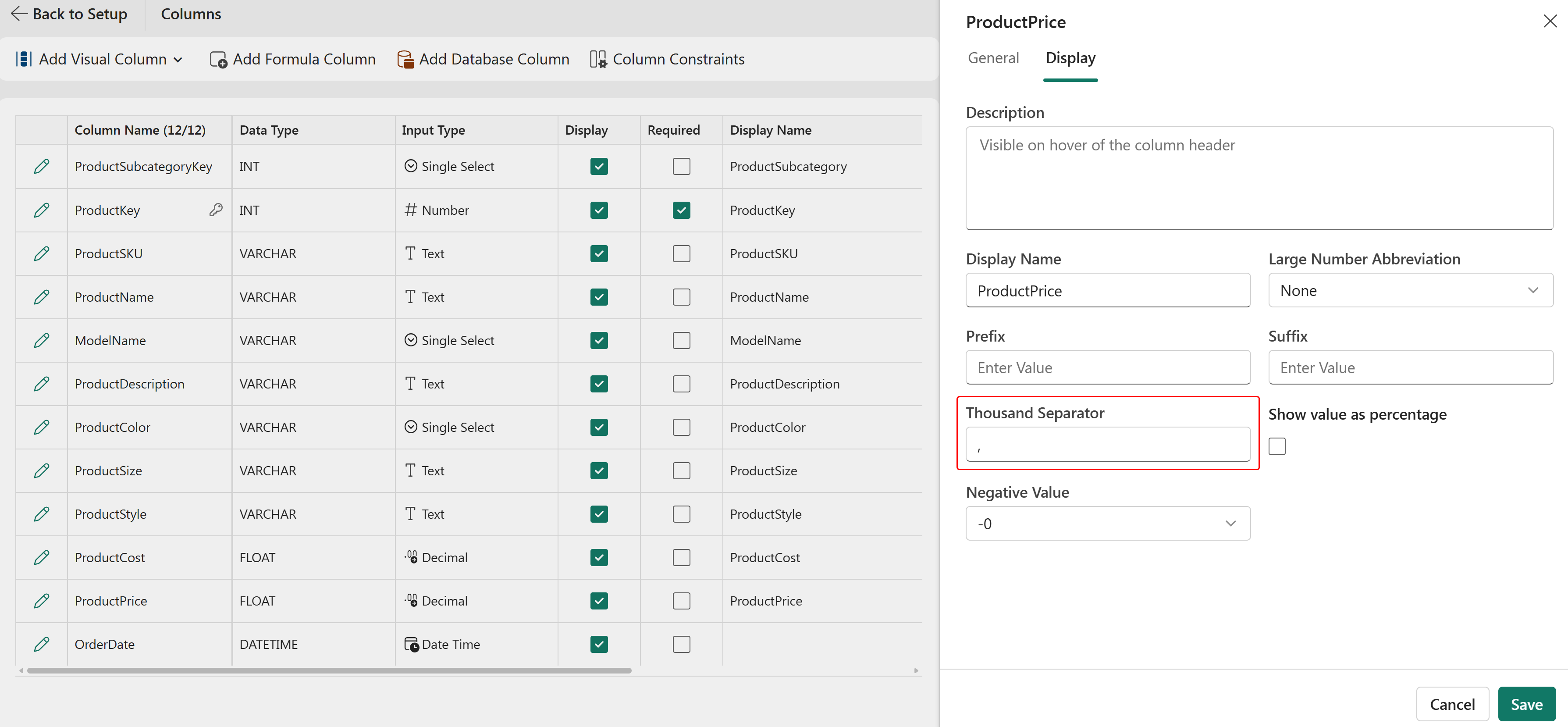
Use the Thousand Separator property to improve the readability of large numeric values.
You can configure a comma (,), period (.), or space ( ) as the separator for each group of thousands.
Use the Prefix property to add up to two characters before numeric or decimal values.
This property is commonly used for currency symbols.

Use the Suffix property to add up to two characters after numeric or decimal values.
This property is commonly used for measurement units such as kilograms (kg), centimeters (cm), or percentages (%).
In the next section, we will explore how to select and look up values from a table for a single-select field type.
Use the Large Number Abbreviation property to display large numeric values in a shortened and more readable format.
The following options are available:

This option is useful when displaying large numeric values in reports and dashboards where space is limited.
Use the Negative Value property to control how negative numbers are displayed.
The following formats are available:
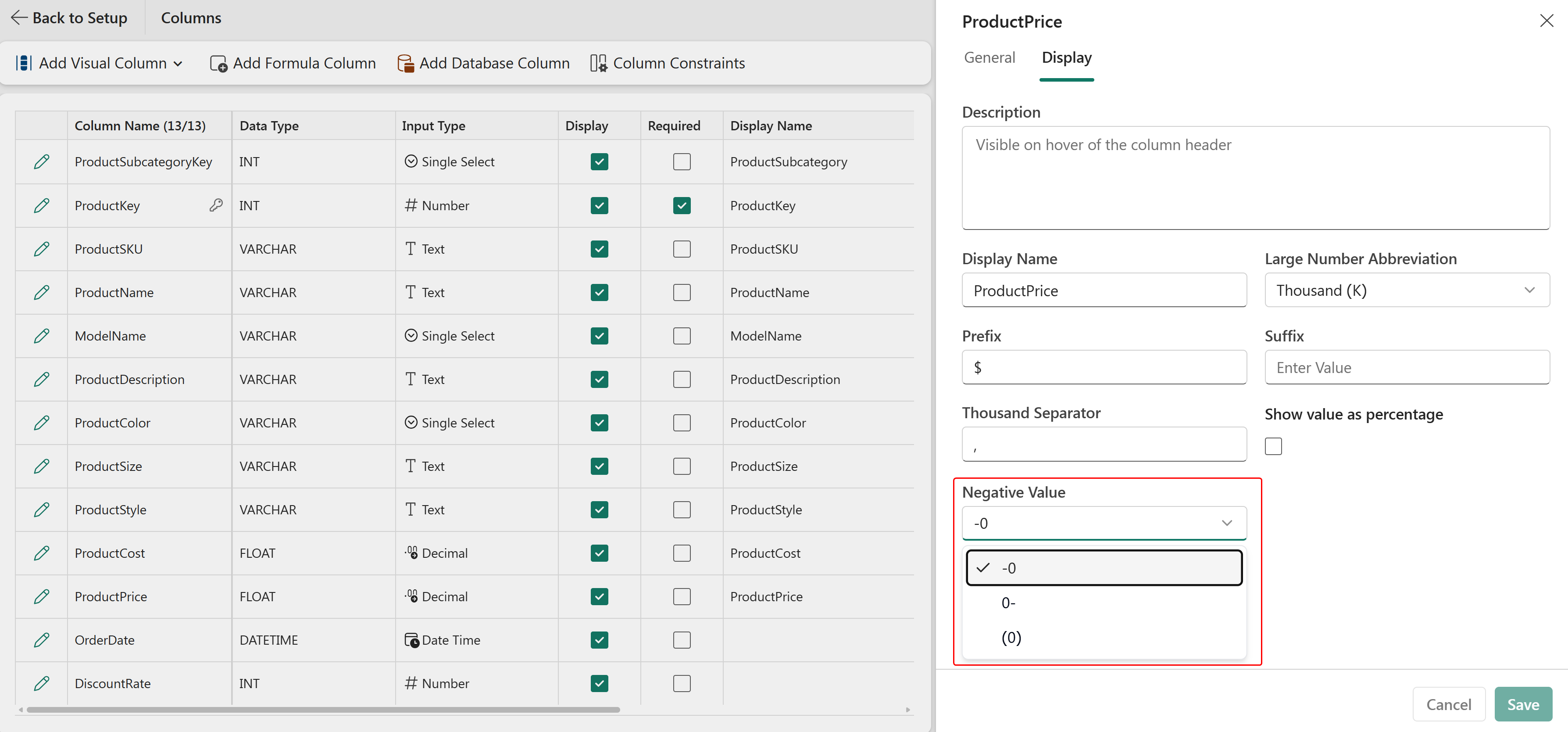
This option helps align number formatting with organizational or accounting standards.
Select the Show value as percentage checkbox to display numeric values as percentages.
When enabled, the value is automatically formatted with a percentage symbol (%). For example, a value of 25 is displayed as 25%.
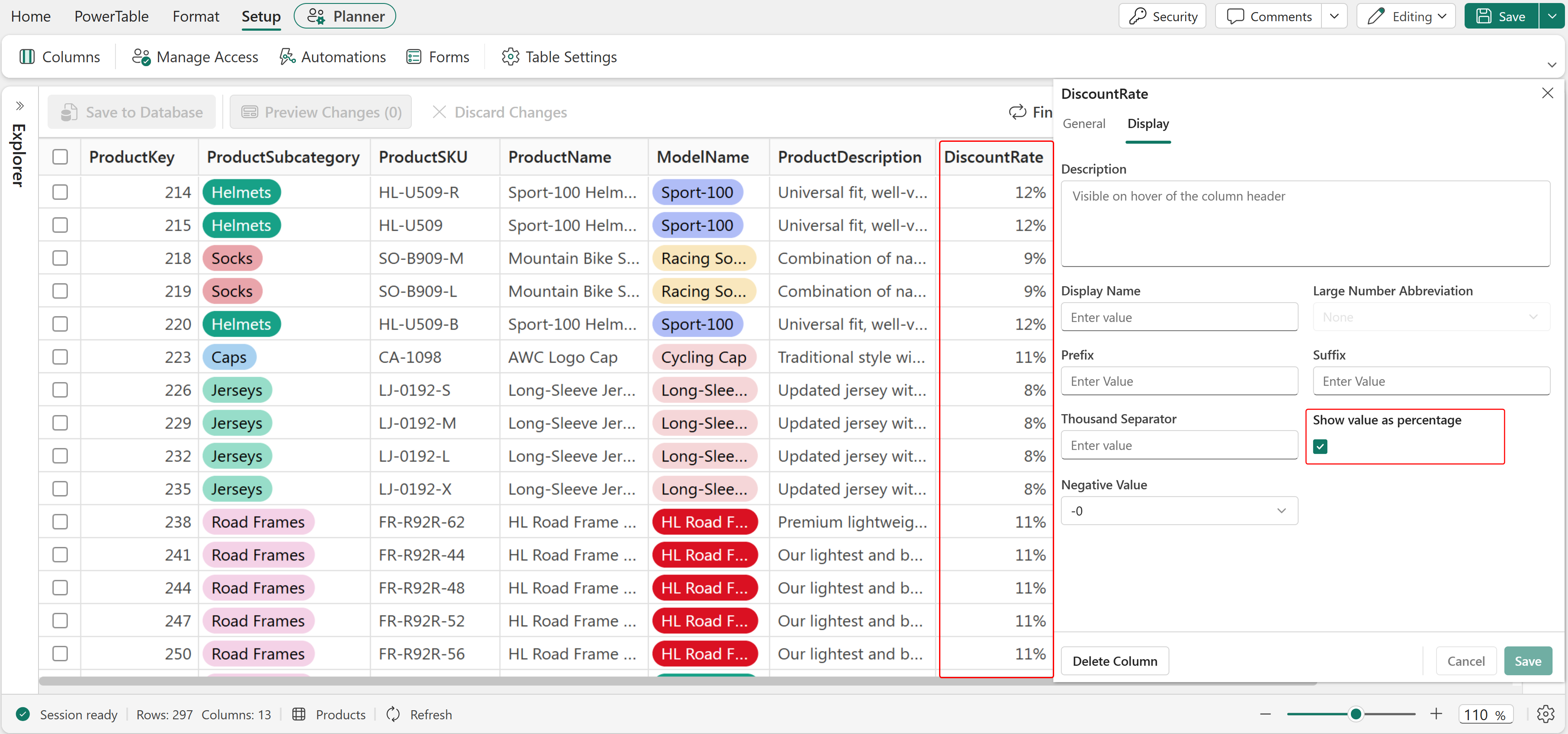
This option is useful for columns that represent rates, ratios, percentages, or other proportional values.
No. Display Name is a presentation label on the Display tab. It changes only how the column name appears in the PowerTable sheet and doesn't rename the physical column in the database.
The Description field provides text that appears when a user hovers over the column header.
Use this field to provide:


