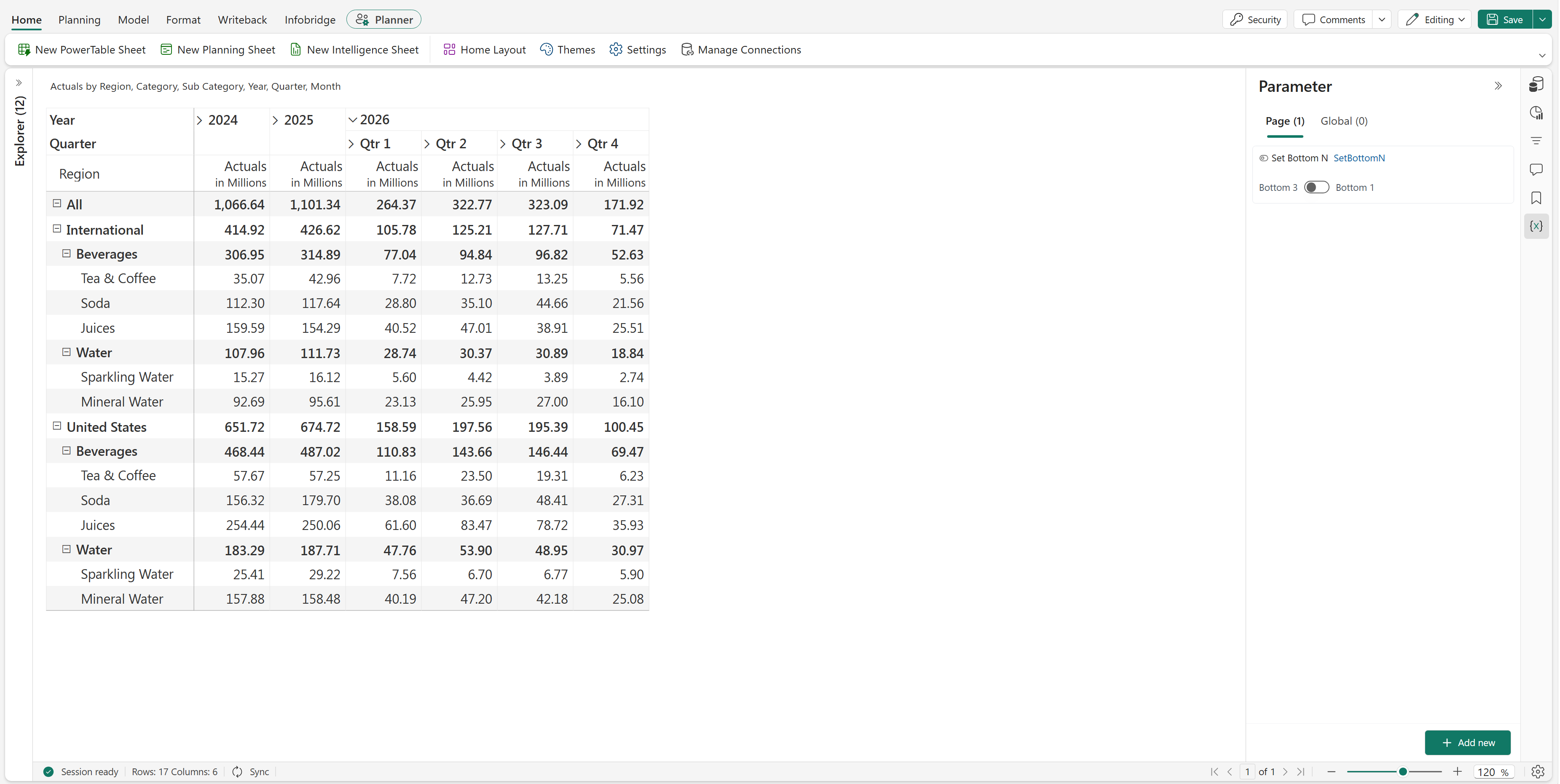
Use SETBOTTOMN to display the bottom N records for a category in a planning sheet. Configure the function in a parameter action to let users switch between different bottom-N views.
SETBOTTOMN(category, number, boolean)The following table describes the parameters that the SETBOTTOMN function accepts.
| Parameter | Description |
|---|---|
| category | The category to rank and filter. Select the relevant category field from the available references. |
| number | The number of bottom records to display. For example, use 1 to display the lowest-ranked record or 3 to display the bottom three records. |
| boolean | A Boolean value that enables or disables bottom-N ranking. Use TRUE to enable ranking and FALSE to disable ranking. |
Use a toggle parameter to switch between the bottom one and bottom three records for the Sub-Category category in a planning sheet. Configure the parameter actions as follows.
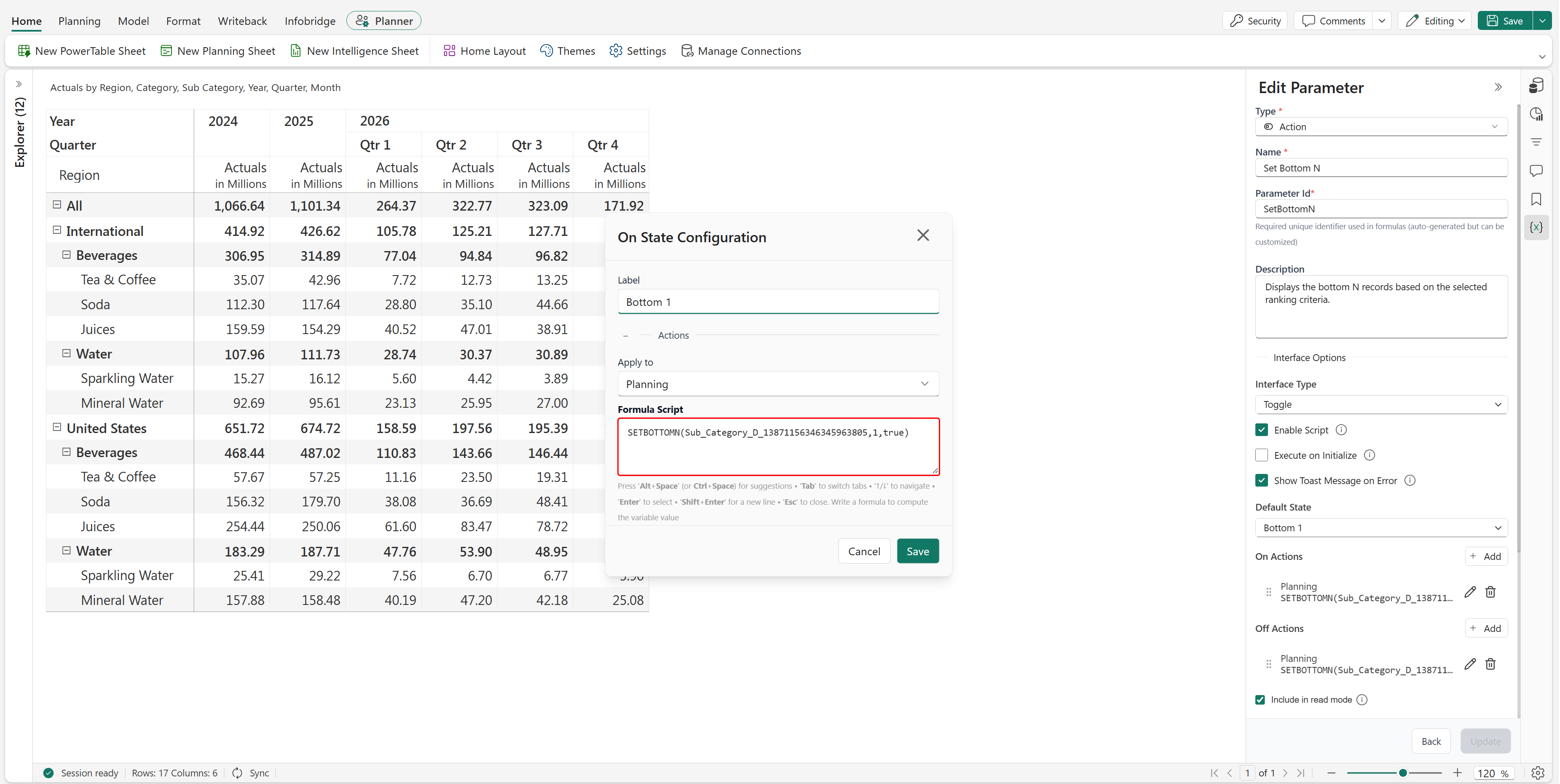
In On State Configuration, set Label to Bottom 1. Set Apply to to Planning, and enter the following formula in Formula Script:
SETBOTTOMN(Sub_Category_D_13871156346345963805, 1, TRUE)
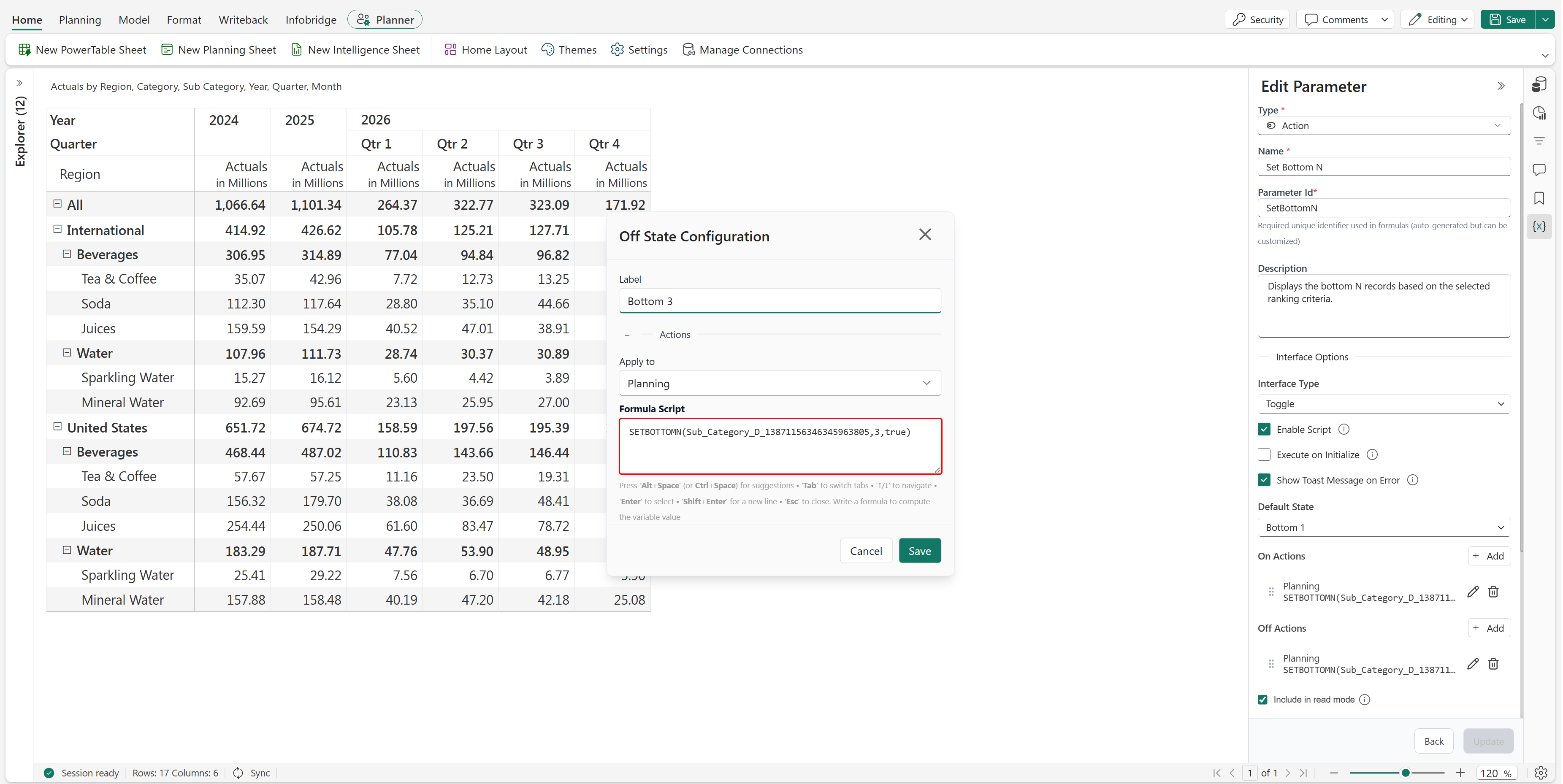
In Off State Configuration, set Label to Bottom 3. Set Apply to to Planning, and enter the following formula in Formula Script:
SETBOTTOMN(Sub_Category_D_13871156346345963805, 3, TRUE)
Set Default State to Bottom 1, and save the parameter.
When the toggle is set to Bottom 1, the planning sheet displays the lowest-ranked subcategory records within each parent category.
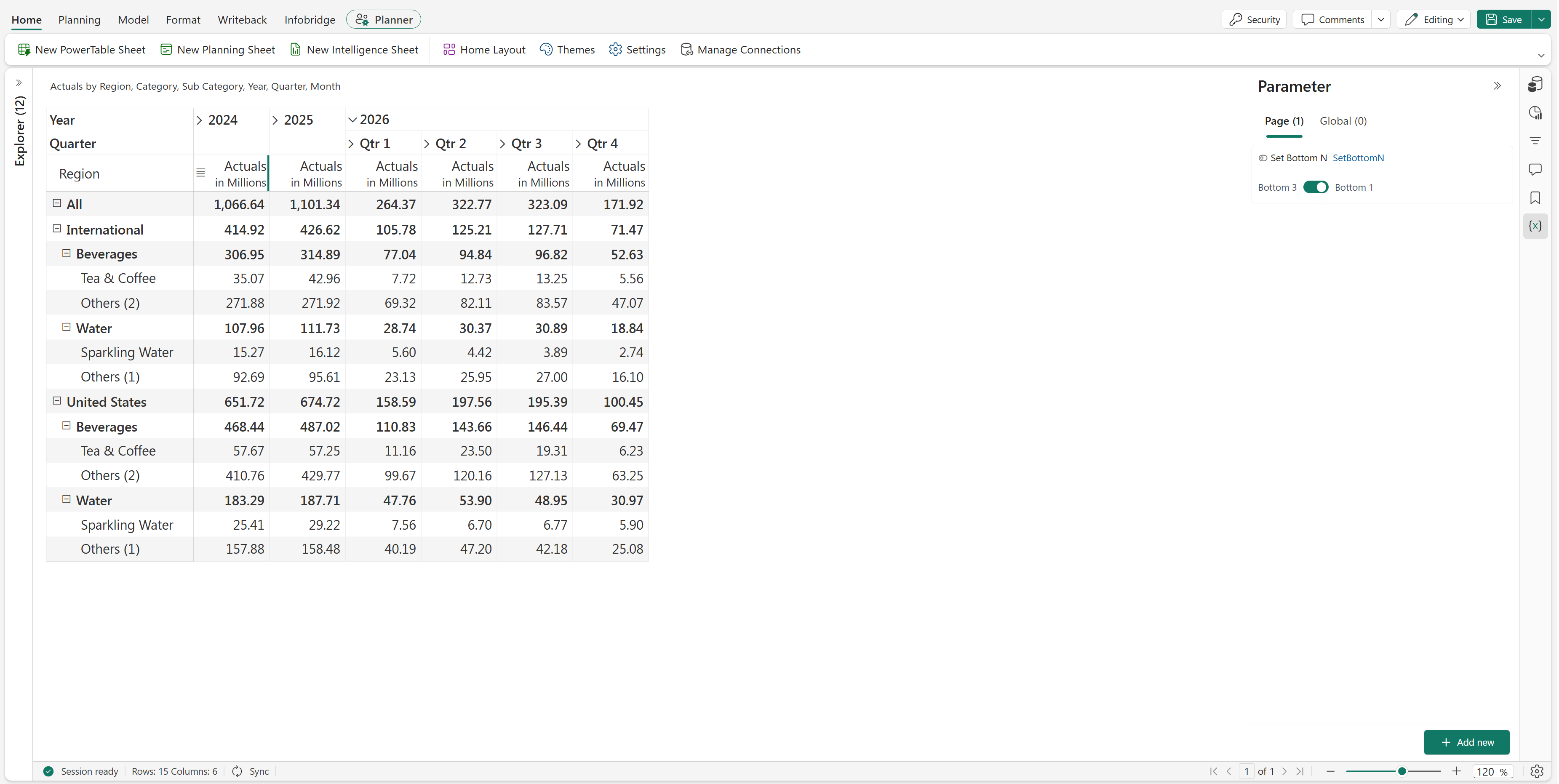
When the toggle is set to Bottom 3, the planning sheet displays the three lowest-ranked subcategory records within each parent category.