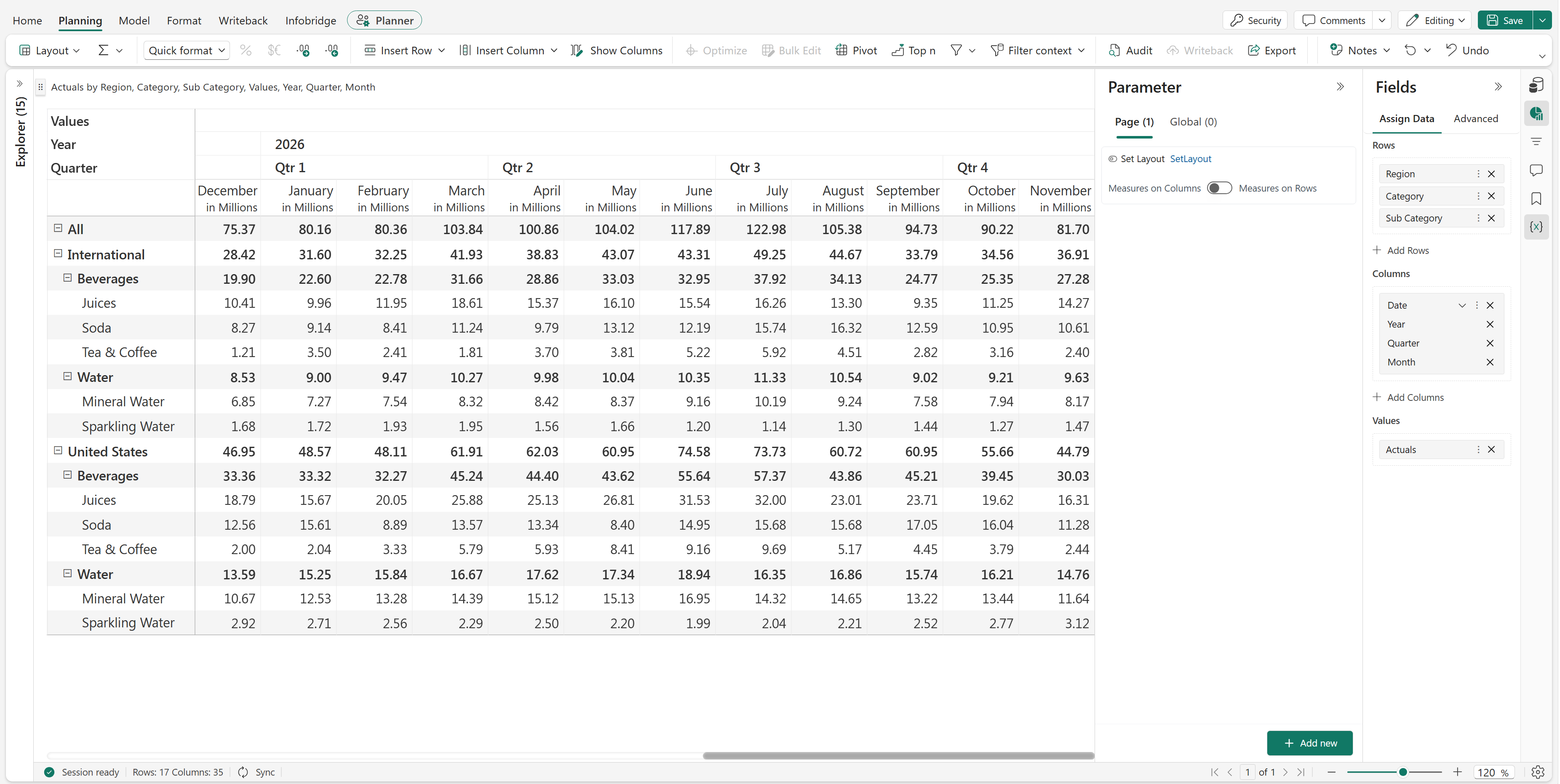
Use SETLAYOUT to apply a layout to a planning sheet. The function supports hierarchy, table, tree, default, measures-on-rows, and measures-on-columns layouts.
SETLAYOUT(LAYOUT.layoutType)The following table lists the layout references available for the layoutType parameter.
| Parameter | Description |
|---|---|
| LAYOUT.HIERARCHY | Applies the Hierarchy layout. |
| LAYOUT.TABLE | Applies the Table layout. |
| LAYOUT.TREE | Applies the Tree layout. |
| LAYOUT.DEFAULT_LAYOUT | Applies the default layout. |
| LAYOUT.MoR | Displays measures on rows. |
| LAYOUT.MoC | Displays measures on columns. |
Use the following formulas to apply the required layout to a planning sheet.
To apply the Hierarchy layout:
SETLAYOUT(LAYOUT.HIERARCHY)To apply the Table layout:
SETLAYOUT(LAYOUT.TABLE)To apply the Tree layout:
SETLAYOUT(LAYOUT.TREE)To apply the default layout:
SETLAYOUT(LAYOUT.DEFAULT_LAYOUT)To display measures on rows:
SETLAYOUT(LAYOUT.MoR)To display measures on columns:
SETLAYOUT(LAYOUT.MoC)The following example configures a toggle parameter that switches between displaying measures on rows and columns.
Configure the On State with the label Measures on Rows. Set Apply to to Planning, and enter the following formula in Formula Script:
SETLAYOUT(LAYOUT.MoR)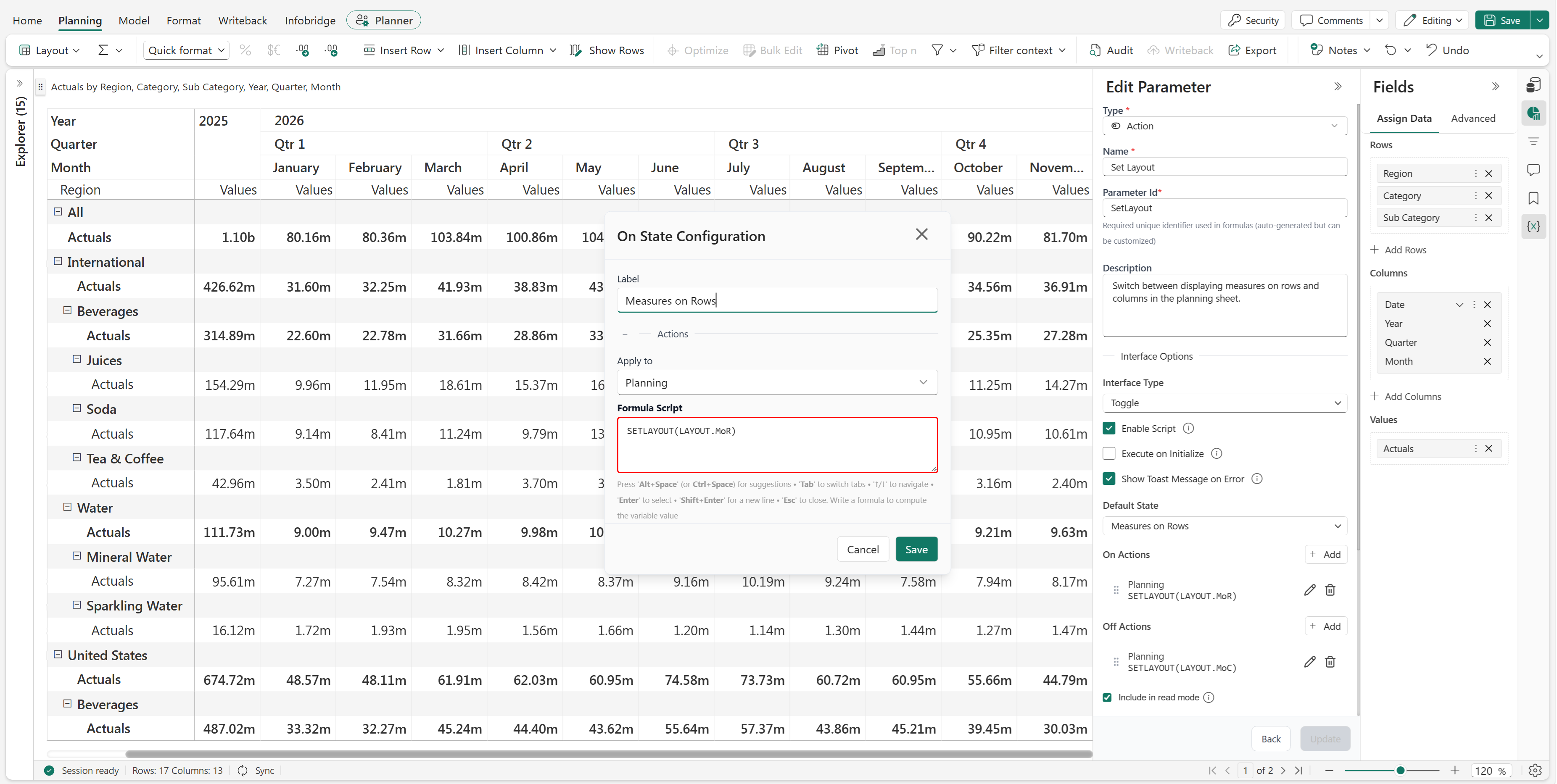
Configure the Off State with the label Measures on Columns. Set Apply to to Planning, and enter the following formula in Formula Script:
SETLAYOUT(LAYOUT.MoC)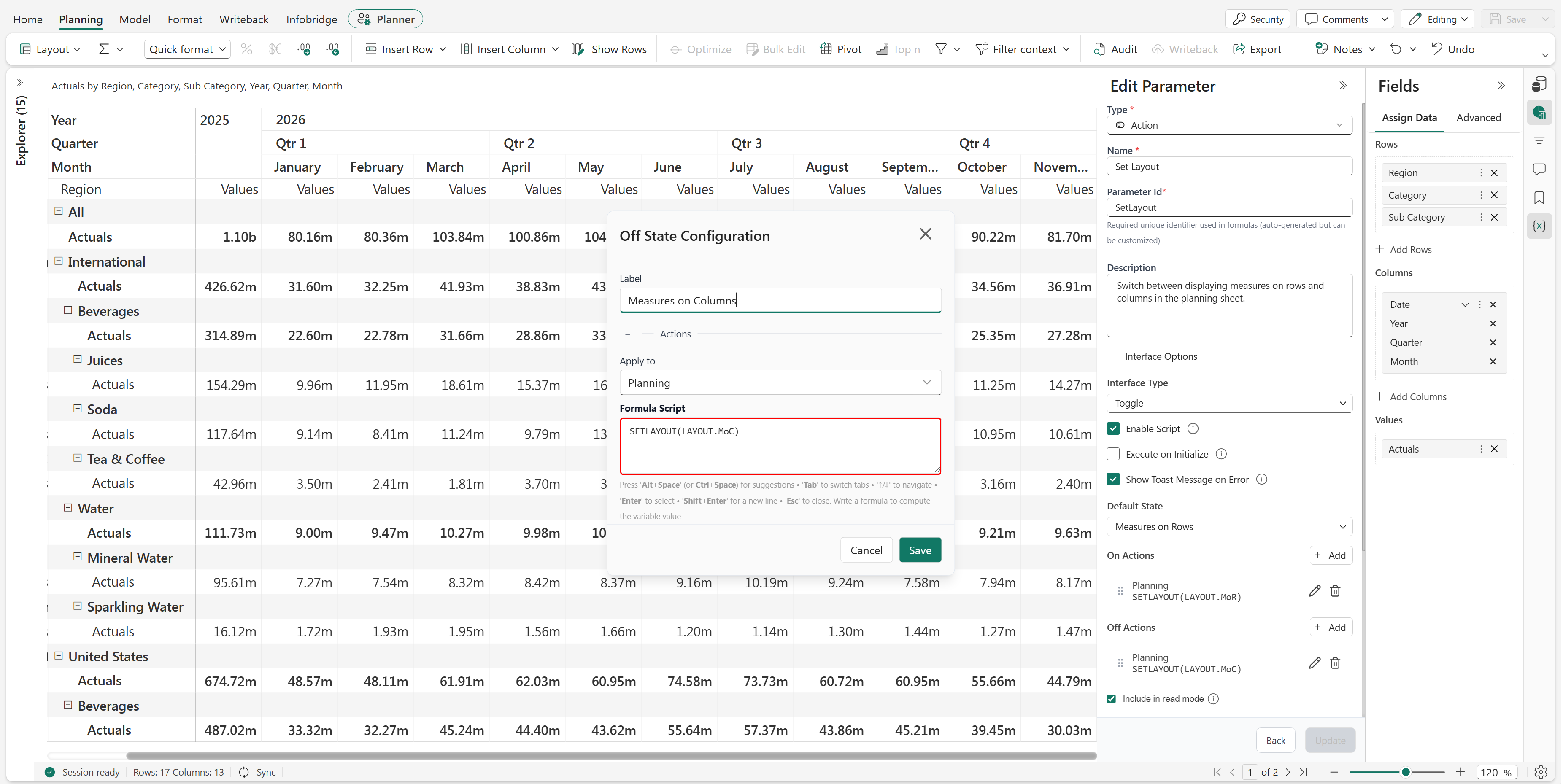
When the toggle is set to Measures on Rows, the planning sheet displays each measure as a row within the row hierarchy.
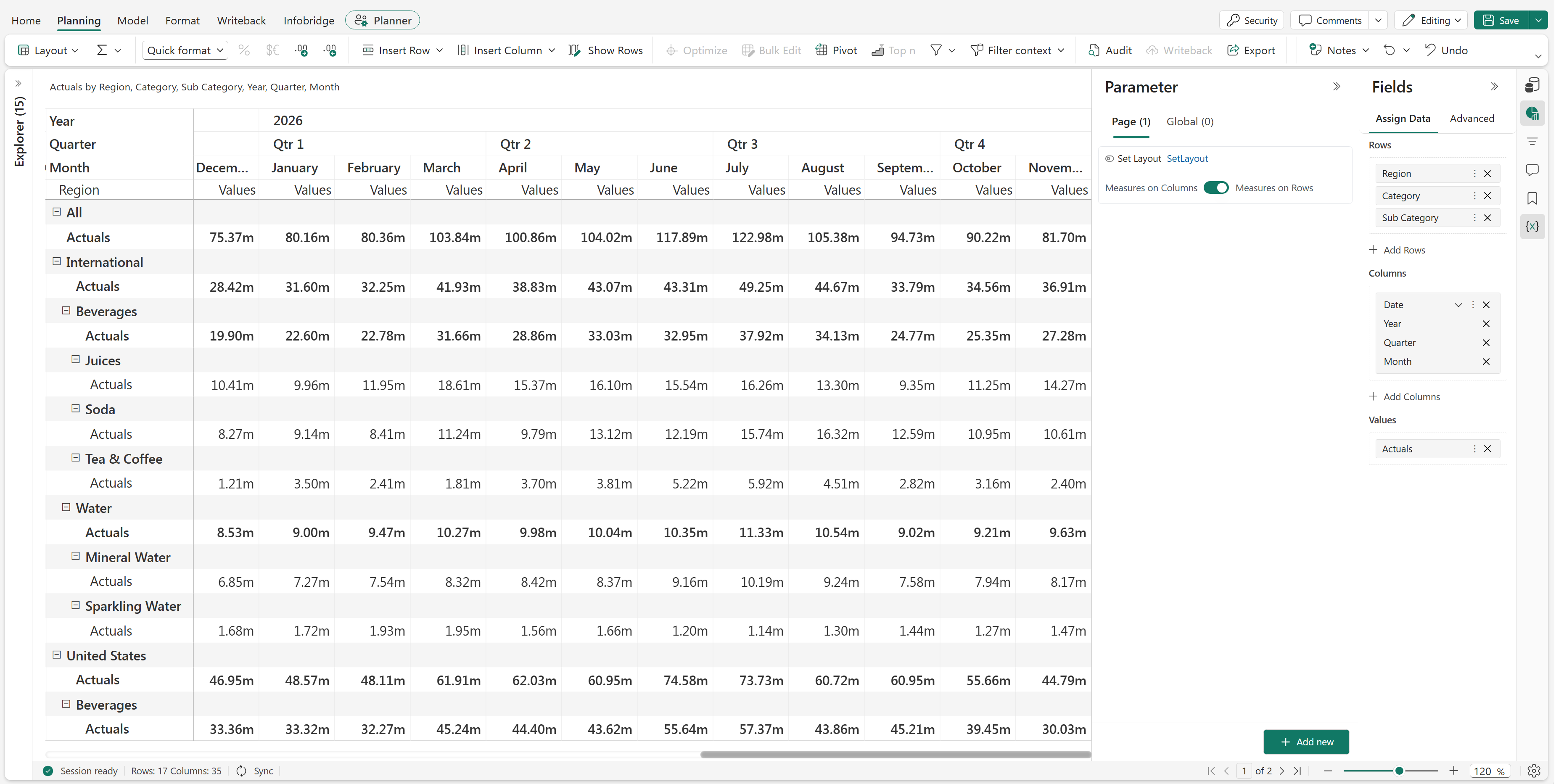
When the toggle is set to Measures on Columns, the planning sheet displays measure values across columns.