Configuring column properties helps ensure data accuracy and consistency in the database. By defining appropriate data types, constraints, default values, and relationships, you can prevent data-entry errors and maintain data integrity.
Column properties also help improve the usability, maintainability, and scalability of your tables by controlling how data is displayed and managed.
In this article, you learn how to access and configure column properties in a powertable sheet.
Column properties control various aspects of a column, including:
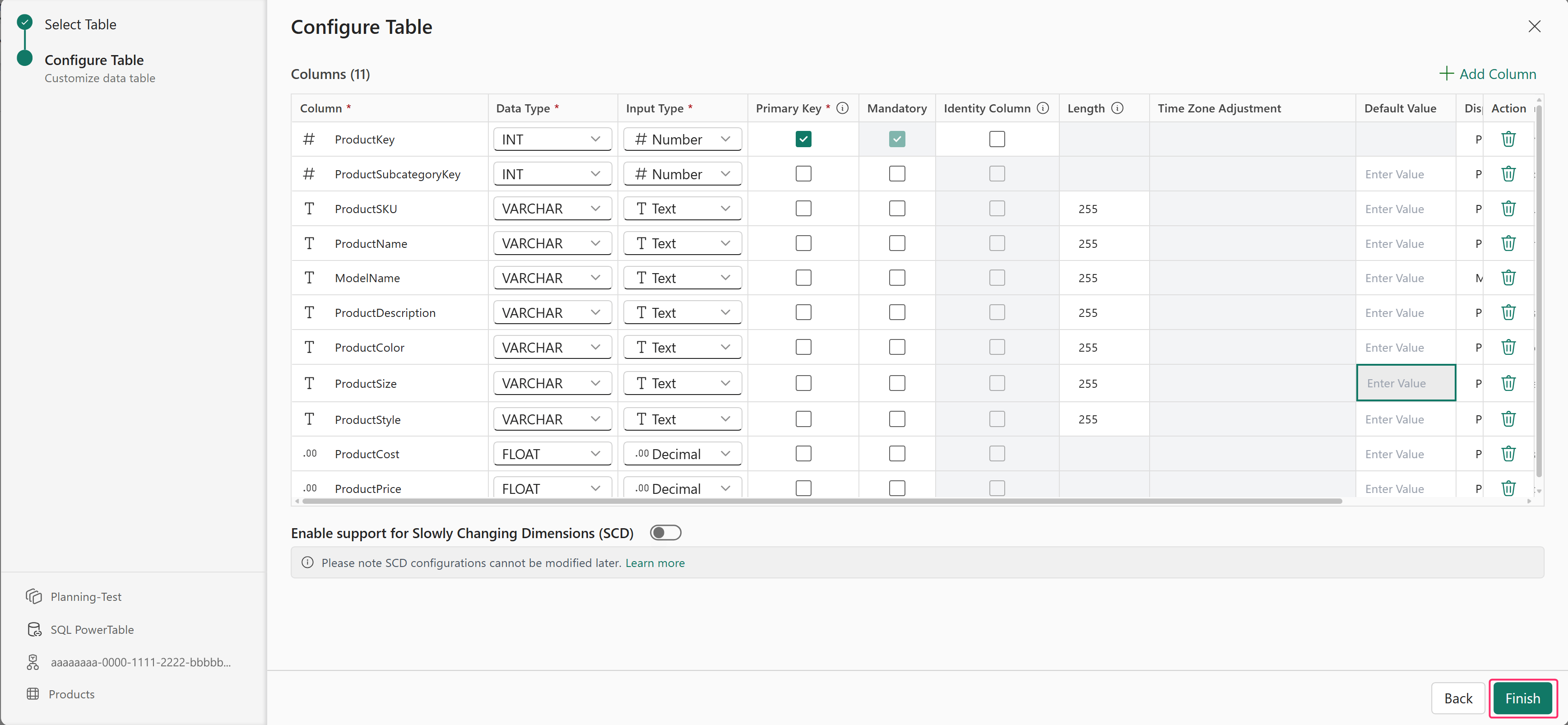
After loading data into the powertable sheet, you can configure column properties any time in the Columns section.
To access column properties:
Select Setup > Columns.
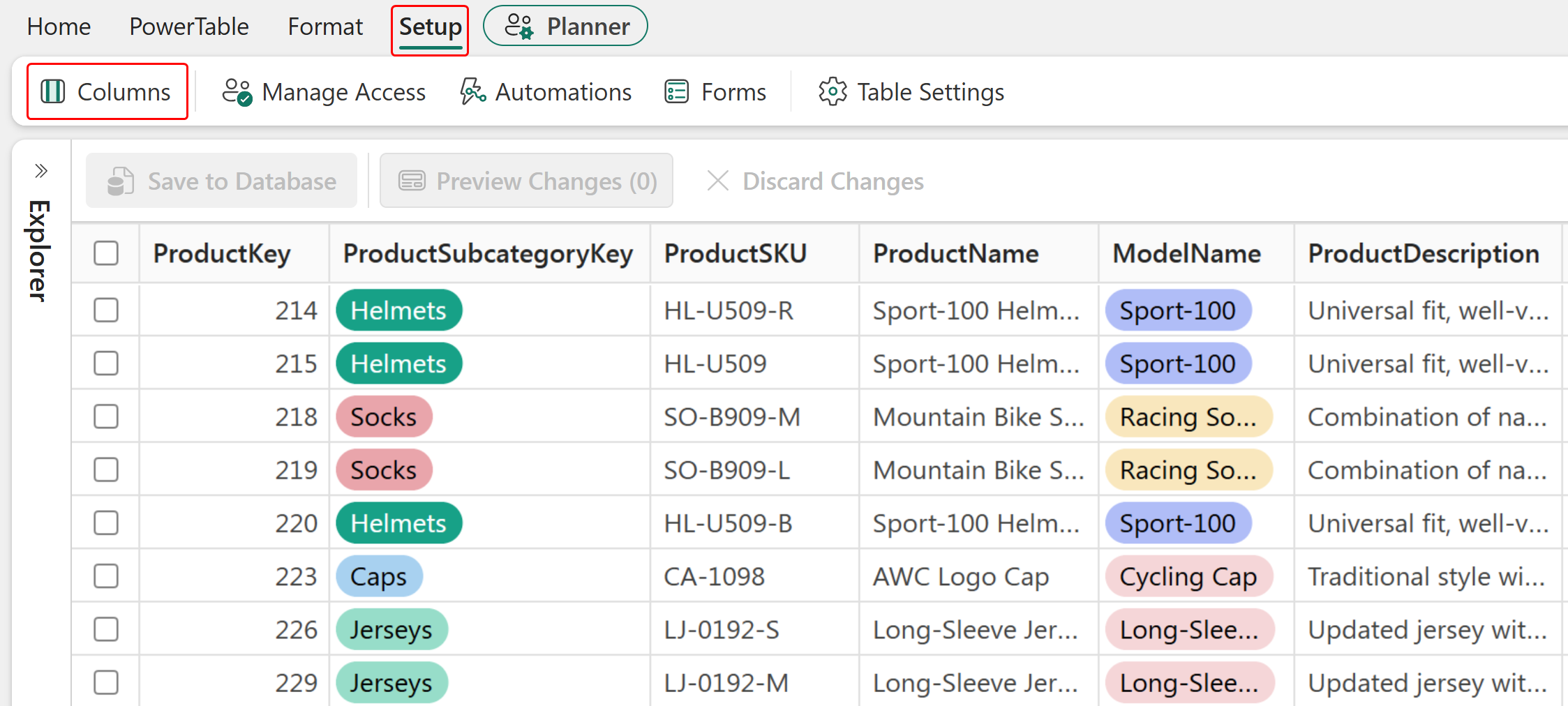
Alternatively, you can also go to PowerTable ribbon and select Manage Columns > Edit Config.

The Column Setup window opens as shown below.

To add a new column to the table, use the Add Visual Column, Add Formula Column, or Add Database Column options available in the column setup window.
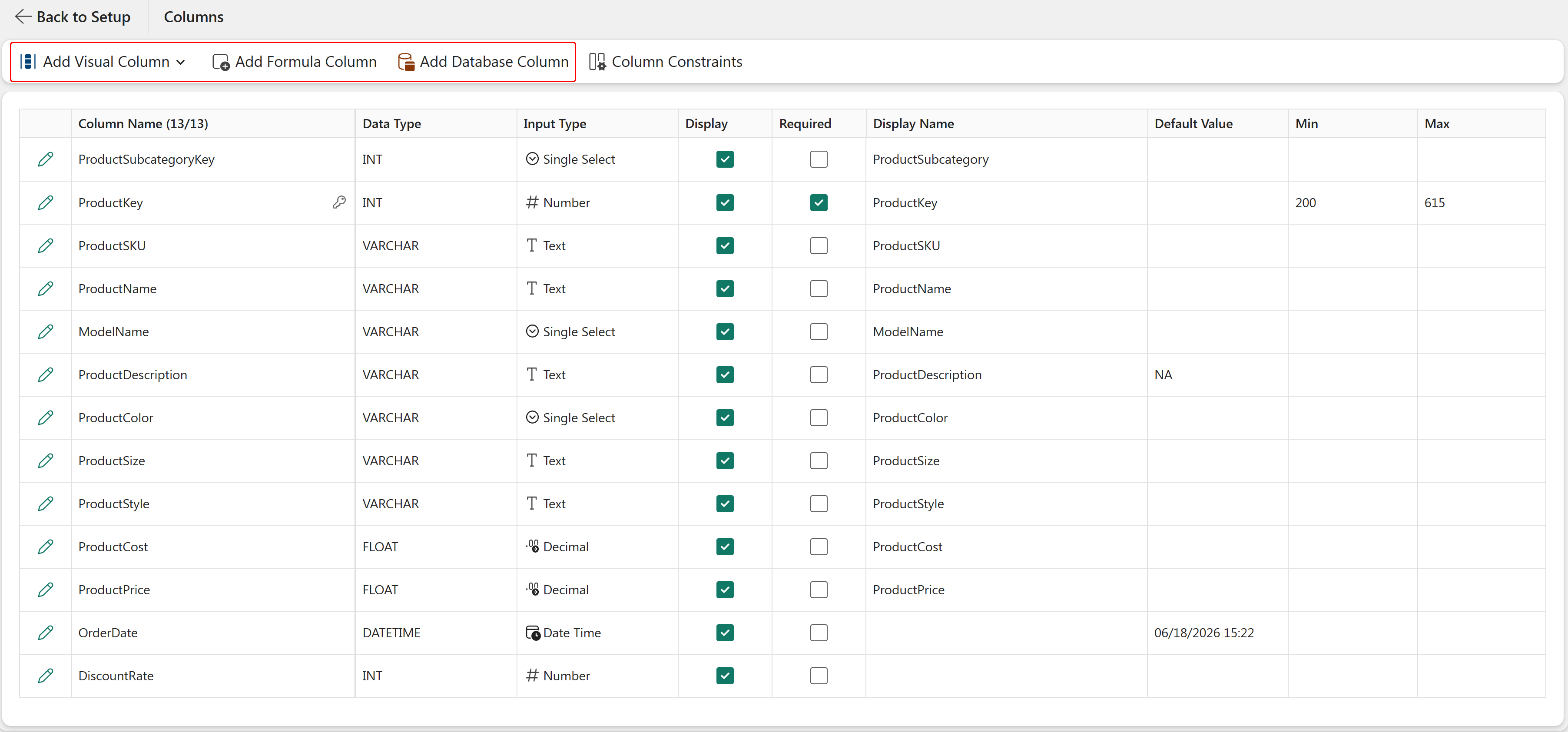
For more information about these column types, see Add Columns Overview.
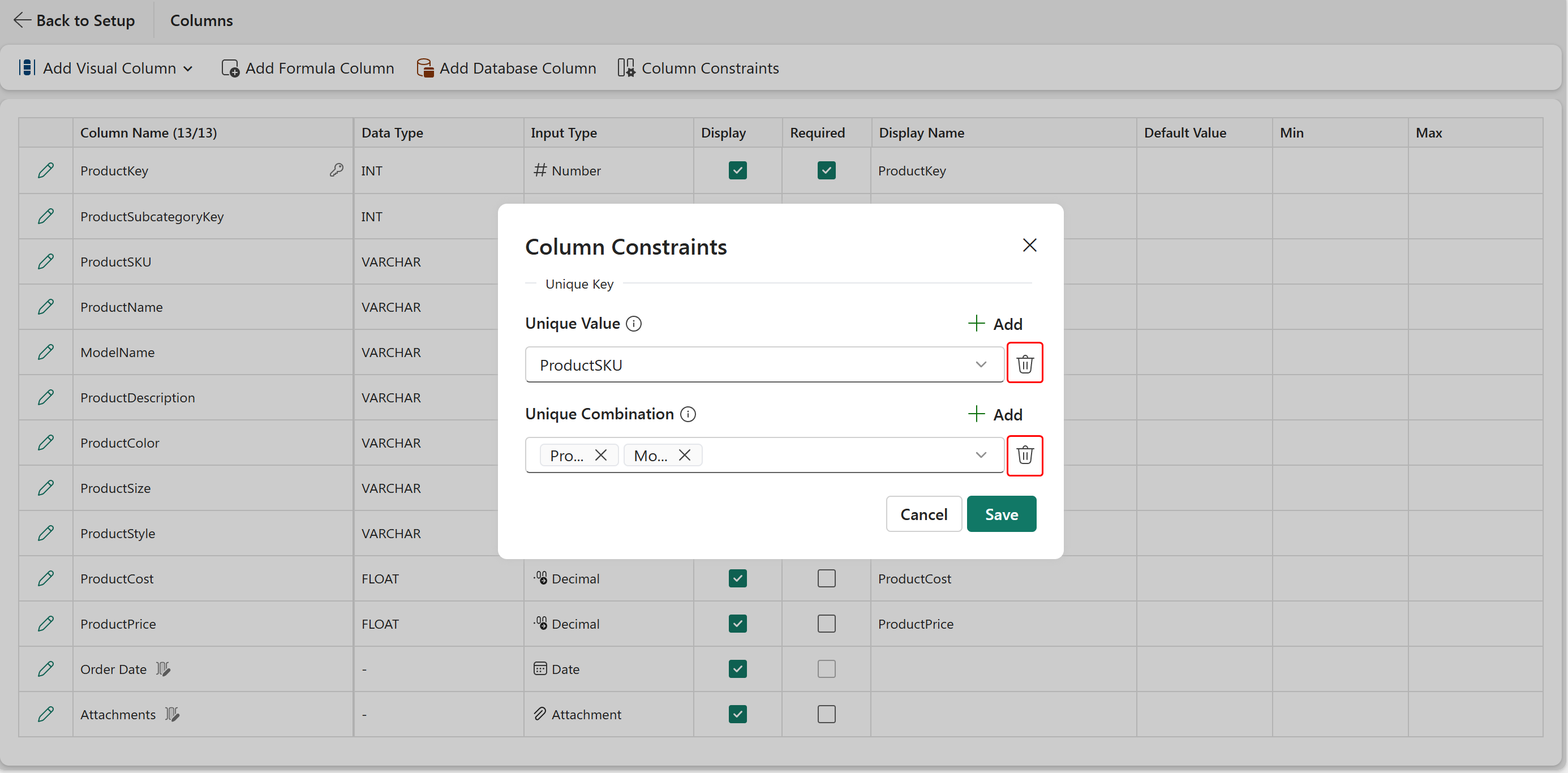
PowerTable allows you to configure column constraints without writing code. You can apply a unique constraint to a single column or define a composite unique constraint across multiple columns to ensure that each value or combination of values remains unique. Unique constraints help maintain data integrity by preventing duplicate values.
To configure column constraints:
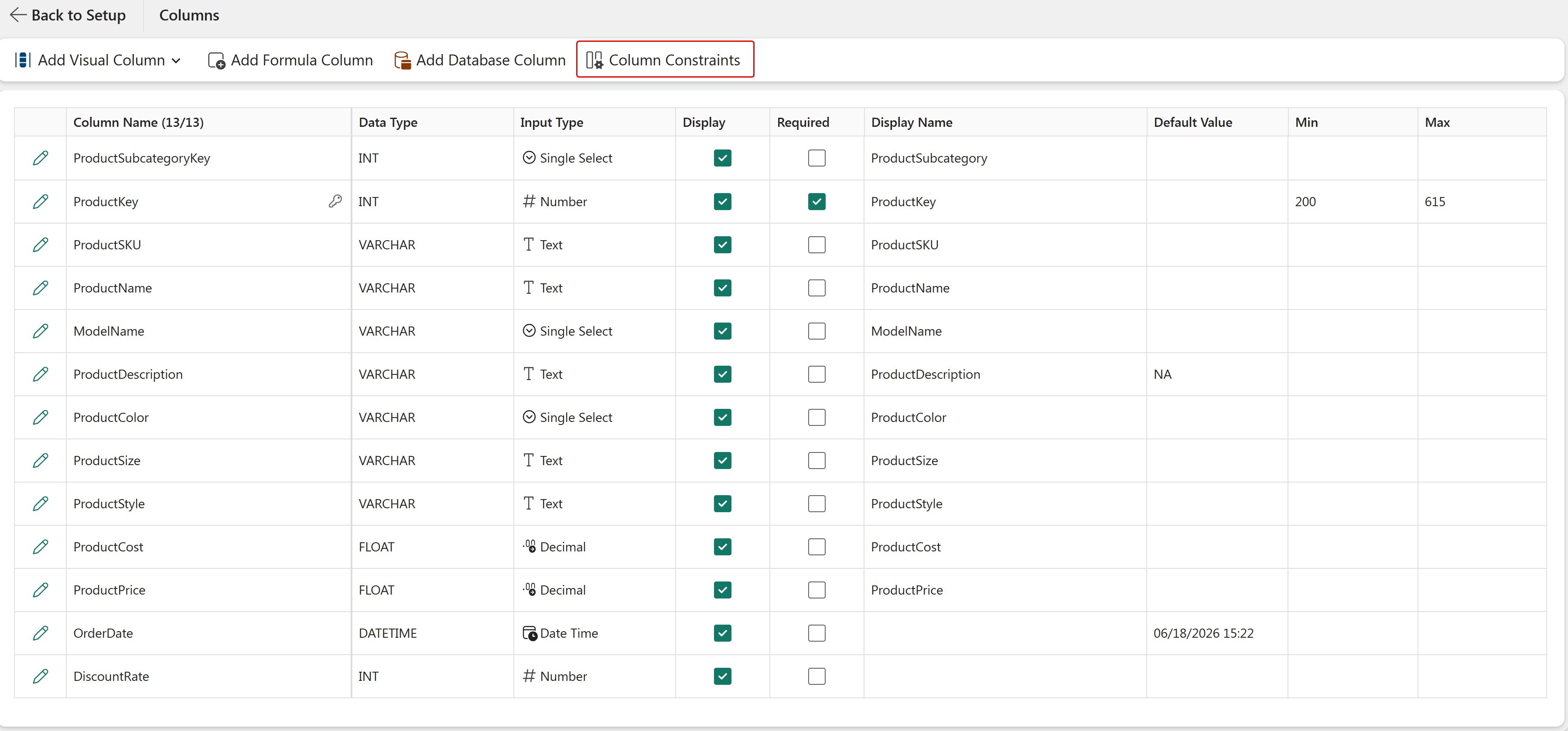
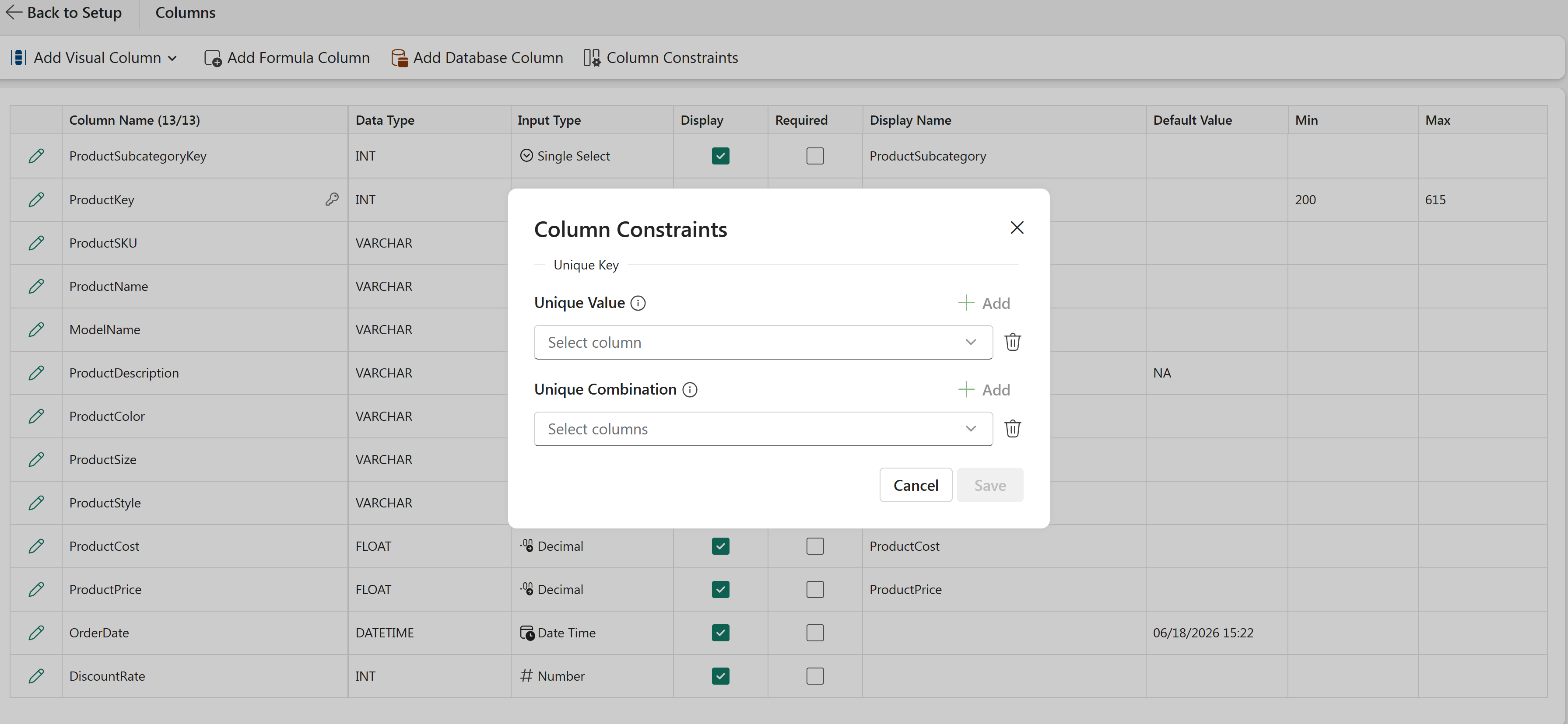
Use the Unique Value option to ensure that all values in a selected column are unique.
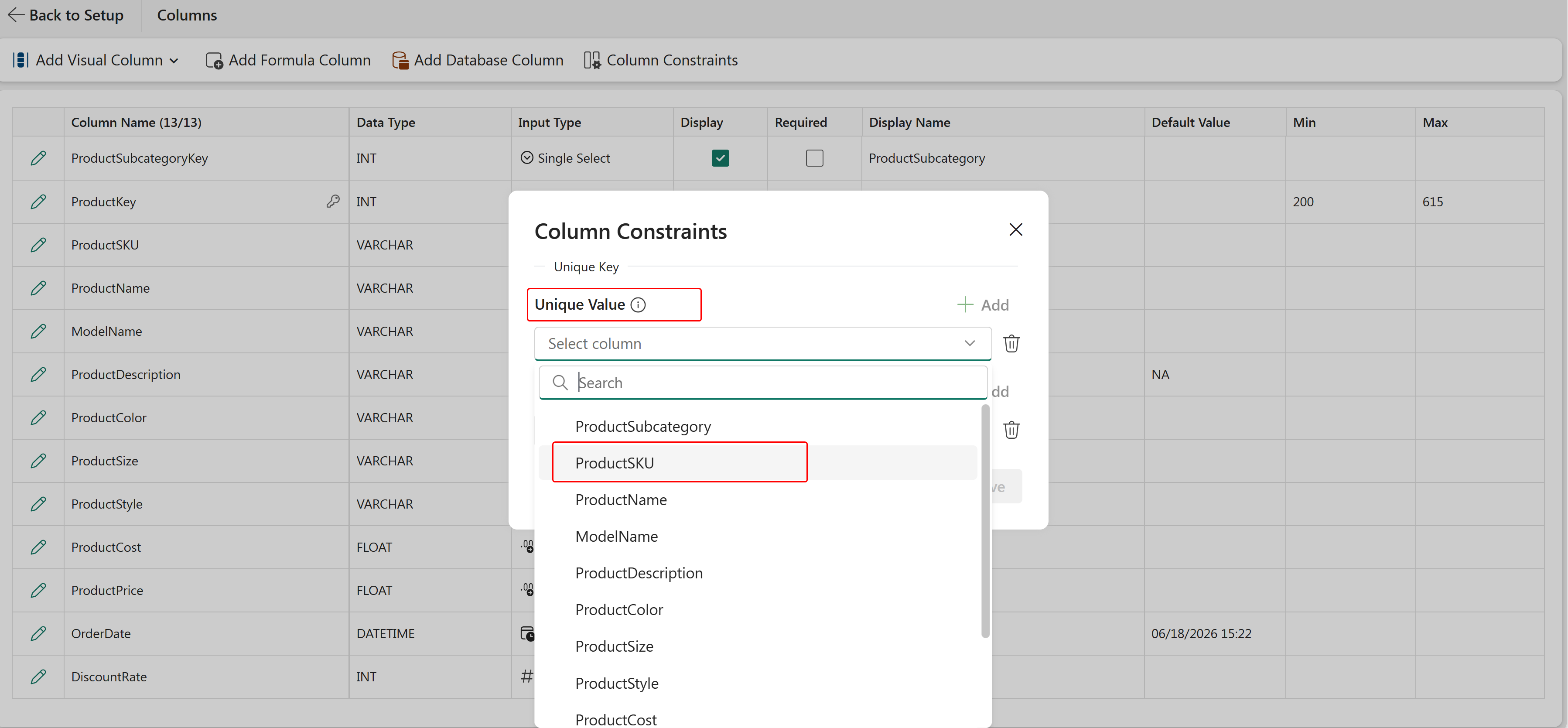
Under Unique Value, select a column from the dropdown list.
Select Save.
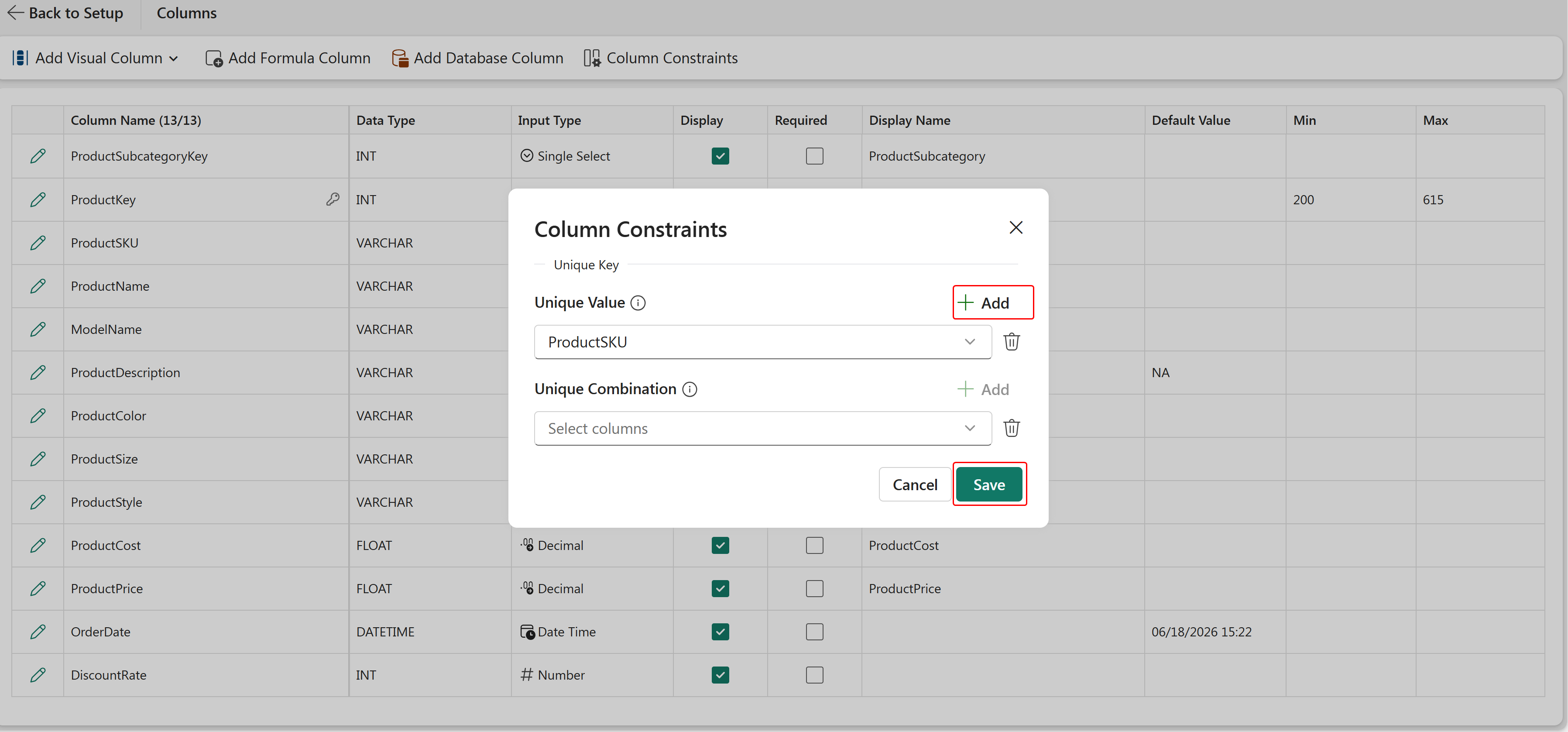
After the constraint is applied, users cannot enter duplicate values in the selected column.
For example, if ProductSKU is configured as a unique column, users cannot enter a SKU value that already exists in the table.
Primary key columns are not listed in the Unique Value dropdown because they are unique by default.
If a selected column already contains duplicate values, PowerTable sheet displays an error and does not allow the constraint to be saved until the duplicate values are removed.
Use Unique Combination to ensure that a specific combination of values across multiple columns remains unique.
Select Save.
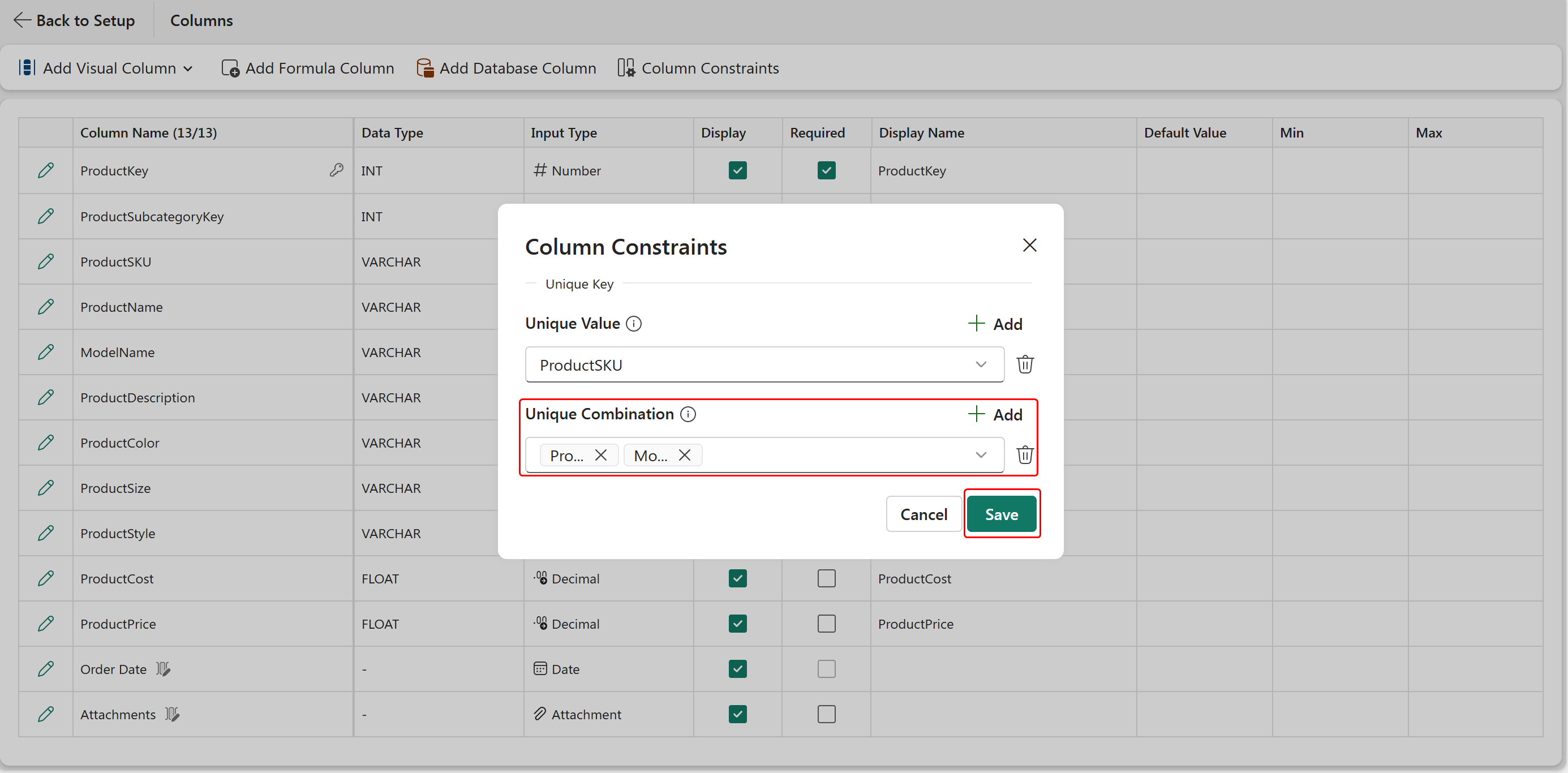
Columns configured with a Unique Value constraint are unavailable for selection in the Unique Combination constraint.
After the constraint is applied, users cannot enter records that duplicate an existing combination of values in the selected columns.
For example, if ModelName and ProductName are configured as a unique combination, each ModelName - ProductName pair must be unique. Users can reuse an individual value in either column, but the same combination of values cannot exist more than once.
If a user attempts to enter a duplicate combination, PowerTable sheet displays a validation error and prevents the record from being saved.
To remove a configured constraint, select the Delete icon next to it.
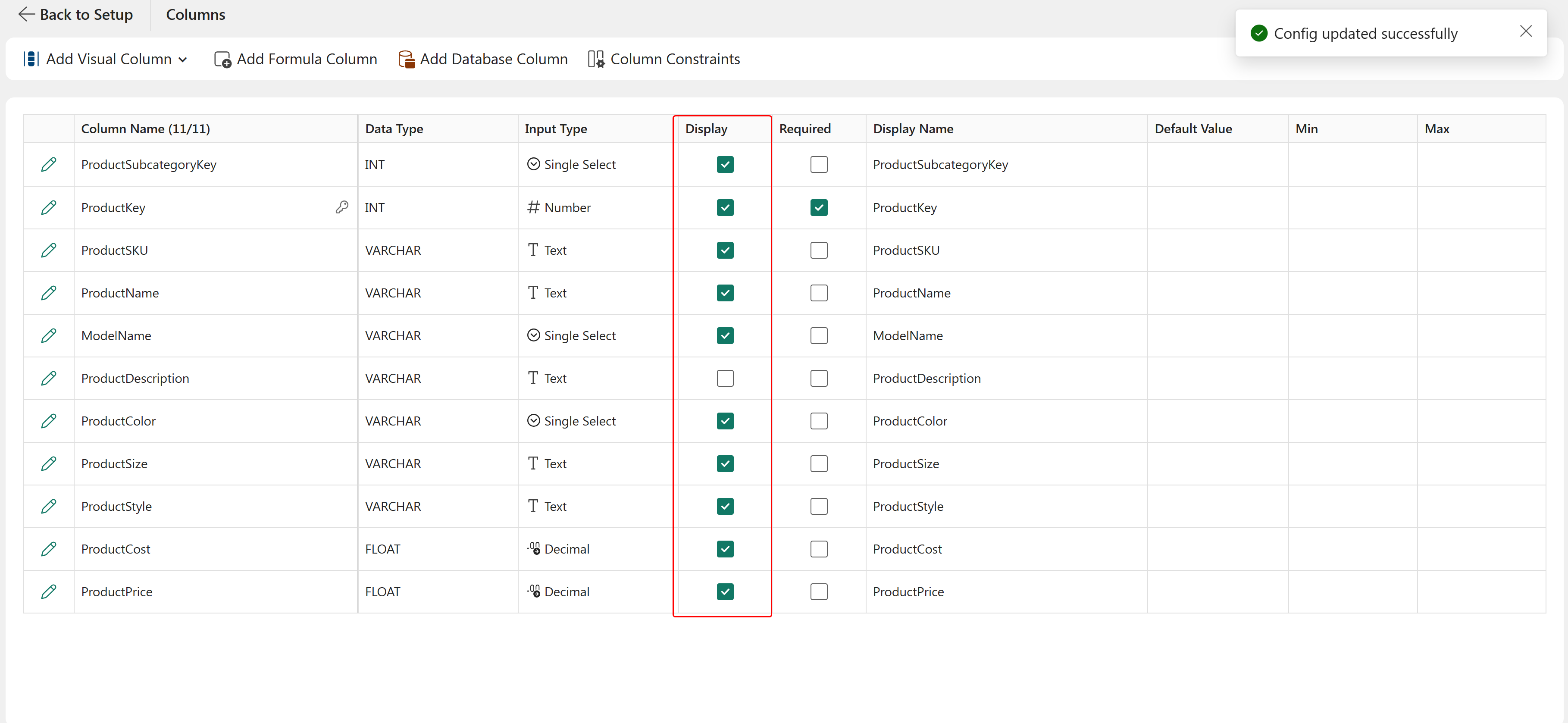
Use the Display option to control whether a column is visible in the table.
Clear the Display checkbox to hide a column while retaining its data in the table. This option is useful when a column contains information that should be available but does not need to be displayed to users.
To adjust column widths, drag the column header boundary or configure the width through Manage Columns option on the toolbar.
Use the Required option to specify whether a column must contain a value. When enabled, users must provide a value before a record can be saved. When disabled, the column can be left blank.
Primary key and business key columns are typically configured as required fields.

To configure or modify a column's properties:
Select the pencil icon next to the column or double-click the column name.

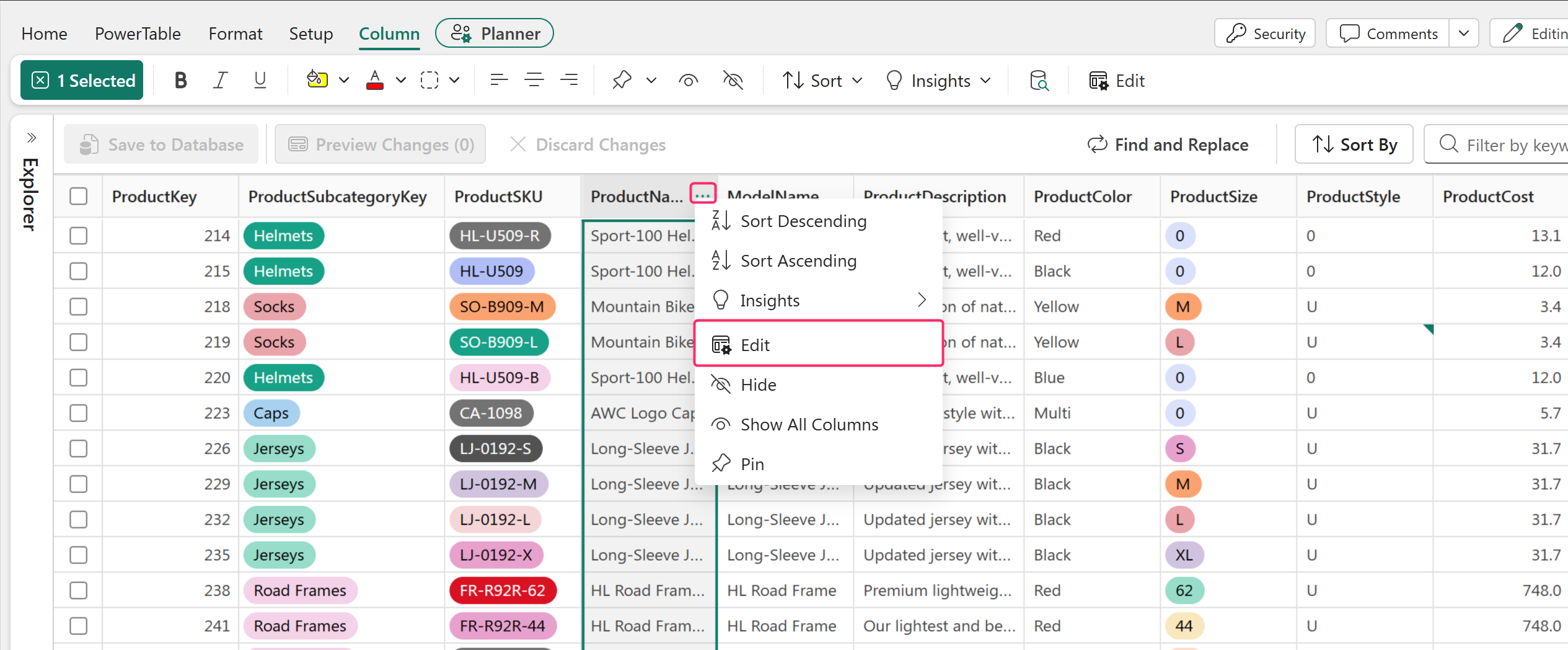
To edit the properties of a specific column directly from the table, select the column header menu and then select Edit.
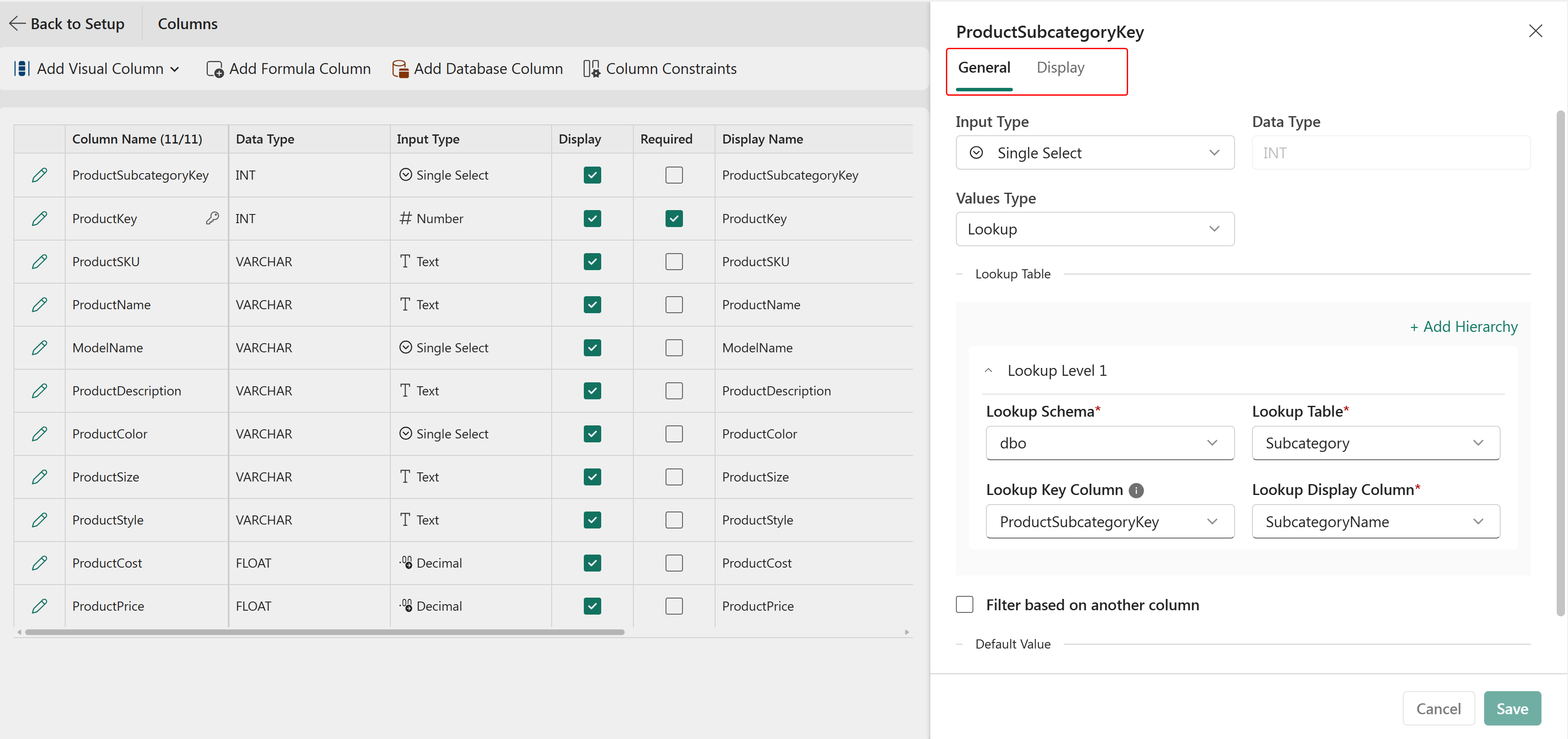
Column properties are grouped into the following categories:
Display - Configure the Display name and Description for a column. For numeric columns, additional formatting options are available, including the Prefix, Suffix, Thousand Separator and other number formatting settings.
The following sections describe each property in detail.


